
Upload a bill and review what Qix read
Upload one vendor document, compare the extracted information with the original, and retry failed extraction.
- Who can do this
- Owners, or people with Create bills and View bills
- Where
- Purchases, then Bill inbox
- You'll need
- One PDF, JPG, JPEG or PNG, no larger than 5 MB
On this page
Upload a vendor invoice to fill in a bill for review. Owners have access. Staff need Create bills to upload and View bills to open the inbox and result.
Upload the document
- Open Purchases, then Bill inbox.
- Select Choose or drop an invoice here.
- Choose the file.
- Select Upload & Extract.
- Wait for the result to appear.
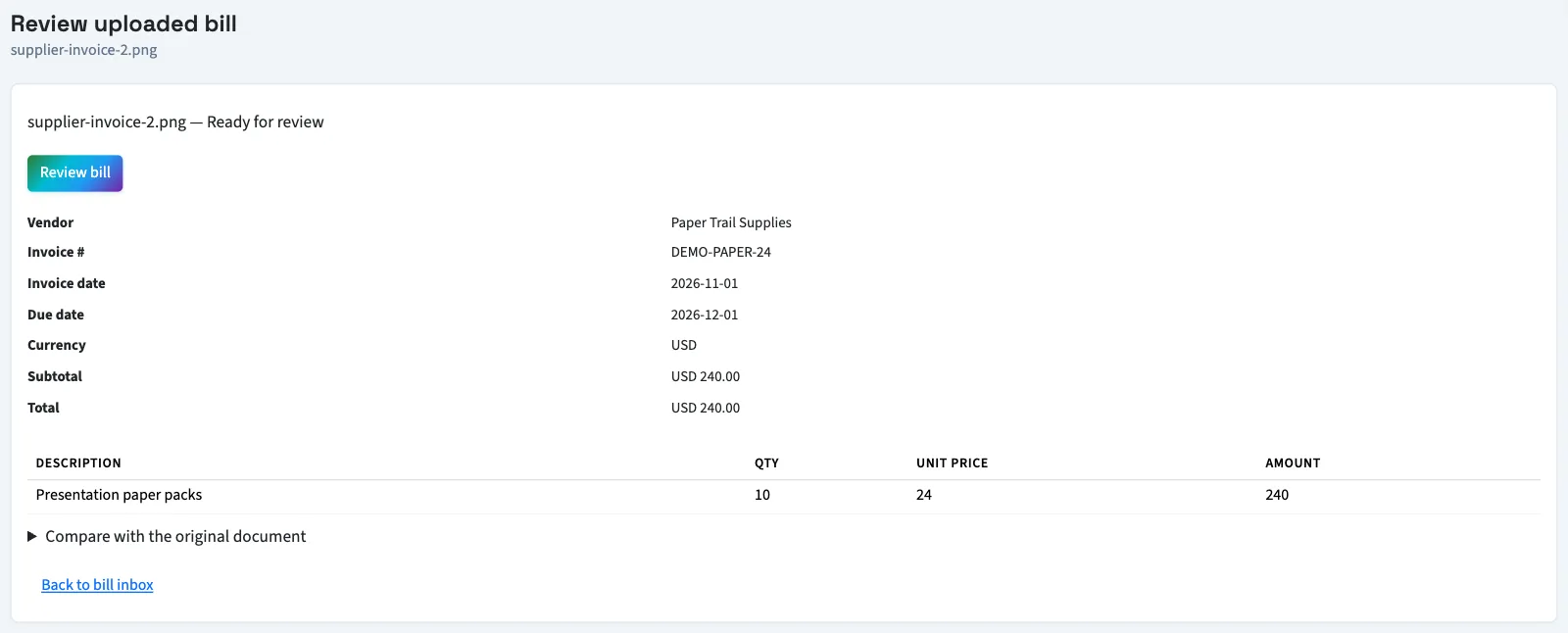
Check what was read
- Review the vendor, invoice number, dates, totals, and line items.
- Open Compare with the original document.
- Select Open original in a new tab to compare the source at full size.
- Select Review bill when you are ready to correct and save the bill form.
Confidence measures extraction certainty. It does not confirm that the document is correct or that it should be paid. Missing information must be filled in on the bill form.
For a receipt, Qix may show a possible existing bill match. Review that bill before creating another record. The suggestion does not record a payment.
If extraction fails
Select Retry extraction on a failed document. If the source file is missing, upload the same file again. If checking stops, select Check status again. Sign in again if your session expired.
You can also enter a bill manually. Otherwise, continue to turn an upload into a bill.
Good to know
The file must be a PDF, JPG, JPEG, or PNG no larger than 5 MB. Upload one file at a time.