
Find bills and understand their statuses
Review vendor bills, balances, attachments, payment history, and bill statuses.
- Who can do this
- Owners, or people with View bills
- Where
- Purchases, then Bills
On this page
Bills record amounts owed to vendors. Open Purchases, then Bills to see the list. Owners and people with View bills can use it. Creating, approving, editing, voiding, and deleting use separate permissions.
Find a bill
- Choose Status, Vendor, From, and To filters as needed.
- Select Filter.
- Select the bill number.
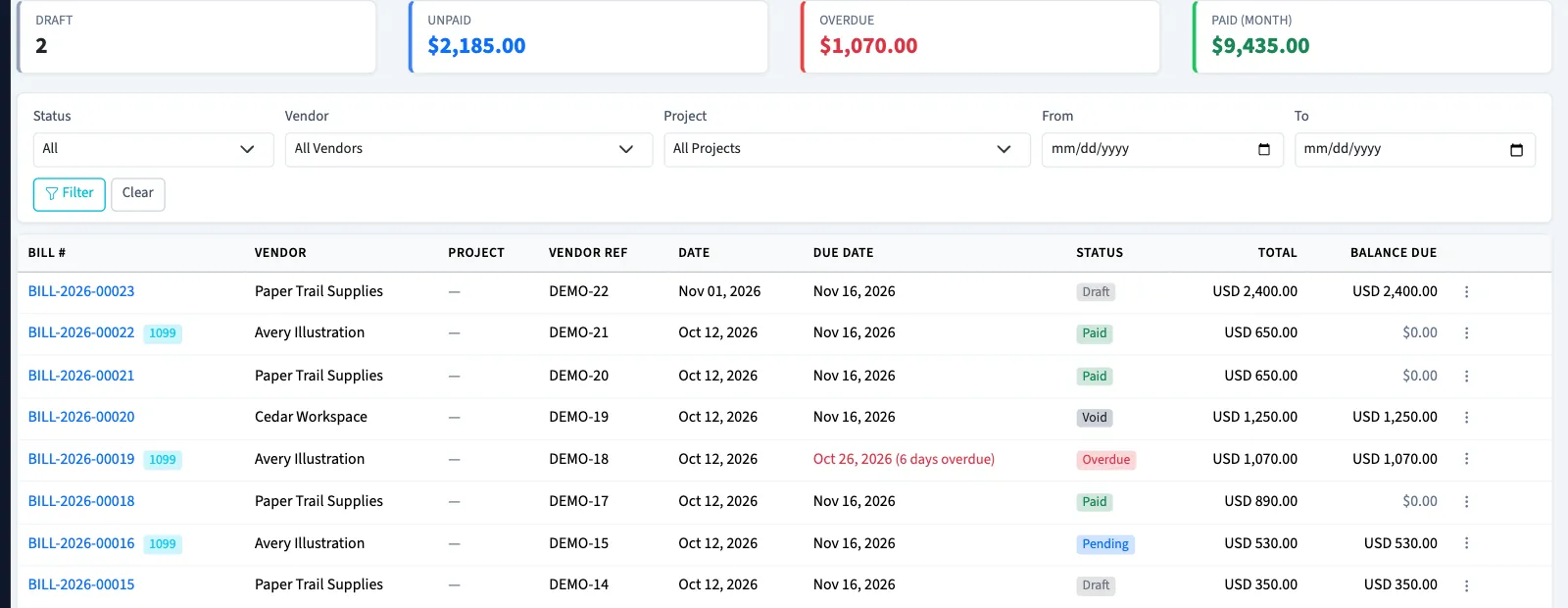
A project filter also appears when project tracking is enabled. The summary cards show business-wide totals, independent of the list filters.
Understand bill statuses
| Status | Meaning |
|---|---|
| Draft | Saved for review. You can edit or delete it; it is not posted yet. |
| Pending | Approved and posted, with a balance still due. |
| Partial | A payment covers part of the total. |
| Paid | The balance has been fully allocated to payments. |
| Overdue | An open balance is past its due date. The page can also flag an overdue due date while the saved status remains Pending or Partial. |
| Void | The bill has been voided. It is excluded from open payables. |
Approval waiting is tracked separately from the bill status. A bill waiting for workflow approval remains a draft.
Review the detail page
The bill shows its lines, Balance Summary, Timeline, saved Attachments, and Payment History when present. Select an attachment filename to download it. Select a payment number to open the payment, subject to payment viewing permission.
Next, enter a bill, approve a draft, or record a bill payment.