
Review purchase orders
Understand purchase order statuses and the path from ordering to receiving and billing.
- Who can do this
- Business owners
- Where
- Purchases, then Purchase orders
On this page
A purchase order records what you plan to buy. It tracks ordered, received, and billed quantities. Creating or approving an order does not post an accounts payable bill.
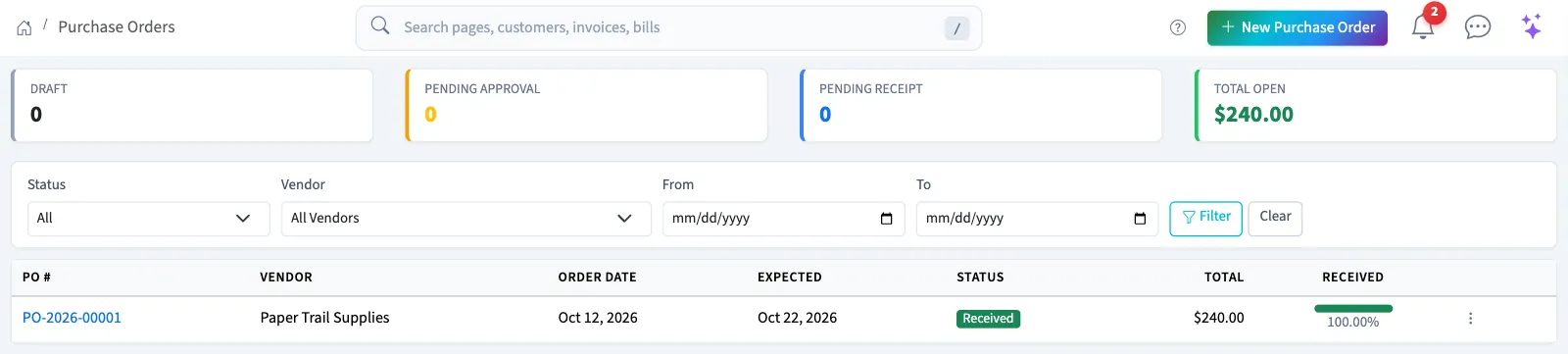
Open Purchases, then Purchase orders. Only business owners can open the accounting list or use its actions. The required purchase order permissions cannot be assigned to staff.
Select an order number to review its lines, receipts and linked bills. Use New Purchase Order to start a draft. The order links, form actions and receipt links stay in Accounting.
Understand the statuses
| Status | Meaning |
|---|---|
| Draft | Saved and still editable. |
| Pending Approval | Waiting for a required approval request. |
| Approved | Approved and ready to be marked sent. |
| Sent | Marked sent and eligible for receiving. This action does not send an email. |
| Partially Received | Quantities have been received. It can also remain this way after full receipt if automatic closing is off. |
| Received | Fully received with automatic closing enabled. |
| Billed | All quantities received so far are billed. This does not mean the bill is paid. |
| Cancelled | The order is cancelled. |
Total Open excludes billed and cancelled orders but includes drafts. The list displays order numbers, vendors, dates, statuses, totals, and receiving progress. Use the list filters to narrow the rows, then select an order number for its details.
A bill is a separate record with its own approval and payment steps. Next, create an order, record a delivery, then bill the received quantities.