
Review or correct checks
Find checks, understand their statuses, and void an incorrect check.
- Who can do this
- Owners, or people with View checks; voiding needs Void checks
- Where
- Purchases, then Checks
On this page
The check register lists direct check payments. Owners and people with View checks can open Purchases, then Checks. Voiding needs Void checks. A saved check posts to the ledger straight away, so it can't be edited or deleted. To correct one, void it.
Find a check
- Choose Bank Account, Payee, Status, or date filters as needed.
- Select Filter.
- Select the check number to open it.
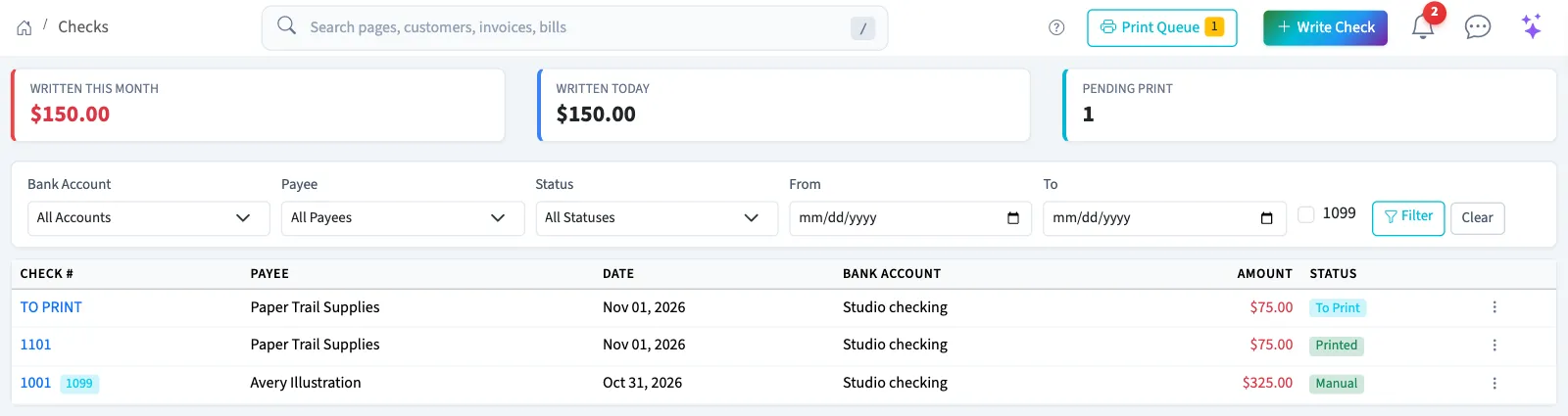
| Status | Meaning |
|---|---|
| To Print | Saved with Print Later and ready for the print queue. It may already be posted. |
| Printed | A print batch PDF has been generated. Paper printing still needs confirmation. |
| Manual | Saved without Print Later. |
| Void | The check has been voided. |
The detail page shows the payee, bank account, saved address, lines, and journal link when posted. Print Check opens a PDF without changing the check's status or assigning a number. Use the print queue for unnumbered checks.
Void a check
WarningVoiding reverses the journal entry when one exists and keeps the check in the register. It does not stop payment at the bank. A voided check cannot be reused through these screens.
- Open Purchases, then Checks, and select the check number.
- Select Void Check.
- Enter Reason for Voiding, up to 500 characters.
- Select Void Check in the dialog.
Any check that is not already void can be voided. A reversal uses today's date and can be blocked by a closed or locked period.
Next, write a replacement check only after reviewing the original payment.