
Create and review bulk payments
Group open bills into one batch with a separate recorded payment for each vendor.
- Who can do this
- Owners, or people with View payments to vendors and Create payments to vendors
- Where
- Purchases, then Bulk payments
- You'll need
- Batch processing turned on in Features; eligible unpaid bills and an active payment account; an owner to process the batch
Bulk payments record several vendors' bill payments in one batch. They do not send money from a bank.
Create a batch
- Open Purchases, then Bulk payments.
- Select Create Bulk Payment.
- Enter Payment Date.
- Choose Payment Method.
- Select Pay From.
- Expand a vendor and select the bills to include.
- Review the selected vendor count, bill count, and Total Payment.
- Select Create Batch Payment.
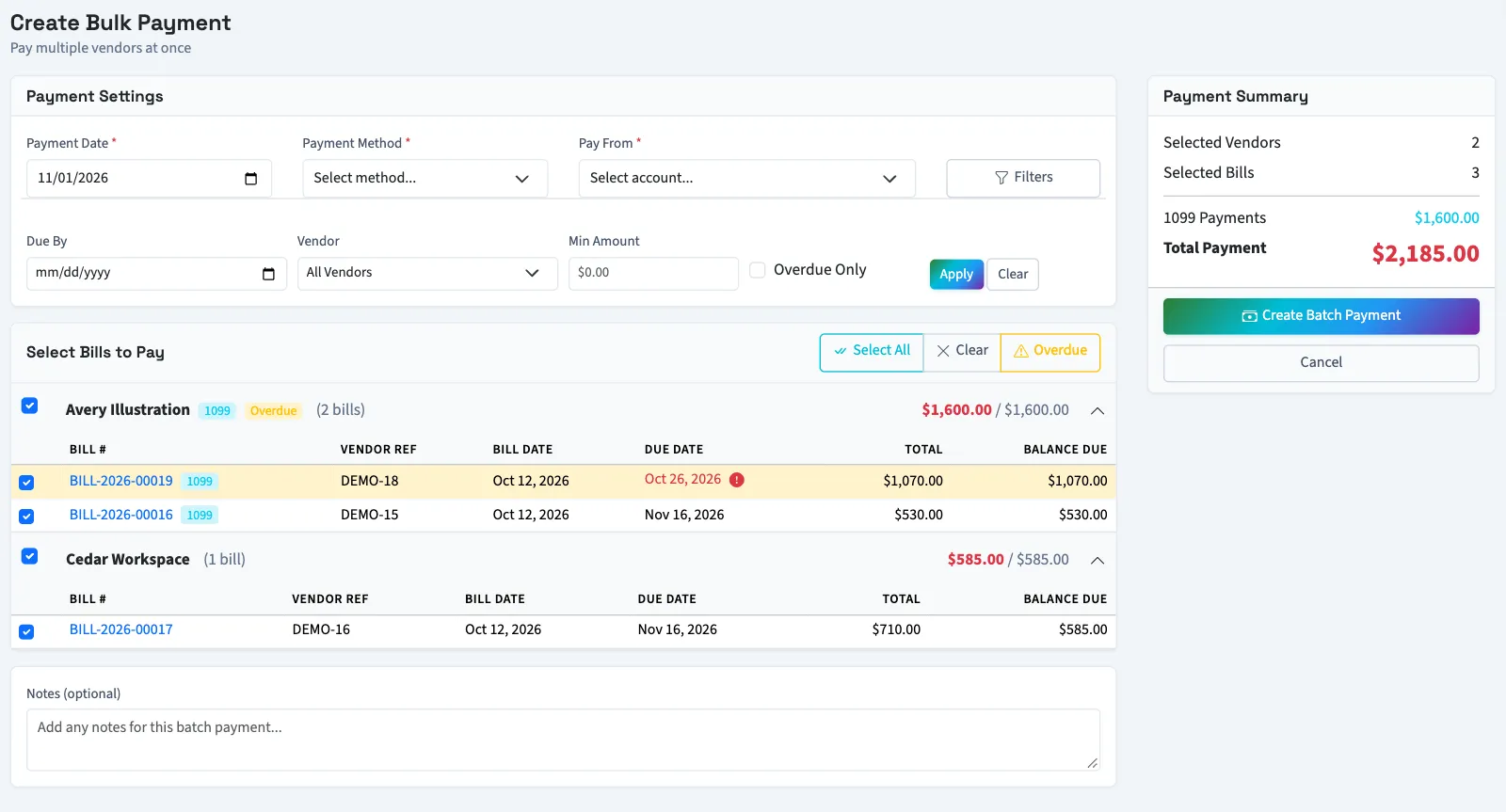
Filters offers Due By, Vendor, Min Amount, and Overdue Only. Eligible bills are approved, have an open balance, have no payment waiting for approval, and belong to active approved vendors. Select All and Overdue help select bills. Changing filters reloads the page, so review the selection again.
QixCount creates one payment per vendor. Selecting the check method assigns check numbers to those payment records; it does not fill their reference field or add them to the separate check print queue.
Understand batch statuses
| Status | Meaning |
|---|---|
| Draft | Not processed yet. |
| Pending Approval | Waiting for an approval workflow. |
| Approved | Eligible for processing. |
| Processing | Processing has started. |
| Completed | Payments have been posted. |
| Failed | The batch is marked failed. |
| Void | The batch has been voided. |
Without required approval, creation completes and posts the batch immediately. With required approval, bill balances don't change until the payments are approved.
NoteUse individual bill payments when payment approval is required. Batch approval does not reliably complete processing. If you already have a batch waiting for approval, contact support and review its payments and allocations before entering any replacement.
Select a batch number to inspect its payments. Process Batch is offered for draft or approved batches. It posts payments that do not yet have a journal entry. Closed periods and backdating settings can block posting.
Void a batch
Open Purchases, then Bulk payments, select the batch number, then select Void Batch and confirm to reverse its payments and restore allocated bill balances. Draft, pending approval, approved, and completed batches can be voided. This changes the books; it does not reverse an external payment.
Next, review payments made.
Good to know
Each selected bill is paid for its full remaining balance; use record a bill payment for partial amounts.
Owners can use this workflow. Staff need View payments to vendors to review batches, Create payments to vendors to create them, and Delete payments made to void them. Only owners can process a batch, because that permission can't be assigned to staff. If Bulk payments is missing, ask someone with settings access to review Settings, Features, and Batch processing.