
Create and manage programs
Add programs for financial coding, edit their details, and retain history when archiving.
- Who can do this
- Owners, or people with Manage and reactivate programs
- Where
- Nonprofit, then Programs
- You'll need
- An accessible active or trial Nonprofit subscription
On this page
Add a program
- Under Nonprofit, select Programs.
- Select Create program to open the side panel.
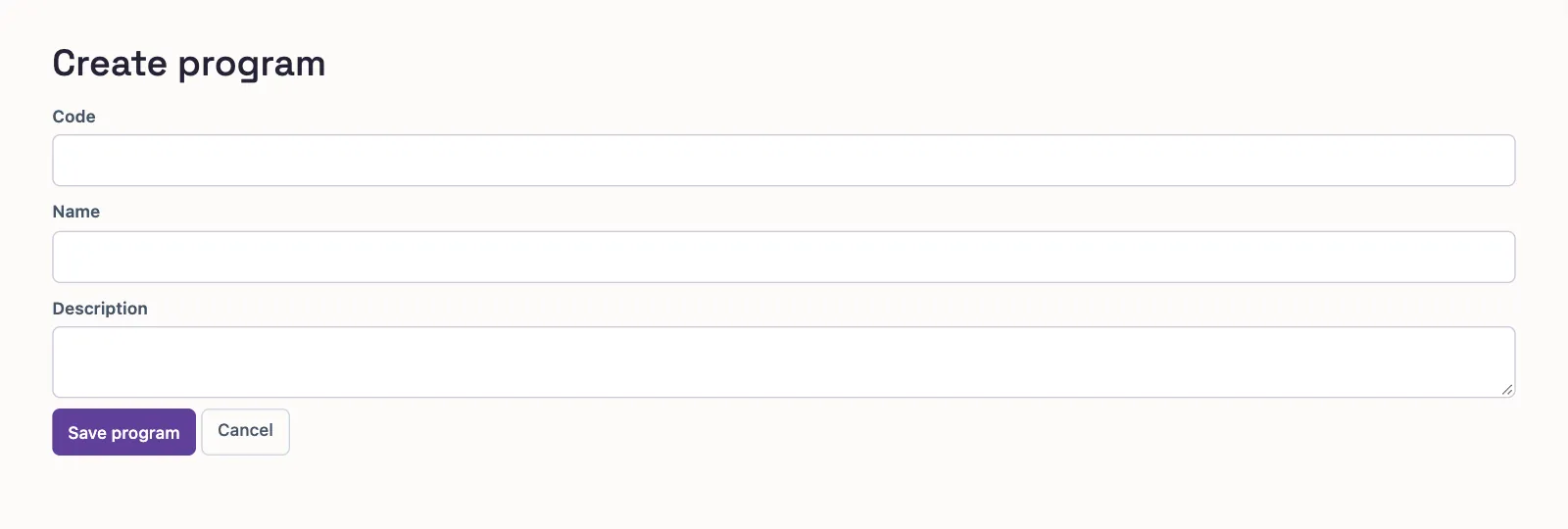
- Enter a unique Code, up to 20 characters.
- Enter Name, up to 255 characters.
- Enter Description if needed, up to 2,000 characters.
- Select Save program to return to the list.
Who can do this and what you need
Programs identify activities in a Nonprofit transaction's financial coding. They are separate from funds, grants, restrictions, and expense functions. See the coding glossary.
You need Manage and reactivate programs permission to open this area and make changes. Program setup is available before account mappings are approved.
The standalone creation form has the same fields:
Find or update a program
Search by code or name. Status starts with Active; select Archived or All to find other programs. On a phone, select Filters to reach these choices.
With View Nonprofit reports, the list shows Spent this year, including all three expense functions, and program names link to activity statements. Without that permission, spending is hidden. Managing programs alone does not reveal spending. Grant counts need View grants.
Select Edit in the row menu to open the details panel. Select Save program after changing the fields. Select Archive in that menu to retire a program, or Reactivate to use it again.
What happens next
Creating or editing a program posts no financial transaction. Choose it when entering the relevant record's financial coding. Leaving the program blank is different from selecting one.
Archiving keeps the record and posted history. Reactivate an archived program before posting new activity or settling an outstanding document coded to it.
Next, review financial coding or record a cash gift.