
Create and manage funds
Add a fund, change its details, or archive it while retaining its posting history.
- Who can do this
- Owners; fund access needs View funds plus the permission for each create, edit or archive action
- Where
- Nonprofit, then Funds
- You'll need
- An accessible active or trial Nonprofit subscription
On this page
Add a fund
- Under Nonprofit, select Funds.
- Select Create fund to open the side panel.
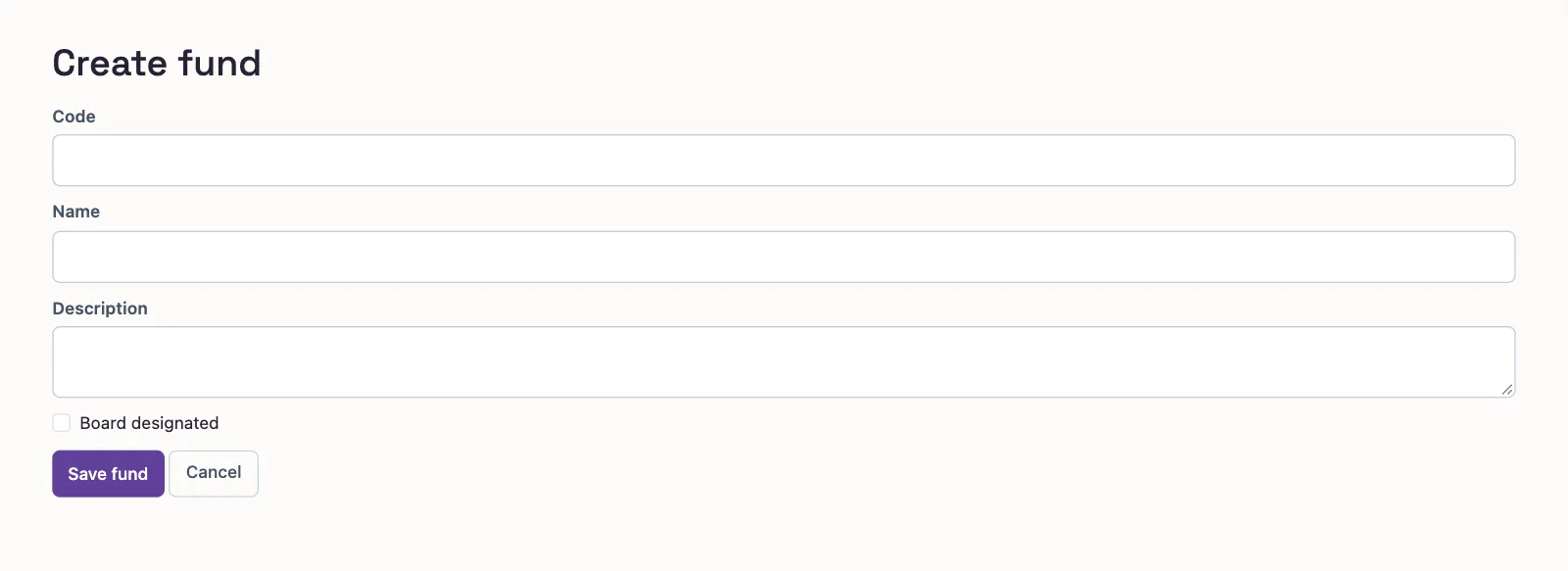
- Enter a unique Code, up to 20 characters.
- Enter Name, up to 255 characters.
- Enter Description if needed, up to 2,000 characters.
- Select Board designated if that marker applies to this fund.
- Select Save fund to return to the list.
Who can do this and what you need
Funds track resources by purpose in a Nonprofit business. Setup creates an Operating fund for default transaction coding. A fund is separate from a donor restriction; see the coding glossary.
You need View funds to open the list or record, Create funds to add one, Edit and reactivate funds to edit or reactivate one, and Archive funds to archive one. Setup is available before mapping approval.
The standalone creation form has the same fields:
Find or edit a fund
Search by code or name. Status starts with Active; select Archived or All to find other funds. On a phone, select Filters to reach these choices.
Select the fund name to open its balances and accounts. Restrictions and grants appear with their viewing permissions. The year summary and report links need View Nonprofit reports permission.
Select Edit in the row menu or record to open its details panel. Select Save fund after changing the fields.
What happens next
Saving details posts no money. Archive in the row menu stops new use while keeping history; Reactivate restores it. The default Operating fund cannot be archived. Reactivate an archived fund before settling an open document coded to it.
The board-designated marker does not select donor restriction coding on transactions.
Next, create programs or code a transaction.