
Create and approve a grant budget
Save complete dated budget lines, approve a version, and preserve earlier versions when amending it.
- Who can do this
- Owners, or people with View grants; drafts need Manage grant awards; approval needs Review grant classification and evidence
- Where
- Nonprofit, then Grants
- You'll need
- An accessible active or trial Nonprofit subscription; approved mappings and an active Operating fund; an active grant with start and end dates
On this page
Save a draft
- Select Budget on the grant record.
- Select Create budget, or Amend budget after an approval, to open the panel.
- Select Expense account for a line.
- Select Fund.
- Select Program if needed.
- Enter Starts within the award period.
- Enter Ends within the award period.
- Enter Amount.
- Select Add a line if needed.
- Enter Why the budget is changing for an amendment, up to 5,000 characters.
- Select Save for approval.
Who can do this and what you need
Save a dated spending plan for a grant, then approve a complete version. Budgeting does not require classification review and posts no financial transaction.
You need View grants to open the budget, Manage grant awards to save a draft, and Review grant classification and evidence to approve one. Approved mappings and an active Operating fund are required.
The active award needs both start and end dates. Use Edit award before funding if dates are missing. Once funding posts, the entire award stays locked, even after funding is undone. A funded award without complete dates cannot have a budget; its record advances to the money step instead.
A version accepts 1–500 lines. Accounts, funds, and programs must be active. Dates for the same account, fund, and program cannot overlap. Zero amounts are accepted. Amendments copy the latest approved lines; enter complete new amounts, not differences.
Cancel closes only the unsaved editor. A saved draft cannot be deleted.
Approve the current version
Review its lines under Versions, then select the approval button bearing that version's number. A latest draft with changed award dates or predecessor is out of date; select Create a current draft.
An older draft superseded by a newer version stays in history without approval or replacement actions. It does not override a newer approved budget as the grant's next step.
What happens next
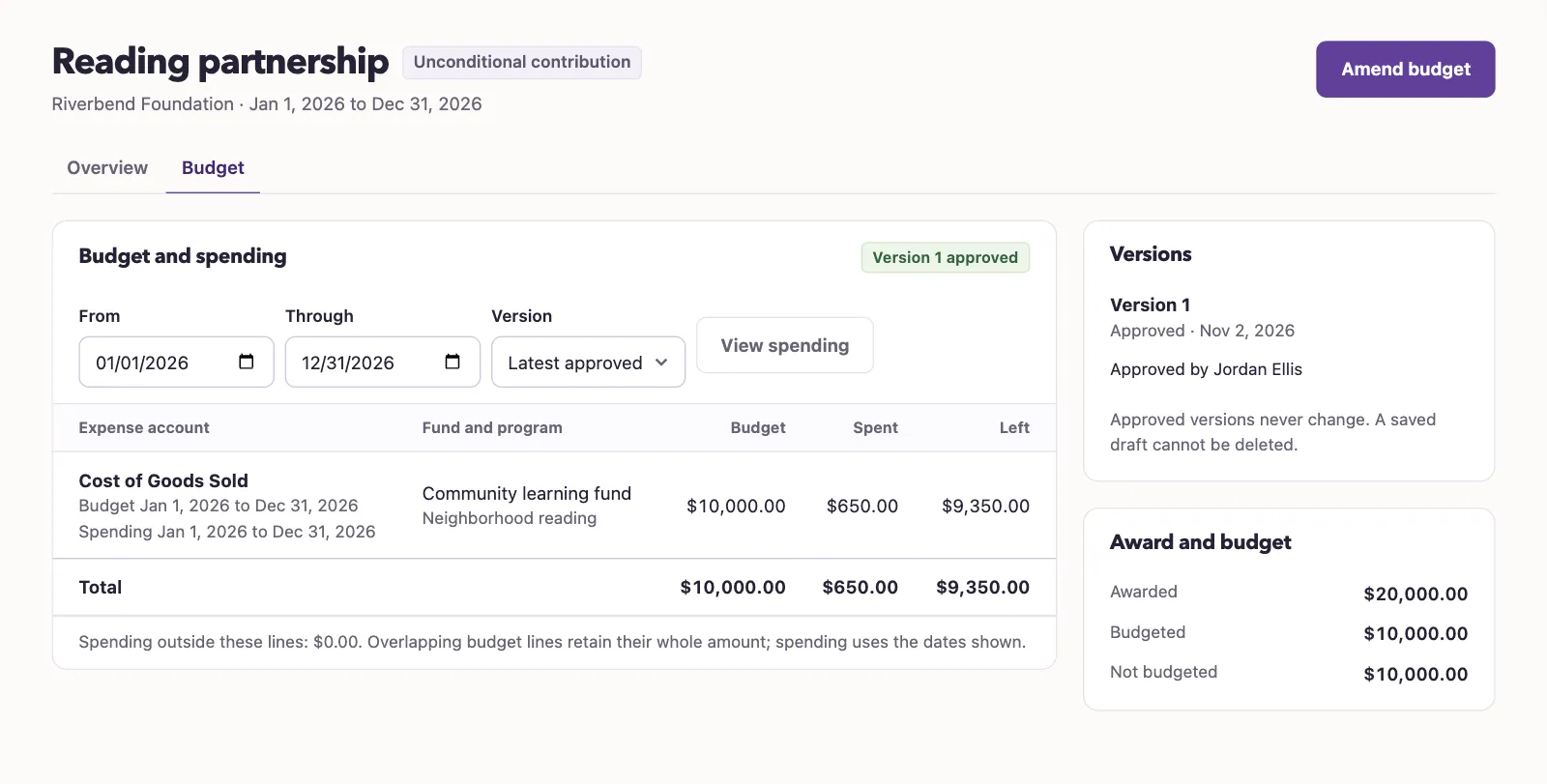
Approved versions stay unchanged. An approved budget also locks the award's grantor, amount, period, fund, and program before funding.
Use From, Through, and Version, then select View spending to compare budget and spending. Only versions approved by the end date are eligible. Part of a period keeps the whole line budget while spending uses the displayed intersection dates; Left is Not available for that line. Spending outside the lines appears separately.
Next, download the grant report.