
Personalize acknowledgment PDFs and emails
Choose a layout, add branding and write the messages your donors receive.
- Who can do this
- Owners, or people with Customize acknowledgments
- Where
- Settings, then Acknowledgments
- You'll need
- An accessible active or trial Nonprofit subscription
On this page
Set your organization defaults
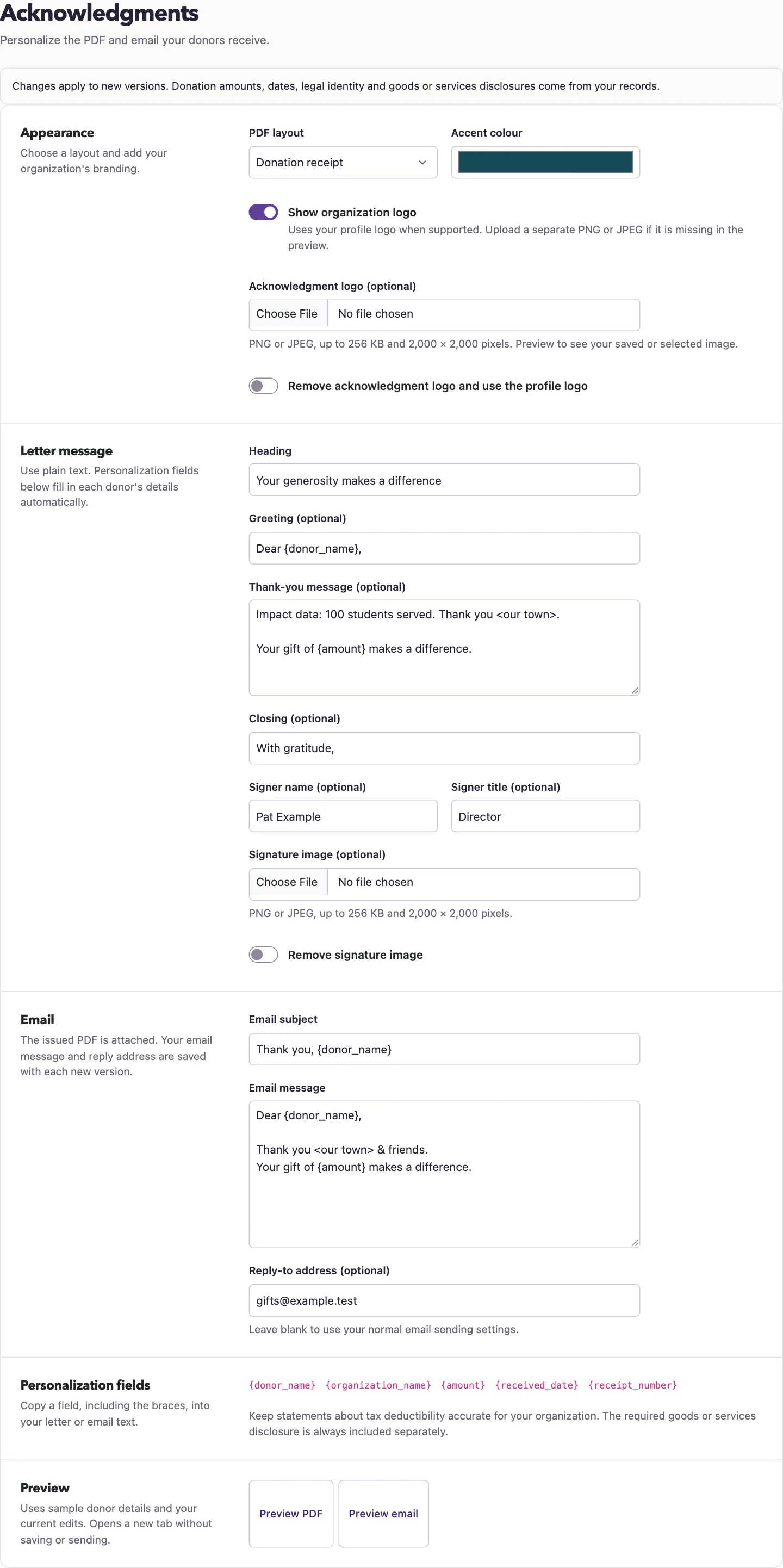
- Open Settings, then Acknowledgments.
- Choose a PDF layout and Accent colour.
- Set Show organization logo, or upload an Acknowledgment logo (optional).
- Enter your heading, greeting, thank-you message, closing and signer details.
- Enter Email subject and Email message. Add a Reply-to address (optional) if needed.
- Select Preview PDF or Preview email to review your current edits with sample donor details.
- Select Save changes.
You need Customize acknowledgments permission. This page is available before account mappings are approved. Other staff do not receive template access automatically; owners can grant the permission through their roles and access settings.
Add branding and personal text
Choose a thank-you letter or donation receipt layout. A separate acknowledgment logo overrides the logo from Organization profile. Turn off Show organization logo to hide either logo. You can also upload a signature image and enter a signer name and title.
Acknowledgment logo and signature uploads must be PNG or JPEG, up to 256 KB and 2,000 × 2,000 pixels. Supported profile logos are resized for this document. A profile image that cannot be converted is omitted so you can still issue acknowledgments. If it is missing in the preview, upload a separate PNG or JPEG here.
Use plain text. Copy personalization fields such as {donor_name}, {organization_name}, {amount}, {received_date} and {receipt_number} into the letter or email. Other field names are rejected. The heading and email subject allow 150 characters; the thank-you message allows 2,000 and the email message allows 5,000. Your text and line breaks are retained. HTML is displayed as text rather than rendered as custom formatting.
Previews open a new tab. They do not save changes, issue a version or send email. Blank reply-to uses the normal email sending settings.
Issue a personalized version
On a cash gift, add a personal note of up to 1,000 characters before generating a letter or issuing a new version. The note appears in that version's PDF and email.
New versions retain the messages, images and reply-to address in effect when issued. Later edits affect future versions only. Donation facts, legal identity and the goods or services disclosure come from the saved records and appear separately from your message.
An issued version's Preview email shows its frozen message. Opening it does not send another email. Check the gift receipt for delivery status.
Continue to generate and send a cash acknowledgment.