
Record a grant award
Save the grantor, agreement, award amount, coding defaults, and reporting dates before classification review.
- Who can do this
- Owners, or people with View grants and Manage grant awards
- Where
- Nonprofit, then Grants
- You'll need
- Posting readiness, an active grantor contact and an active fund
On this page
Record the agreement
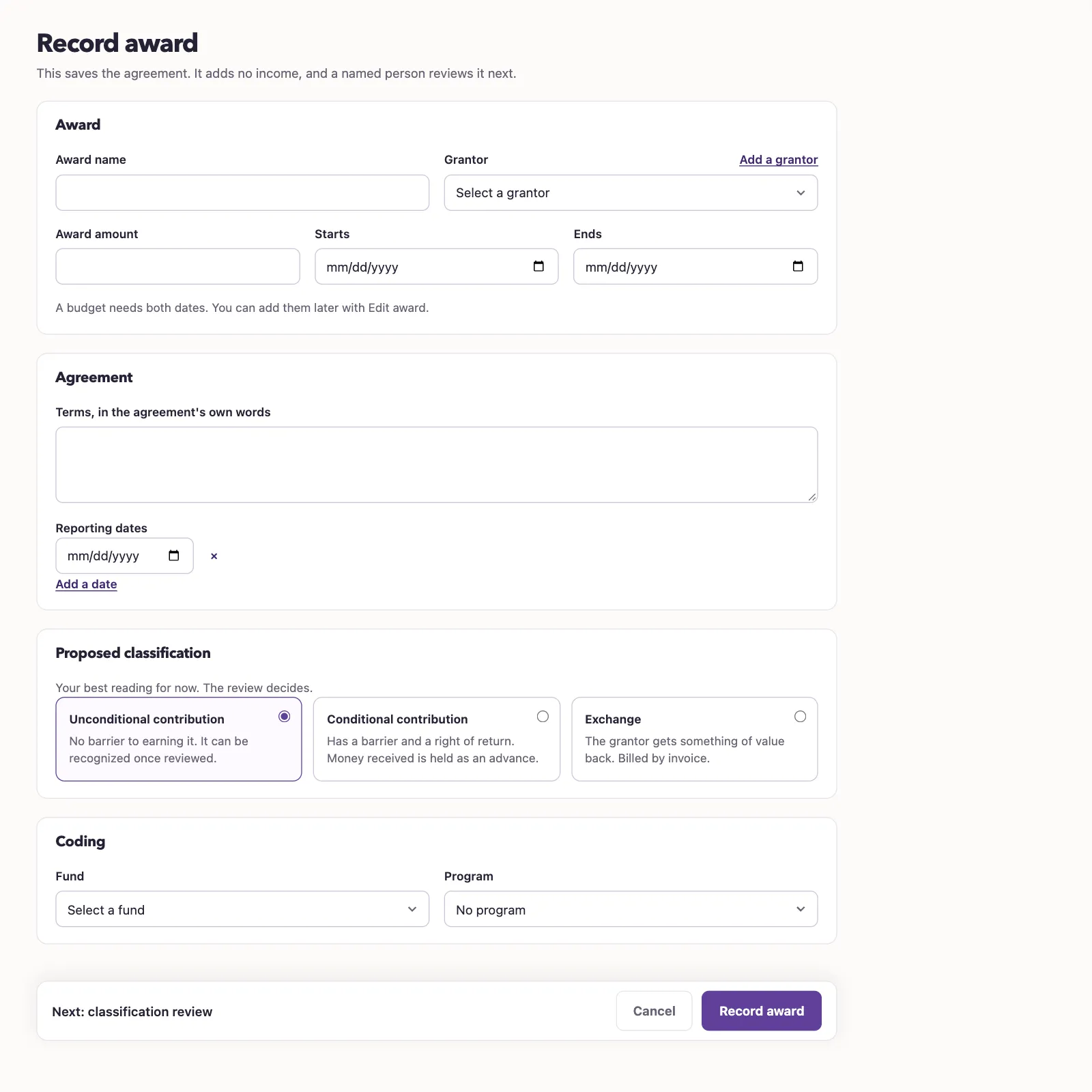
- Under Nonprofit, select Grants.
- Select Record award.
- Enter Award name, up to 255 characters.
- Select Grantor.
- Enter Award amount, greater than zero.
- Enter Starts if known.
- Enter Ends if known. A budget needs both dates.
- Enter Terms, in the agreement's own words, up to 20,000 characters.
- Select Add a date for a reporting-date field.
- Enter the reporting date. Repeat for any additional dates.
- Under Proposed classification, select Unconditional contribution, Conditional contribution, or Exchange.
- Select Fund under Coding.
- Select Program if needed.
- Select Record award to open the record.
Who can do this and what you need
Record a grant award to keep its agreement, amount, coding, and reporting dates. Saving an award posts no cash or income.
You need Manage grant awards to create one. Creation is available before mapping approval, but opening the saved record needs View grants, approved mappings, and an active Operating fund.
Add a grantor opens a panel without losing your entries. Enter the name and optional email, mailing address, and notes, then select Add grantor. This creates a customer contact without a donor profile and uses the award-management permission.
Money fields accept whole dollars, cents, commas, and a dollar sign. The award amount can be up to $9,999,999,999,999.99.
Edit an award
- Open the award's Overview tab.
- Select Edit award to open its panel.
- Update the available fields.
- Select Save award.
Before funding, approving any budget locks grantor, amount, start and end dates, fund, and program. Name, agreement, and reporting dates can still change until funding posts. Classification changes use the separate review.
Changing the grantor or agreement clears the named classification review and its reasoning. Supporting files stay with the award. A person with review permission must save a new review before money can post. Changes to other editable fields keep the review.
WarningOnce funding posts, the entire award is locked, including its name, agreement, and reporting dates. Undoing all funding does not unlock it. Save is disabled on a locked award.
What happens next
The award needs a named classification review before financial activity. An unfunded award missing dates offers Edit award as its next step after review. A funded award missing dates goes directly to its money step; its dates cannot be added and it cannot have a budget.
Next, review classification or create a budget.