
Record grant receipts and recognition
Use a reviewed award to receive an advance or post a reviewed cash contribution or receivable.
- Who can do this
- Owners; View grants to open; Receive refundable grant advances for receipts; Review grant recognition and corrections to recognize
- Where
- Nonprofit, then Grants
- You'll need
- A saved classification review and approved posting readiness
On this page
Receive a conditional advance
- Open the award from Grants.
- Select Receive advance to open the panel.
- Enter Total received.
- Enter Date.
- Select Deposited to.
- Select Split or change coding if you need to adjust the fund, program, or splits.
- Select Post receipt.
Who can do this and what you need
Use a reviewed award to receive an advance or recognize contribution income. A receivable records money the grantor owes.
You need View grants and the action's permission: Receive refundable grant advances for receipts or Review grant recognition and corrections for recognition. Approved mappings, an active Operating fund, and an active reviewed award are required.
This posts cash and a refundable-advance liability, not income. Positive split amounts must equal the total; up to 100 splits are accepted.
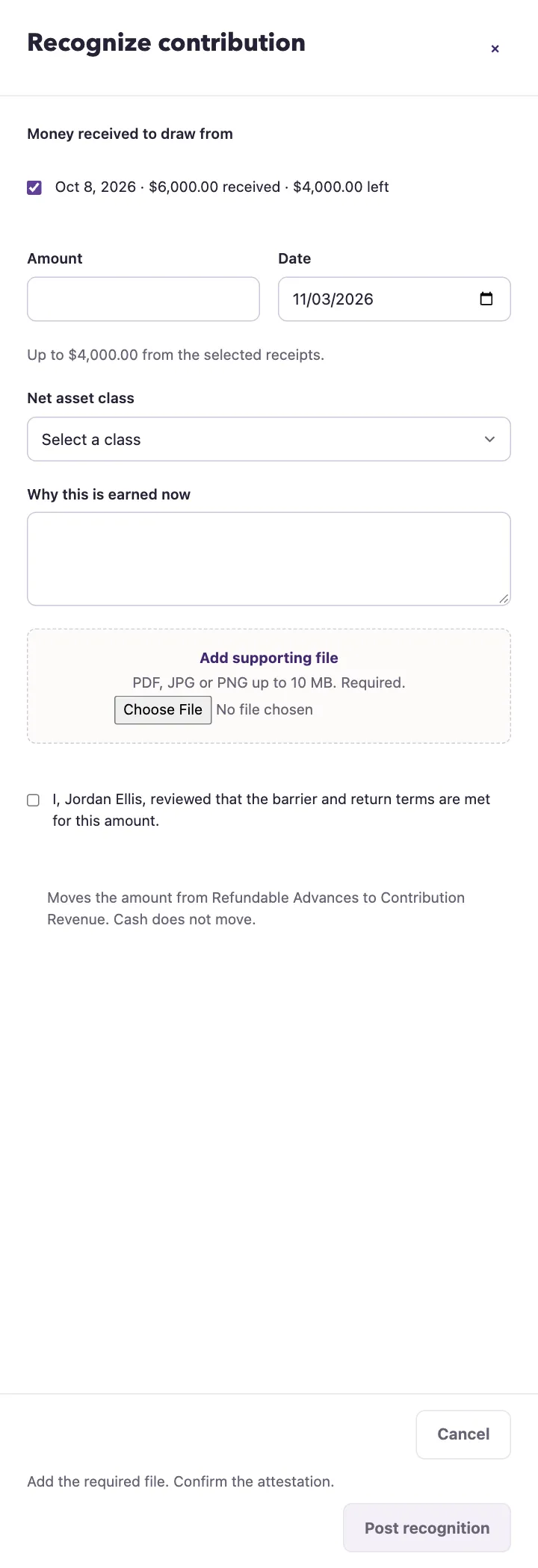
Recognize a conditional contribution
- Select Recognize contribution to open the panel.
- Choose receipts under Money received to draw from.
- Enter Amount.
- Enter Date.
- Select Net asset class; no class is preselected.
- Enter Why this is earned now.
- Select Add supporting file and wait for its filename.
- Confirm your named review of the conditions.
- Select Post recognition.
The remaining balances and maximum depend on your selected receipts and date. QixCount checks receipt dates and later posted activity. Recognition moves the amount from the advance liability to contribution revenue using source coding. Cash does not move.
Recognize an unconditional contribution
- Select Recognize contribution.
- Enter Amount.
- Enter Date.
- Select Cash received or Receivable.
- Select Deposited to for cash, or enter Receivable due date for money owed.
- Review the splits under Split or change coding.
- Enter Why this is recognized now.
- Select Add supporting file and wait for its filename.
- Confirm your certification.
- Select Post recognition.
Receivable recognition creates a linked invoice without sending an invoice email. Its due date cannot precede recognition. Recognition needs 1–50 PDF, JPG, JPEG, or PNG files up to 10 MB each, plus reasoning up to 5,000 characters. Missing evidence or attestation keeps posting disabled. Closed periods and award or advance limits can block posting.
Amounts and splits can be up to $9,999,999,999,999.99. Award and receipt balances can impose a lower limit.
Read the money figures
Received is cash actually received for the award: advances, cash recognition, tagged gifts, and its allocated share of invoice payments, less posted undos and refunds. An unpaid receivable adds nothing to this figure.
Recognized is net posted revenue tagged to the award, including contribution recognition, exchange invoices, and tagged gifts. Collecting an invoice changes received cash without recognizing its revenue again.
Held as an advance is the award’s balance in the mapped Refundable Advances account. It is not calculated by subtracting recognized from received. Overview applies its displayed date to entries and undos. Other grant summaries show lifetime figures.
What happens next
The entry appears under Activity, with journal and evidence links. Receivables also link to their invoice and payments. Exchange awards use Create exchange invoice with separate invoice permission.
Funding permanently locks the entire award, including name, agreement, and reporting dates. Undoing funding does not unlock it. A funded award without dates still goes to its money step rather than requesting an edit or budget.
Next, review undo actions.