
Review, print and mark a 1099 form filed
Check a draft, generate its record, download a PDF and record filing and recipient-delivery dates.
- Who can do this
- Owners, or people with View financial reports; generating and marking filed need Export reports and 1099s
- Where
- Tax, then 1099 forms
- You'll need
- Tax turned on in Features; a draft and saved vendor TIN to generate; a generated or corrected form to mark filed
On this page
Review and generate
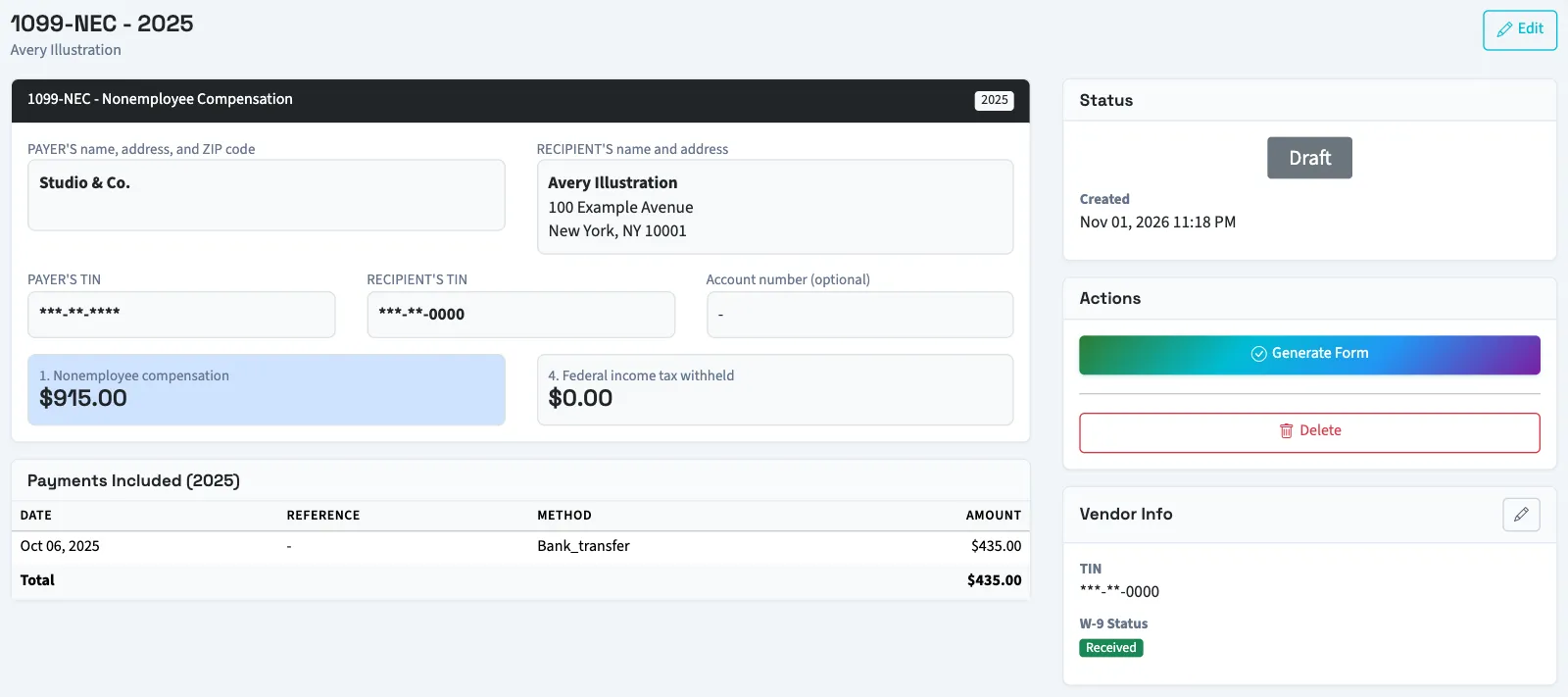
If the amounts are already correct, skip the editing steps and select Generate Form on the draft's details page.
- Open Tax, then 1099 forms, and select the vendor name.
- Review the payer, recipient, masked tax identification number and amounts.
- Review the payment detail below the preview. The list uses the same rule as the automatic amount: bill payments and checks dated in the year whose posted journal still stands. A check needs 1099 tracking and a selected vendor. Its total can differ from a saved or manually entered amount.
- Select Edit if the amounts need changing.
- Enter any amount changes on the editing form.
- Select Update Form to return to the details page.
- Select Generate Form on the draft.
Generation records today's date and changes Draft to Generated. It is blocked if the vendor's separate 1099 information has no saved tax identification number. Use the pencil icon beside Vendor Info to update that information.
Download and print
- Select Download PDF once the form is no longer a draft.
- Open the downloaded PDF and use your PDF viewer's print control.
The PDF is labeled Copy B - For Recipient and uses the 1099-NEC layout. It is built from current business and vendor details when downloaded; generation does not freeze those details.
Record filing and delivery
- Select Mark as Filed on a generated form.
- Confirm the action.
- After delivery outside QixCount, select Mark Sent to Recipient on the filed form if you want to record that date. The control appears only while no recipient-delivery date is saved.
What happens next
Mark as Filed saves the filed date and changes the status to Filed. Mark Sent to Recipient saves the delivery date. Neither action submits a form or sends it to the vendor. A filed form cannot be edited or deleted through the ordinary form controls.
Next, create a correction or void record when needed.
Good to know
Review the saved amount and recipient information before recording a form as filed. Viewing and downloading need View financial reports. Editing, generation and status actions need Export reports and 1099s.
If 1099 forms isn't in the sidebar, someone with settings access can turn on Tax in Features.