
Review tax by jurisdiction
Group recorded sales tax by the jurisdiction types and codes saved on your tax rates.
- Who can do this
- Owners, or people with View financial reports
- Where
- Tax, then Tax by jurisdiction
- You'll need
- Tax turned on in Features
On this page
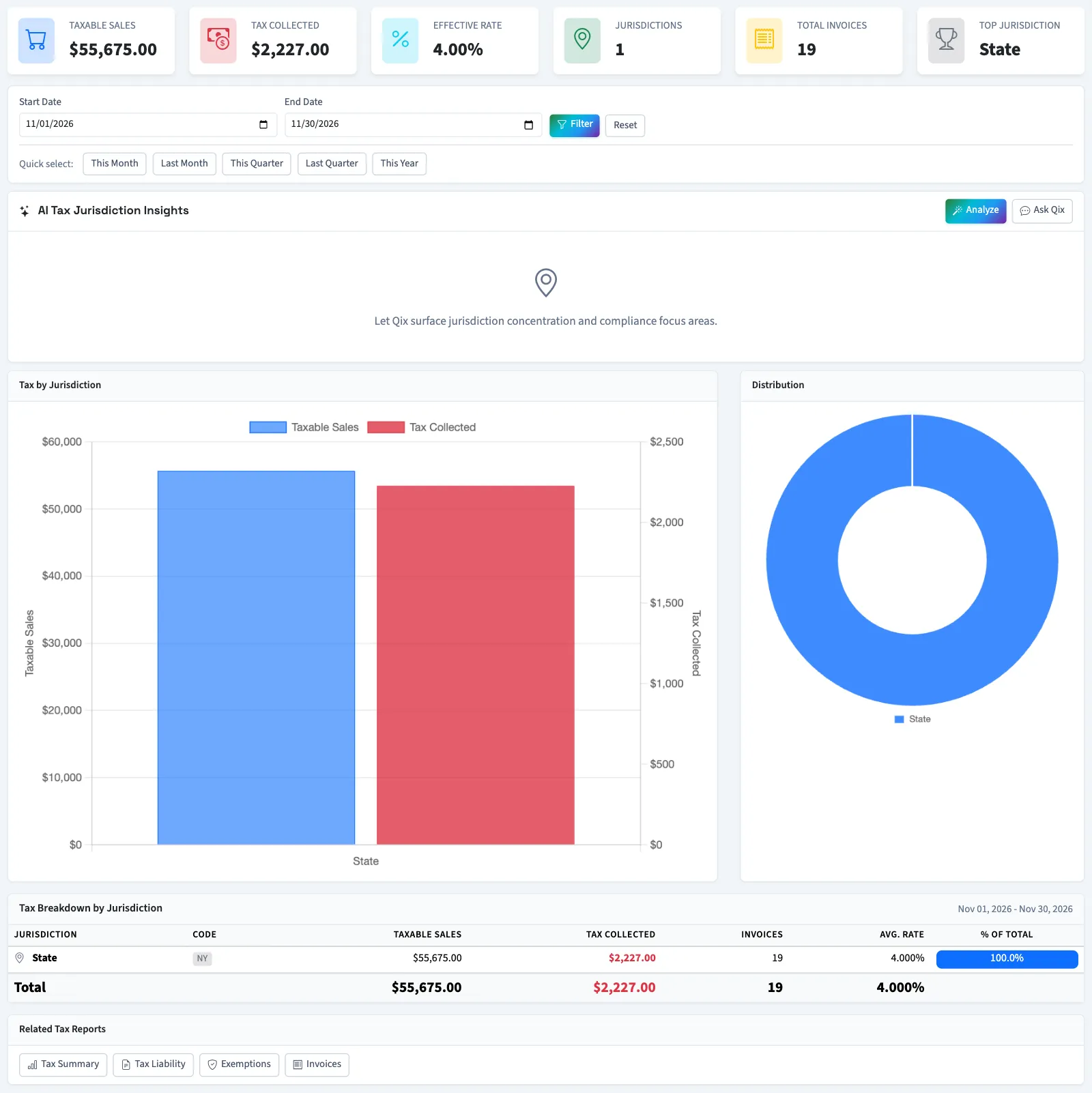
This report groups recorded tax by the jurisdiction type and code on each tax rate. It uses those saved rate details, not a customer's address. You need View financial reports; owners have it.
Filter the report
- Open Tax.
- Select Tax by jurisdiction.
- Enter Start Date.
- Enter End Date.
- Select Filter.
- Review Tax Breakdown by Jurisdiction. Rows start with the largest tax amounts.
Reset restores the current-month range. Quick-select links offer common month, quarter and year ranges.
Read a row
| Column | Meaning |
|---|---|
| Jurisdiction | The jurisdiction type saved on the rate, such as state or city. |
| Code | The jurisdiction code saved on the rate. |
| Taxable Sales | Sum of taxable amounts for recorded entries in this group. |
| Tax Collected | Sum of those entries' tax amounts. |
| Invoices | Distinct invoices within this group. |
| Avg. Rate | The group's tax collected divided by its taxable sales, multiplied by 100. |
| % of Total | The group's share of all tax displayed. |
What happens next
The date range uses when tax activity was recorded in QixCount. One invoice can appear in several jurisdictions, so Total Invoices adds the group counts and can exceed the number of distinct invoices. Taxable sales can also repeat across groups when multiple rates apply.
The current date filter can omit activity recorded later on End Date. Contact support if an expected entry from that day is missing.
Use the printer icon to print.
Next, review tax by rate or edit your tax rates.
Good to know
If Tax by jurisdiction isn't in the sidebar, someone with settings access can turn on Tax in Features.