
Choose features and a starting preset
Control which accounting tools appear and adjust a preset for your business.
- Who can do this
- Owners, or people with Manage business settings, roles & permissions
- Where
- Settings, then Features
Features controls which accounting tools appear in the workspace. You need the Manage business settings, roles & permissions permission.
Choose a starting point
- Open Settings.
- Select Features.
- Select Starter, Growth or Professional under Starting point.
- Review the individual switches.
- Select Save changes.
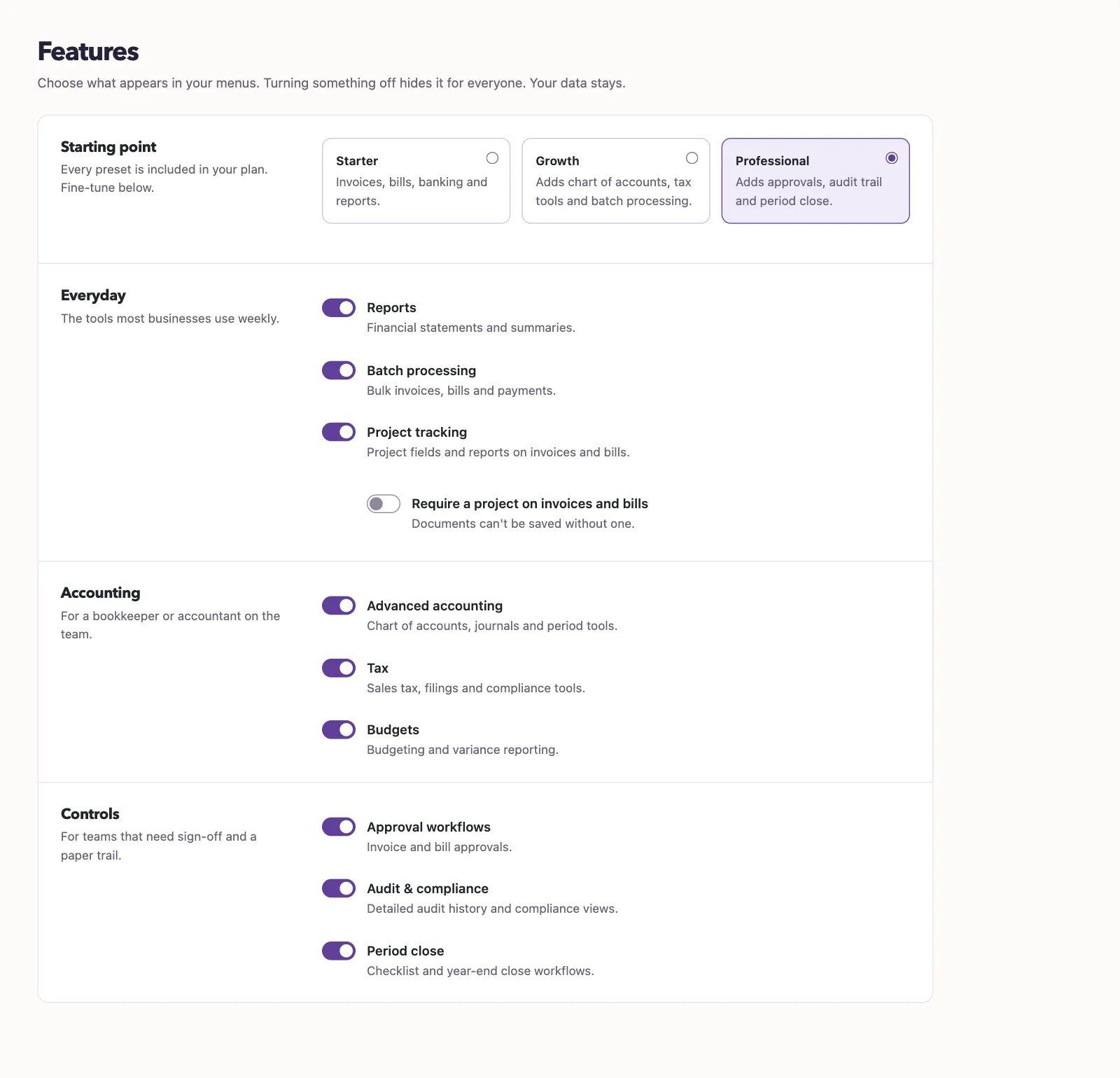
| Preset | Switches selected by the preset |
|---|---|
| Starter | Reports. |
| Growth | Reports, batch processing, advanced accounting and tax tools. |
| Professional | Growth selections plus approval workflows, audit views and period close. |
Selecting a preset leaves the budgets and project tracking switches as they were. Review those separately. You can adjust individual switches after selecting a preset; the page shows when your selection differs from it.
Understand the effect
Turning a tool off hides its menu entries for everyone. Existing data remains. A feature being on does not give a person permission to use it: their access must also permit the task. Do not treat a hidden menu entry as a replacement for managing roles and permissions.
Enabling Approval workflows makes approval navigation available. You must also configure a workflow; the switch alone does not create one. Likewise, enabling Period close does not close any period.
Continue to Set up approval workflows, Configure period close checklist items or Set project tracking options.
Good to know
A starting preset is a set of feature selections; it is separate from your subscription plan.