
Set up check printing
Choose check stock, adjust alignment and save the signature printed on checks.
- Who can do this
- Owners, or people with Manage business settings, roles & permissions; a test print needs View checks
- Where
- Settings, then Check printing
On this page
Check printing settings control layout and the saved signature. You need the Manage business settings, roles & permissions permission. Opening the test print also requires View checks permission.
Choose the layout
- Open Settings.
- Select Check printing.
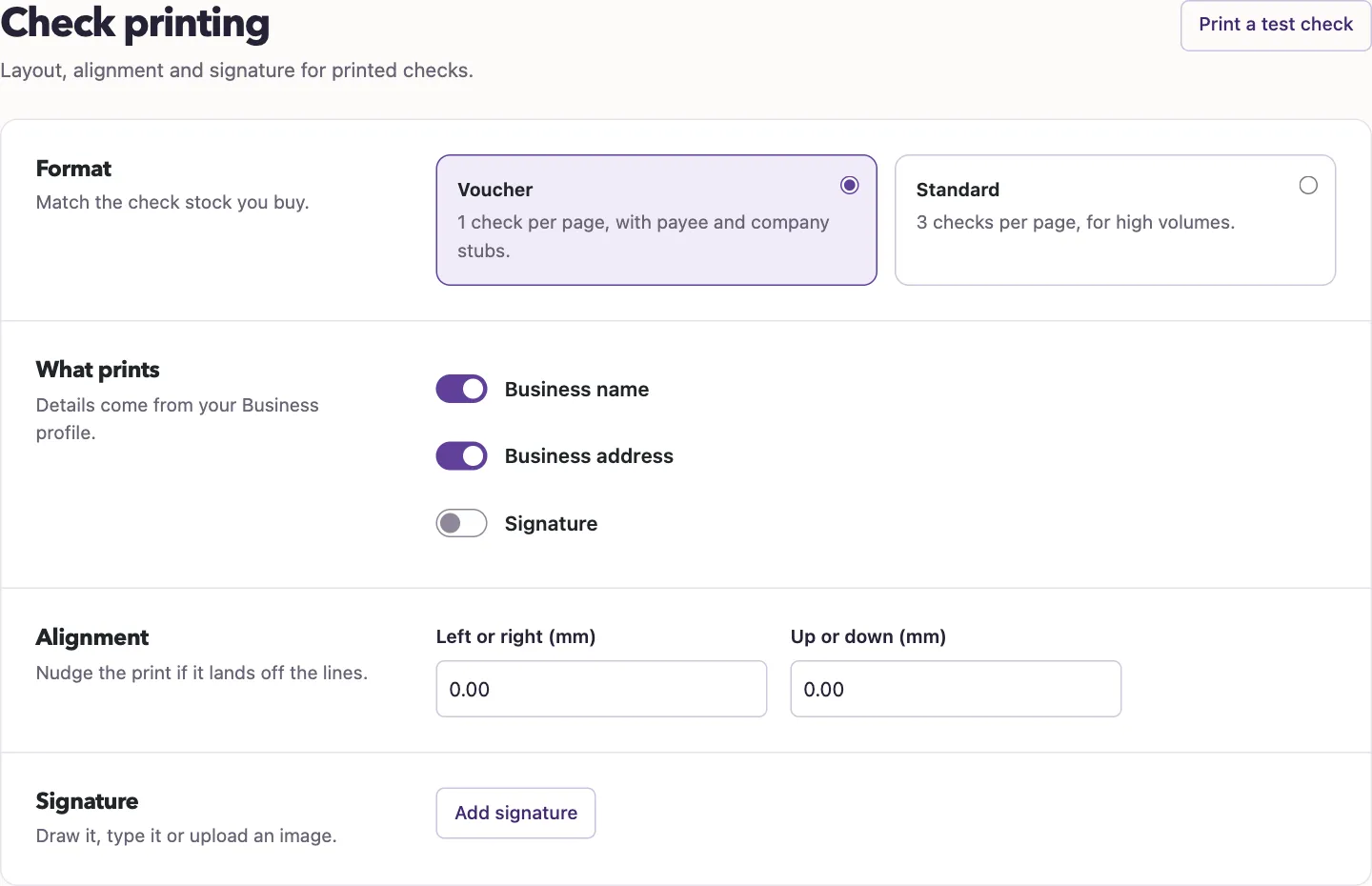
- Choose Voucher or Standard under Format.
- Review the switches under What prints.
- Enter alignment offsets if needed.
- Select Save changes.
Voucher uses one check per page with payee and company stubs. Standard uses three checks per page. Name and address details come from your profile.
Left or right (mm) and Up or down (mm) accept values from -25 through 25. Save before selecting Print a test check: the test PDF uses the saved settings. It opens as a letter-size portrait document.
Add or replace a signature
- Select Add signature, or Edit signature if one exists.
- Choose Draw, Type or Upload.
- Draw the signature, enter your name, or select a PNG image up to 1 MB.
- For a typed signature, select Apply Signature.
- Turn on Signature under What prints if you want it printed.
- Select Save changes.
Review the signature preview before saving. A drawn signature updates the preview after each stroke; Apply Signature can apply it again. Undo and Clear change the drawing canvas without refreshing an already applied preview. Apply the corrected drawing again, or use Remove Signature to clear it, before saving. Replacing a saved signature removes the previous saved image. Remove Signature, followed by saving, clears the image and turns signature printing off.
Saving settings does not issue a check or record a payment. Continue to Edit your business profile if the printed identity details need correction.