
Configure payment methods
Add, reorder, deactivate or restore the method labels used when recording payments.
- Who can do this
- Owners, or people with Manage business settings, roles & permissions
- Where
- Settings, then Payment methods
On this page
Payment methods are the labels available when recording money received or paid. Adding a method does not connect a payment processor or charge a customer.
Add a method
- Open Settings.
- Select Payment methods.
- Select Add method.
- Enter a unique Code.
- Enter Name.
- Choose Icon and Icon color.
- Review the choices under Available for.
- Select Add method in the dialog.
The code allows letters, numbers, underscores and dashes, up to 50 characters. The name allows up to 100. An optional description allows up to 500. Select whether the method applies to receiving payments from customers, making payments to vendors, or both.
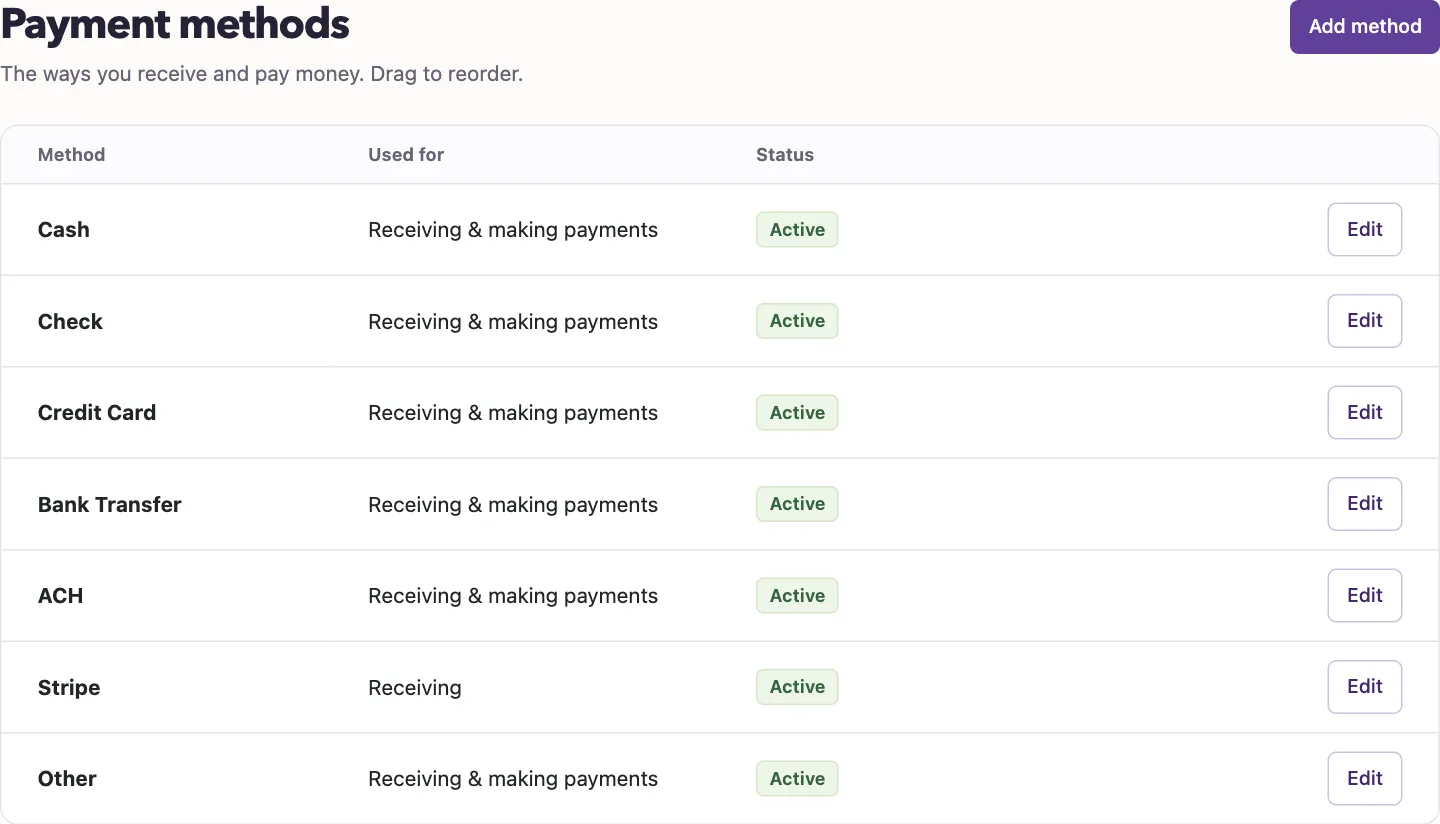
Read the status
| Status | Meaning |
|---|---|
| Active | Available for the payment directions selected for the method. |
| Inactive | Excluded from the active method choices. |
| Deleted | Removed from ordinary choices, with a restore action on this list. |
Edit or reorder
Select Edit, make changes, then select Save changes. Clear Active to stop offering the method. The edit form does not change its code.
Drag a row to reorder methods. With the row focused, hold Alt and press the up or down arrow. Reordering saves immediately and reloads the list.
Custom methods offer Delete method with a confirmation. System methods cannot be deleted; deactivate them instead. Select Restore beside a deleted method to restore it, then review its active status and uses.
For card-payment connections, return to the Payments tab described in Design your invoice documents.
Good to know
You need the Manage business settings, roles & permissions permission.