
Edit your business or organization profile
Update the name, contact details, logo and timezone used by your workspace.
- Who can do this
- Owners with Manage business settings, roles & permissions; Nonprofit identity: Review legal organization identity
- Where
- Settings
Your profile supplies the business identity and contact details used by documents.
Update the profile
- Open Settings.
- Select Business profile, or Organization profile for Nonprofit.
- Enter the business or organization name.
- Update Address, Business email, Phone (optional) and Website (optional) as needed.
- Select a Timezone.
- Select Save changes.
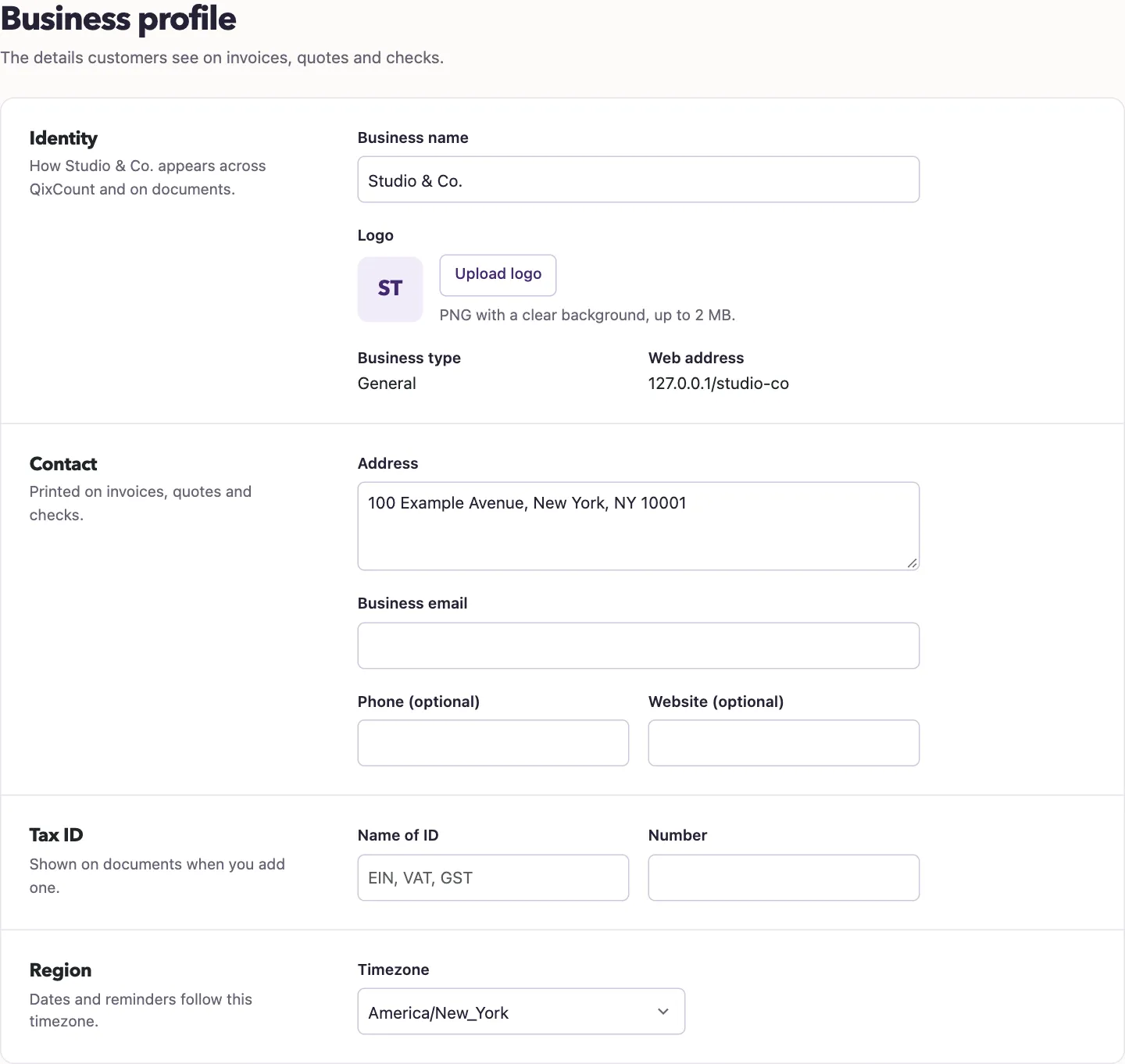
The name is required and can contain up to 255 characters. The address can contain up to 2,000 characters. Enter a full website address when you provide one.
To add a logo, select Upload logo and choose an image up to 2 MB. If a logo already exists, Remove logo clears it when you save. The business type and web address are displayed as reference values; this form does not change them.
Confirm Nonprofit legal identity
The owner profile shows Legal organization name and I have reviewed this legal identity when you have the required permission. Enter the legal name and address before confirming and saving.
A non-owner with Review legal organization identity permission can select Settings, then Organization profile to open the dedicated profile form. Enter the legal name and address, select I reviewed the legal organization identity above for acknowledgment issuance., then select Confirm legal identity. Earlier acknowledgment versions remain unchanged. Editing identity details later can require a fresh confirmation before another acknowledgment is issued.

For currency and fiscal year, continue to Check your accounting setup.
Good to know
The main profile page is owner-only and requires the Manage business settings, roles & permissions permission. Nonprofit legal identity also requires Review legal organization identity permission.