
Set up approval workflows
Create amount-based approval steps and manage active workflows.
- Who can do this
- Owners, or people with Manage business settings, roles & permissions
- Where
- Settings, then Approvals
- You'll need
- Approval workflows turned on in Features
Workflows define who can approve supported documents and which amounts require review. You need the Manage business settings, roles & permissions permission.
Create a workflow
- Open Settings.
- Select Approvals.
- Select Set up beside a document type with no active workflow.
- Enter Workflow name.
- Review Document type and Active.
- Choose Business Owner, Specific User, Any of Selected Users or Users with Role under Approver type.
- Enter Minimum amount and, if needed, Maximum amount.
- Under Select approvers, select the people, or the role for Users with Role.
- Select Add Step for any further approvals, then select Create Workflow.
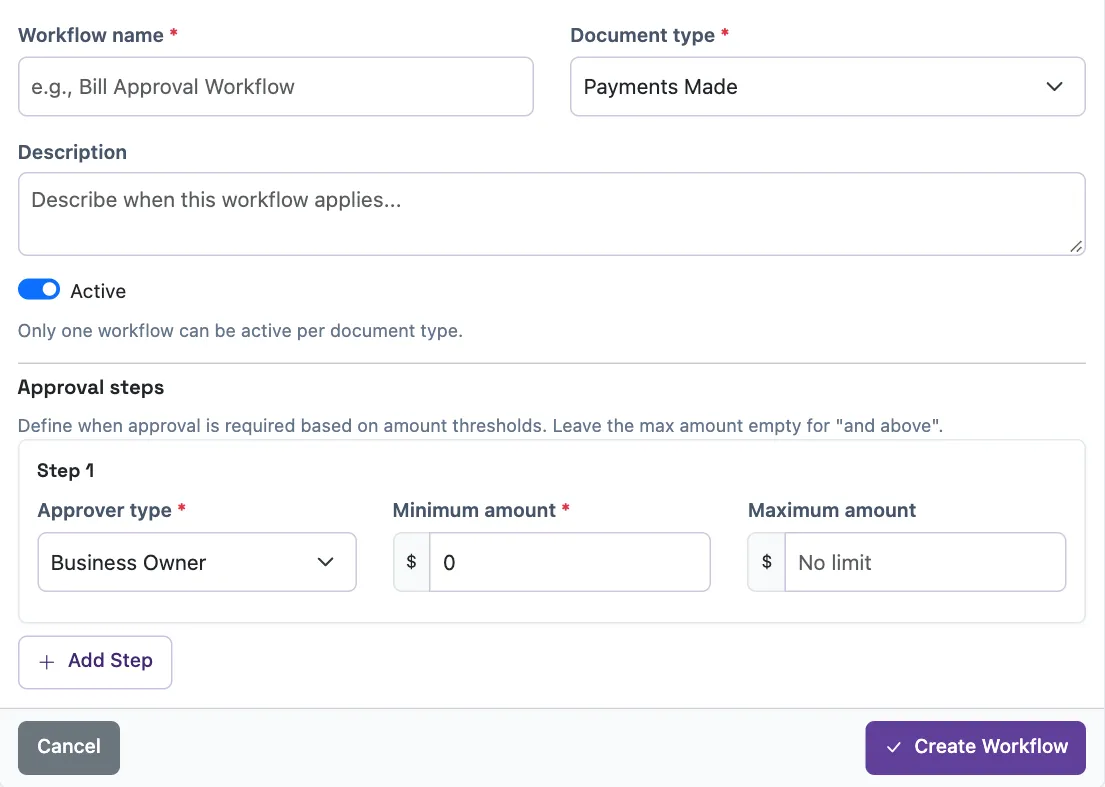
A workflow needs at least one step. Its name allows up to 100 characters and description up to 500. Amount limits must be zero or positive; a blank maximum has no upper limit. Both boundaries are inclusive. A request follows only the steps whose amount range includes its amount, in order. A step that doesn't apply is skipped.
For user selections, choose active members. Named non-owner approvers need Approve bills for bills, Create payments to vendors for vendor payments, Approve new vendors for vendors and bank changes, or Post journal entries for journals. Use Business Owner for purchase order steps. Owners can approve regardless of the selected approver type, including their own requests. Non-owners cannot approve a request they made or a document they created.
Users with Role covers everyone with that role who also holds the approval permission above. A step saved before this choice listed roles keeps the people picked then, until you change it.
Manage an existing workflow
Only one workflow can be active per document type. Select Edit to change it, then “Update Workflow”. The document type cannot be changed on the edit form. Deactivate stops that workflow being selected for new requests; inactive workflows offer Activate.
WarningEditing replaces the workflow steps. Review pending requests before changing a live workflow. Deleting cannot be undone and is blocked while that workflow has pending requests.
The displayed workflow types do not include invoices. Turning on the feature switch alone does not add invoice approvals. Continue to Configure period close checklist items.
Good to know
Turn on Approval workflows in Features to show the navigation entry.