
Set up approval workflows
Set up a single-step approval workflow and manage its active state.
- Who can do this
- Owners, or people with Manage business settings, roles & permissions
- Where
- Settings, then Approvals
- You'll need
- Approval workflows turned on in Features
On this page
Approval settings hold the named workflows and their steps. You need Manage business settings, roles & permissions permission. An owner has this permission.
Create a workflow
- Open Settings.
- Select Approvals. If it is hidden, turn on Approval workflows in Features first.
- Select Set up beside a document type.
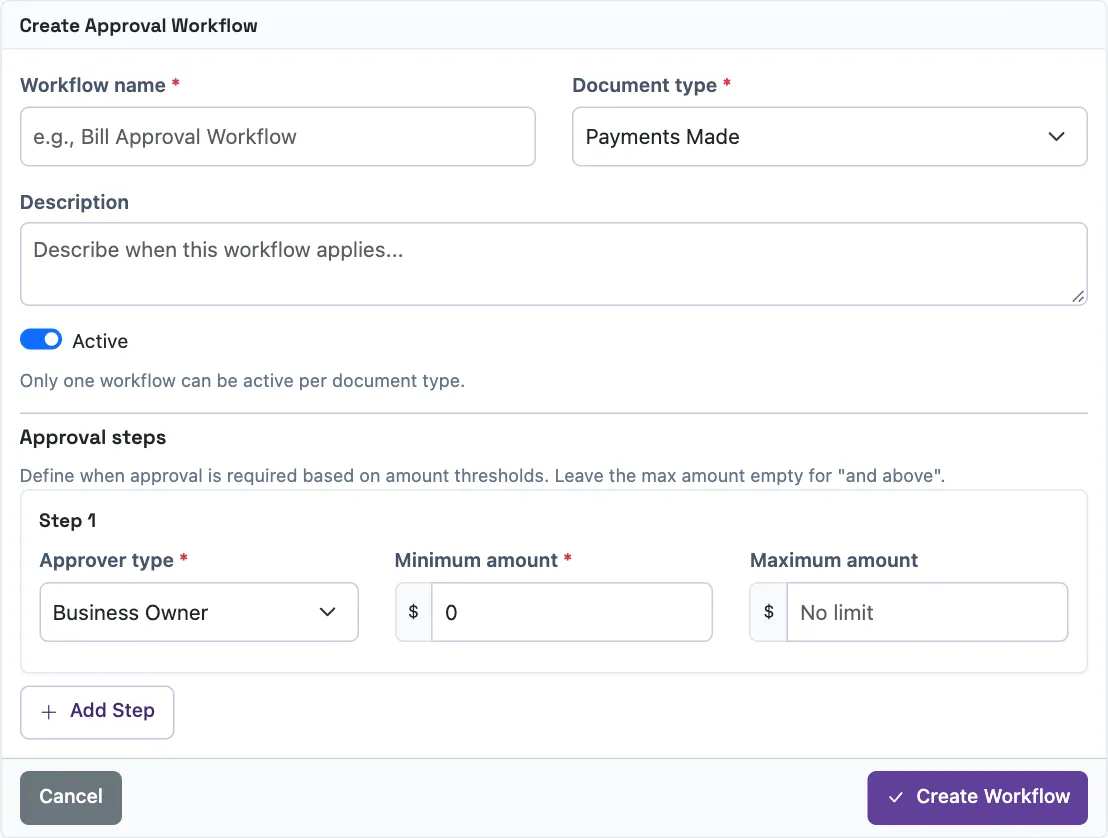
- Enter Workflow name, up to 100 characters.
- Check Document type. The form offers bills, payments made, journal entries, new vendors, vendor bank changes, and purchase orders.
- Enter an optional Description, up to 500 characters.
- Choose whether Active is on. Only one workflow can be active for each document type.
- Choose Specific User, Any of Selected Users or Business Owner in Approver type. Keep one step for this workflow.
- Enter Minimum amount, zero or greater.
- Enter Maximum amount if needed, zero or greater. Leaving it blank means no upper limit.
- For a user-based step, choose people in Select approvers. Hold Ctrl or Command to select more than one.
- Select Create Workflow.
The amount comparison includes both endpoints. A document outside every step's amount range does not require approval through that workflow. The list of document types is a settings list; it does not establish that every document screen submits a request.
Change or remove a workflow
Finish pending requests before changing a workflow: saving replaces the steps those requests use too. Select Edit beside an active workflow, or expand the inactive workflow list and select its name. You can change the name, description and active state. Keep a single approval step with one of the approver types above. The document type cannot be changed. Select Update Workflow to save.
Use the three-dot menu to select Deactivate. Expand inactive workflows to select Activate. An existing active workflow for that document type blocks activation.
The edit form also has Delete. Deletion asks for confirmation and cannot be undone. A workflow with pending requests cannot be deleted.
See Use approvals to review requests and the effects of approval.