
Customize the period close checklist
Add or edit checklist templates and choose which items block a monthly period from closing.
- Who can do this
- Owners, or people with Manage business settings, roles & permissions
- Where
- Settings, then Period close
- You'll need
- Period close turned on in Features
Checklist templates define the items copied into a period's first checklist. Use them to change the wording or required status for checklists that have not been initialized yet.
Add an item
- Open Settings.
- Select Period close.
- Select Add item.
- Enter Item name, up to 200 characters.
- Enter Description, up to 1,000 characters, if needed.
- Set Required to close period.
- Select Create Item. You return to the template list.
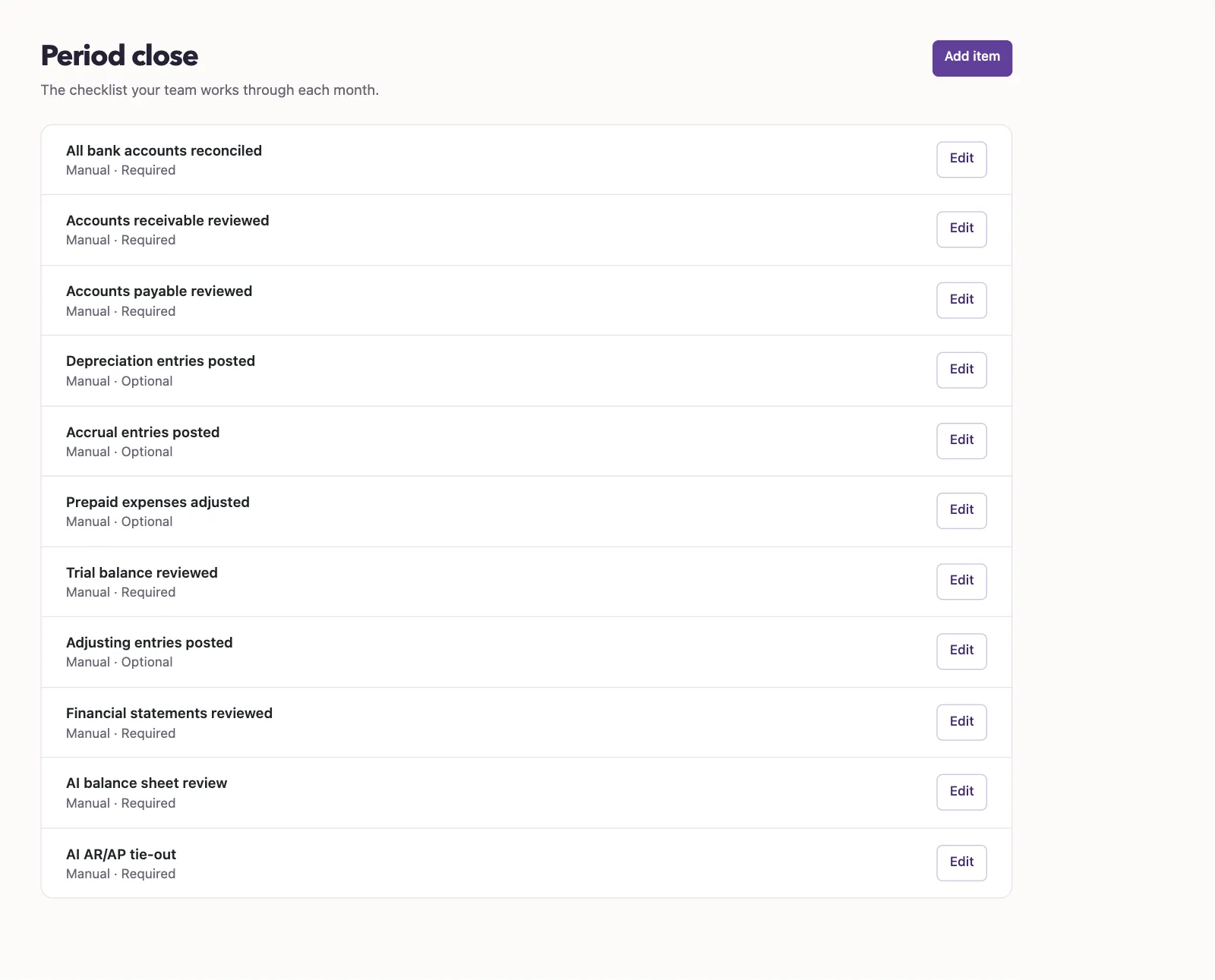
The required switch starts on for a new item. A required item blocks a period from closing until someone marks that copied item complete. The description explains the task; it does not automate it.
Edit or delete an item
- Select Edit beside a template.
- Change its name, description or required setting.
- Select Update Item. You return to the template list.
For an item that allows deletion, select Delete item and confirm. System items cannot be deleted. You can change their names, descriptions or required settings.
What happens next
New items appear after existing items. Periods that already have checklist items keep their own copies. Opening a period with no items initializes its checklist from the current templates.
Next, complete a period close checklist.
Who can do this and what you need
You need Manage business settings, roles & permissions permission. If Period close is hidden in Settings, turn on Period close under Features first. Template changes do not update existing period checklists, including checklists already initialized by opening the fiscal-period list.