
Lock a closed period
Understand the permanent lock action and how it differs from closing a fiscal period.
- Who can do this
- Owners, or people with View fiscal periods and Manage fiscal periods (close/reopen/lock)
- Where
- Books, then Fiscal periods
- You'll need
- Period close turned on in Features; a closed monthly period
WarningThe lock action cannot be undone through the period controls. It also blocks year-end closing entries that need to post into that period.
Locking changes a closed period to Locked. Unlike closing, this workflow provides no action to reopen the period.
Lock the period
- Open Books, then Fiscal periods, and select the closed month.
- Confirm the dates and status at the top of the page.
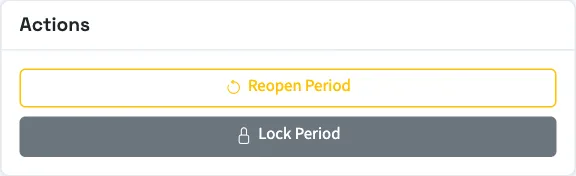
- Select Lock Period under Actions.
- Read the dialog's warning.
- Select Lock Permanently only when you intend to remove the reopen option.
What happens next
The status becomes Locked. The page no longer offers the close or reopen controls. Its checklist remains visible without completion controls.
A lock controls posting and the available period actions. It does not establish that every business record is unchangeable, that every event was logged or that the books have been independently checked.
If you need a closed month open for corrections, use reopen a period before locking it. For the separate year-end posting, read close a General fiscal year or close a Nonprofit fiscal year, depending on your edition.
Who can do this and what you need
You need View fiscal periods and Manage fiscal periods (close/reopen/lock) permissions. The period must already be Closed. An open period must be closed before it can be locked.
If Fiscal periods isn't in the sidebar, someone with settings access can turn on Period close in Features.