
Use approvals
Find approval requests, review their history, and understand which actions change the underlying document.
- Who can do this
- Owners and active business users; approvers must meet the workflow and document rules
- Where
- Approvals
- You'll need
- Approval workflows turned on in Features; an active business user and a request you submitted or can approve
On this page
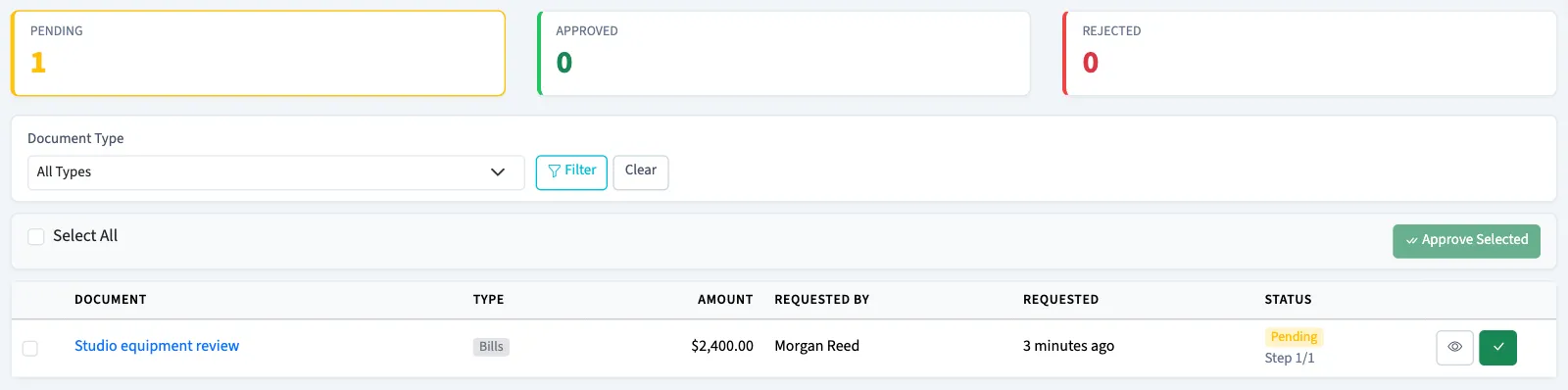
Use Approvals to find requests and see who has acted on them. An owner sees all requests.
Find and review a request
- Select Approvals.
- Select Pending, Approved, or Rejected.
- Choose a Document Type, then select Filter if needed.
- Select the document label to open its details.
- Read Request Details, Workflow, and Approval History.
| Status | Meaning |
|---|---|
| Pending | The request is waiting at an approval step. |
| Approved | The final step is complete. |
| Rejected | An approver rejected the request; the reason appears in its details. |
| Cancelled | The requester or an owner cancelled the request. There is no separate cancelled status card. |
Understand approval actions
Open a pending request to act on it. If you are eligible, Take Action offers Approve and Reject.
WarningFinal approval can post a bill or outgoing payment to the general ledger, the record of accounting entries. Other request types can activate a vendor, apply pending vendor bank details, or approve a purchase order.
- Enter optional approval comments, up to 1,000 characters, then select Approve to complete the current step or finish approval.
- To reject instead, enter Rejection Reason, up to 1,000 characters, then select Reject. The request becomes rejected and retains the reason.
A successful approval or rejection returns you to the approval list. For several requests, select their checkboxes on the list and select Approve Selected. Each request still has its eligibility checked.
The requester or an owner can select Cancel Request on a pending request and confirm. Cancellation marks the request cancelled; it does not run approval or rejection actions on the underlying document. Review that document’s status before deciding what to do next.
Troubleshooting
If an action is refused, check the request’s current status and your eligibility. Check its history and the underlying document before retrying after an error.
To change who can approve future requests, see Set up approval workflows.
Good to know
Other active business users see their own requests and pending requests they can approve.
Who can do this and what you need
If the menu is hidden, someone with Manage business settings, roles & permissions permission can turn on Approval workflows under Settings, then Features. This controls menu visibility. The workflow itself determines whether a document needs approval.
Normally, a staff approver must match the current workflow step and hold the document's approval permission. Staff cannot approve a request they submitted or a document they created. Owners can approve their own requests. An active delegation lets the delegate approve a step the person they cover could approve, unless that person submitted the request or created the document.