
Understand fiscal periods
Find monthly periods, check their dates and understand open, closed and locked statuses.
- Who can do this
- Owners, or people with View fiscal periods; generating periods needs Manage fiscal periods (close/reopen/lock)
- Where
- Books, then Fiscal periods
- You'll need
- Period close turned on in Features
Fiscal periods divide your books into dated windows. The Fiscal periods page lists monthly periods for the selected fiscal year, their status and checklist progress. Closing a month and closing a year are separate tasks.
Find or generate a year
- Select Fiscal periods in Books.
- Use the year selector beside Fiscal Periods to choose an existing year.
- If the year has no periods, select Generate Periods.
- Select the offered year marked Monthly.
- Select a period name to open its checklist and summary.
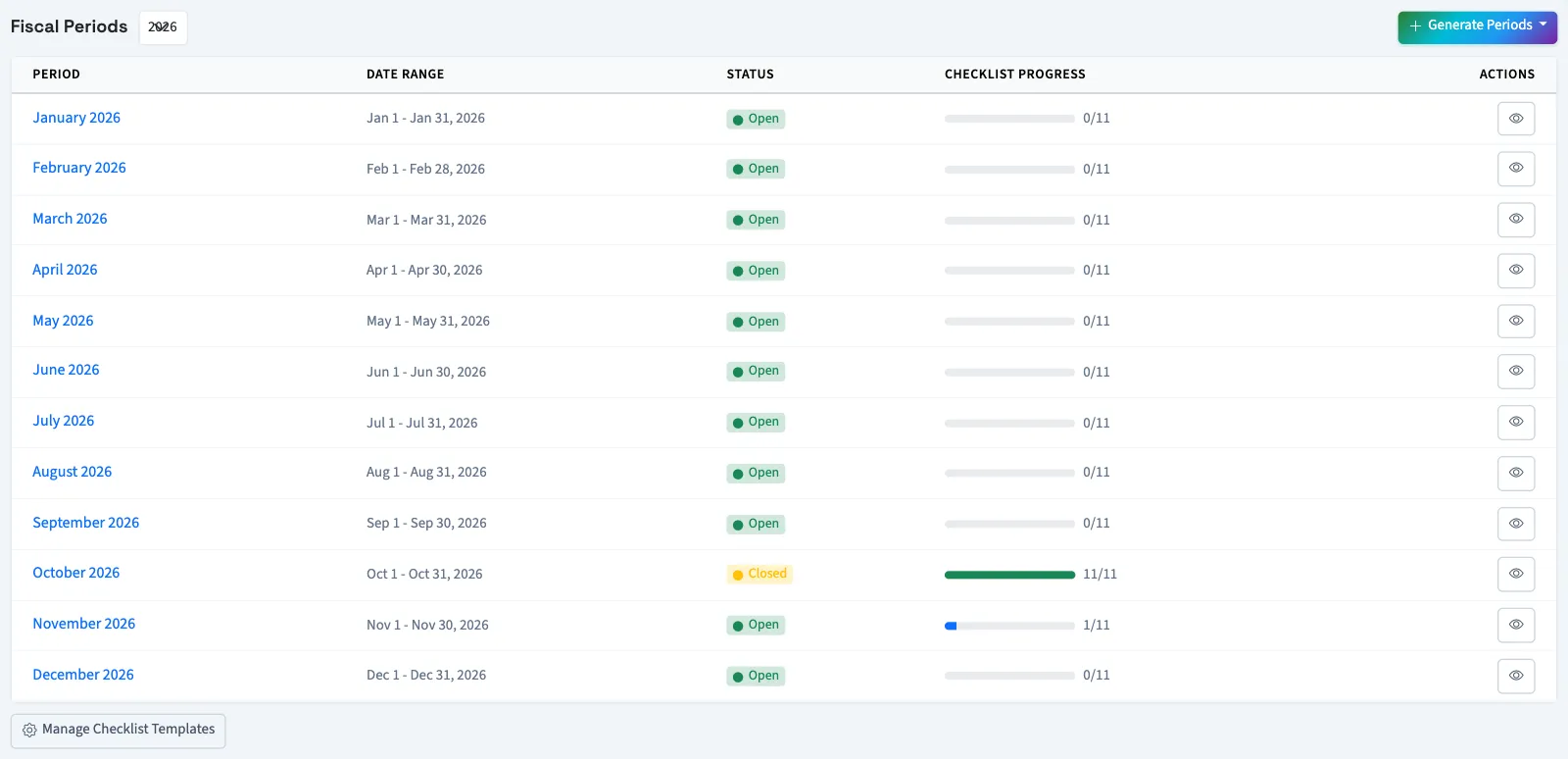
For a year that already has periods, open its period name directly.
The generation menu offers missing years from last year through next year. It creates 12 monthly windows from your configured fiscal year start. Check Date Range, especially if your year starts outside January. The fiscal year number follows the ending year when the start is after January 1.
Read a status
| Status | What QixCount does |
|---|---|
| Open | Allows ordinary posting, subject to other posting checks. |
| Closed | Blocks ordinary posting to the period; the period can be reopened. |
| Locked | Blocks posting to the period and has no reopen action. |
Checklist progress counts completed items out of all items. Required items determine whether you can close; optional items also affect the progress count.
Next, complete a period checklist or close a month.
Who can do this and what you need
You need View fiscal periods permission. Generating periods needs Manage fiscal periods (close/reopen/lock) permission. An owner has both. If the menu row is hidden, someone with Manage business settings, roles & permissions permission can turn on Period close under Features.