
Configure period close checklist items
Add or edit the items copied into a period close checklist.
- Who can do this
- Owners, or people with Manage business settings, roles & permissions
- Where
- Settings, then Period close
- You'll need
- Period close turned on in Features
Period close settings holds reusable checklist items. The items are copied when a period checklist is first initialized.
Add an item
- Open Settings.
- Select Period close.
- Select Add item.
- Enter Item name.
- Enter Description if needed.
- Review Required to close period.
- Select “Create Item”.
Names allow up to 200 characters and descriptions up to 1,000. New items are added after the existing items. A required item must be completed before the period can pass the required-checklist check.
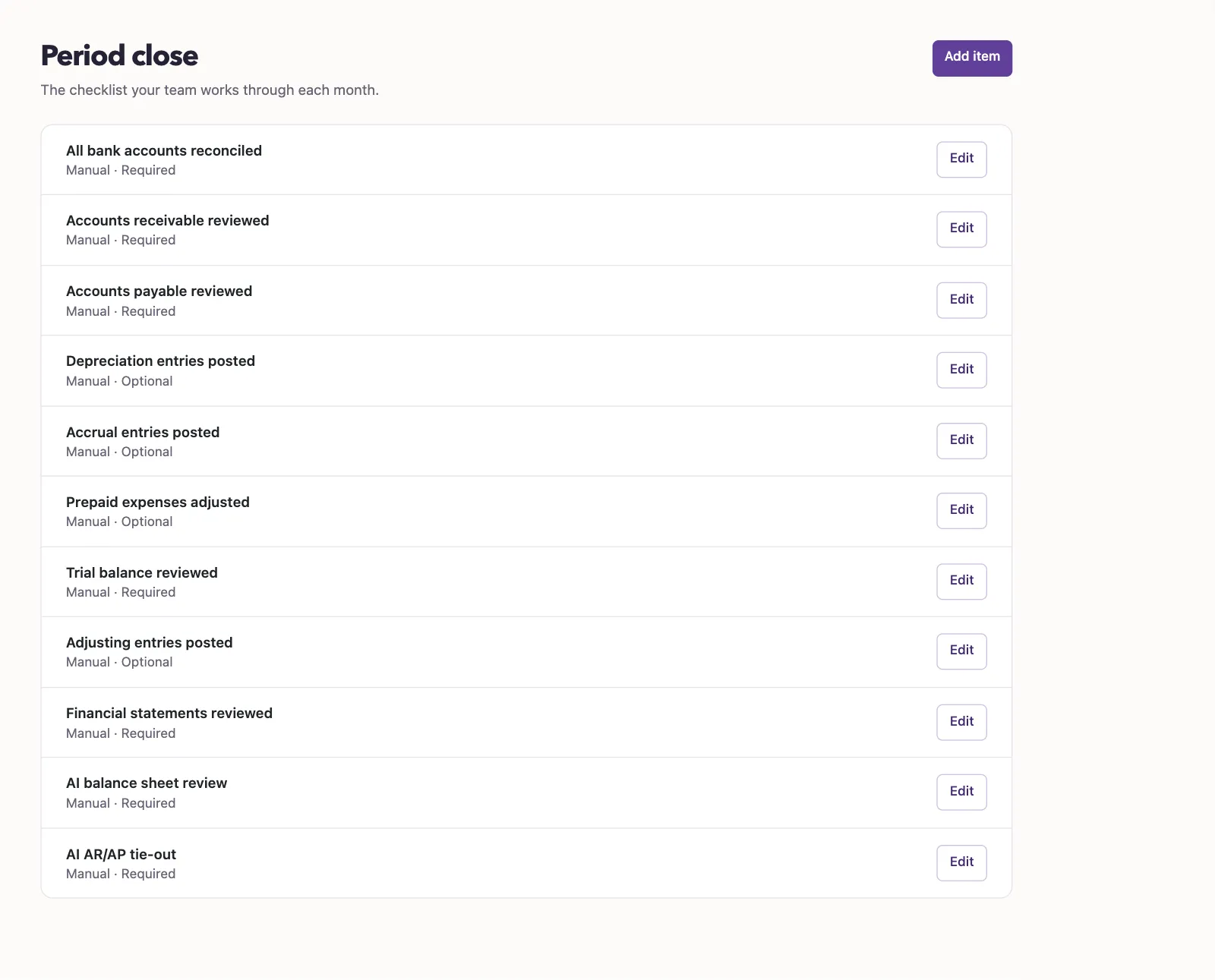
Edit or delete an item
Select Edit beside an item, make changes, then select “Update Item”. The list identifies each item as required or optional. The text describes a manual checklist item; saving it does not perform the named review or accounting task.
Custom items offer Delete item on the edit page, followed by a confirmation. System items cannot be deleted. The current page does not offer a reorder control. Keep system item names unchanged; use the description to add your instructions.
What happens next
Editing the reusable item does not rewrite checklists already initialized for existing periods. Their copied names, descriptions and required status stay as they were. A period without a checklist yet receives the current items when initialized.
Saving templates does not close a period, lock transactions or post an entry. Review Set a backdating limit for the separate rule that limits ordinary posting by age, or return to Choose features and a starting preset.
Good to know
You need the Manage business settings, roles & permissions permission; the Period close feature must be on to show its menu entry.