
Set automatic payment reminders
Choose overdue-day reminders, a cooldown and the wording sent to customers.
- Who can do this
- Owners, or people with Manage business settings, roles & permissions
- Where
- Settings, then Customer emails
On this page
Choose when QixCount attempts automatic reminders for overdue invoices. You can also send a manual reminder when a separate follow-up is needed.
Choose the schedule
- Open Settings.
- Select Customer emails.
- Select Payment reminder.
- Turn on Send reminders automatically.
- Select the desired values under Days after the due date.
- Enter Wait between reminders.
- Edit Subject and Message if needed.
- Select Save changes.
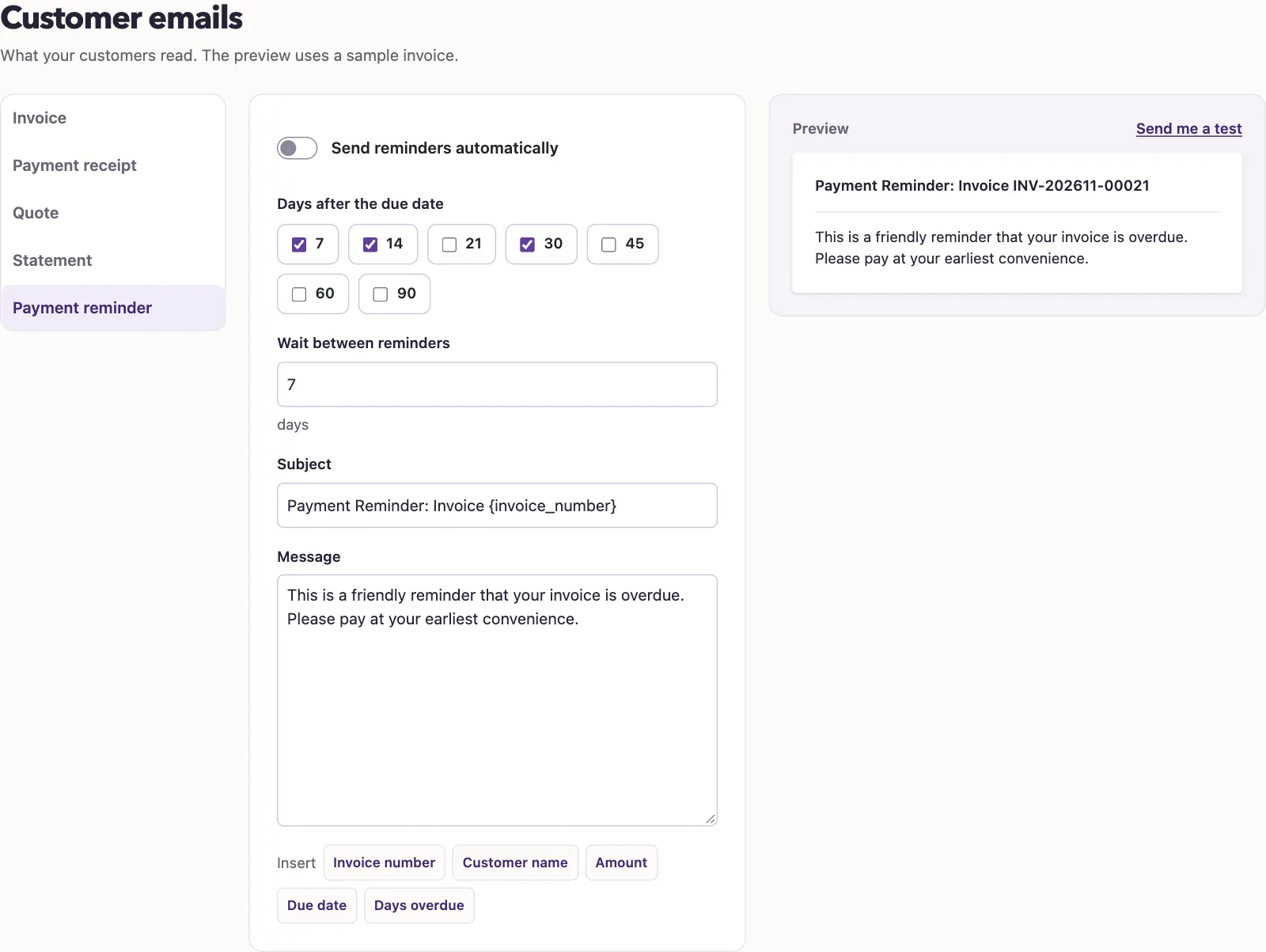
The screen offers 7, 14, 21, 30, 45, 60 and 90 days after the due date. The cooldown accepts 1 through 90 days. The default schedule, when none is saved, is 7, 14 and 30 days, with a seven-day cooldown. An empty saved schedule selects no automatic send days.
What happens next
The daily reminder run checks active businesses with Accounting enabled. Eligible invoices have an unpaid balance, a past due date, a customer email address, and a status of sent, viewed, partial or overdue. The current number of overdue days must match a selected schedule day. A recent successfully sent reminder can also block another send until the cooldown has passed. A failed delivery does not mark it sent or start the waiting period.
This means adding a schedule day that has already passed does not create a catch-up reminder. Draft, paid and void invoices are outside this automatic selection.
The message preview uses sample information. Send me a test sends that editor text to you, not to the customer. If delivery fails or the history looks inconsistent, contact support; a recorded reminder is not proof of inbox delivery.
Continue to Configure email sending.
Good to know
You need the Manage business settings, roles & permissions permission to change the schedule. Changing this form does not immediately send a reminder.