
Send payment reminders
Send an overdue invoice reminder manually or review the automatic schedule and delivery requirements.
- Who can do this
- Owners, or people with View invoices and Send invoices
- Where
- Sales, then Invoices
- You'll need
- An overdue invoice with a balance and the customer’s email address
On this page
Send one reminder
Owners can send reminders. Staff need View invoices to open an invoice and Send invoices to send its reminder.
- Open Invoices.
- Select the overdue invoice.
- Select Send Reminder.
- Check the recipient and balance in Send Payment Reminder.
- Enter a Personal Message if needed, up to 2,000 characters.
- Select Send Reminder in the dialog.
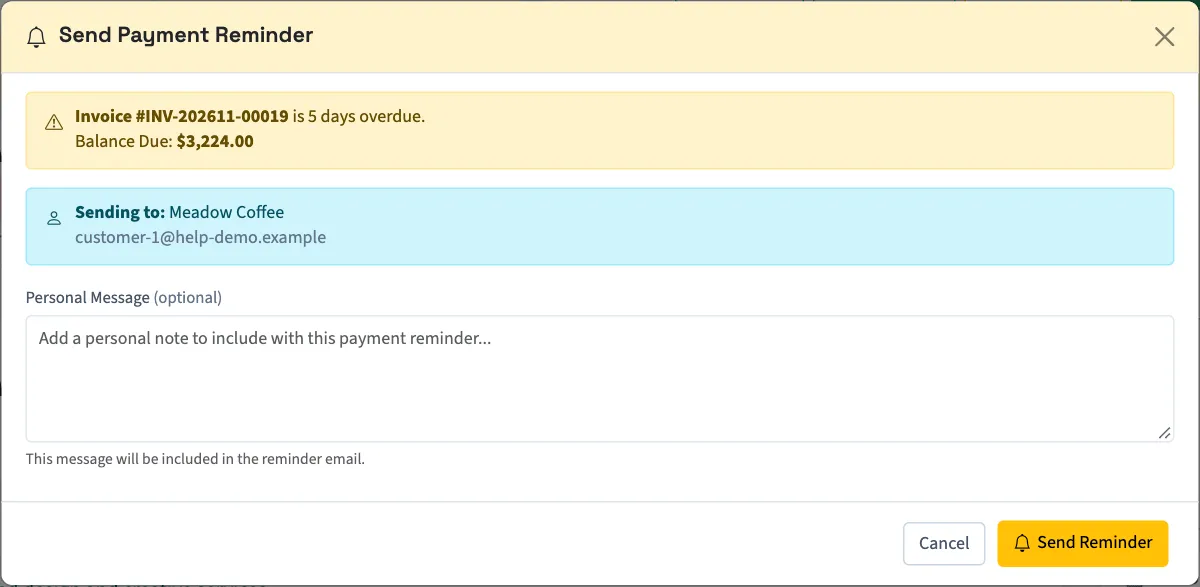
A personal message replaces the saved reminder message for that email. You can send a manual reminder even when automatic reminders are off. Manual reminders do not enforce the automatic waiting period, so check the last-reminder date before sending again.
Understand automatic reminder settings
When Send reminders automatically is on, the daily reminder run checks eligible unpaid invoices against the saved overdue-day schedule and waiting period. It does not send a catch-up reminder for a selected day that has already passed.
Owners or staff with Manage business settings, roles & permissions can review the saved settings under Settings, Customer emails, then Payment reminder:
| Setting | Saved choices or limits |
|---|---|
| Days after the due date | 7, 14, 21, 30, 45, 60 or 90 days. |
| Wait between reminders | 1 to 90 days. |
| Subject | Up to 255 characters. |
| Message | Up to 2,000 characters. |
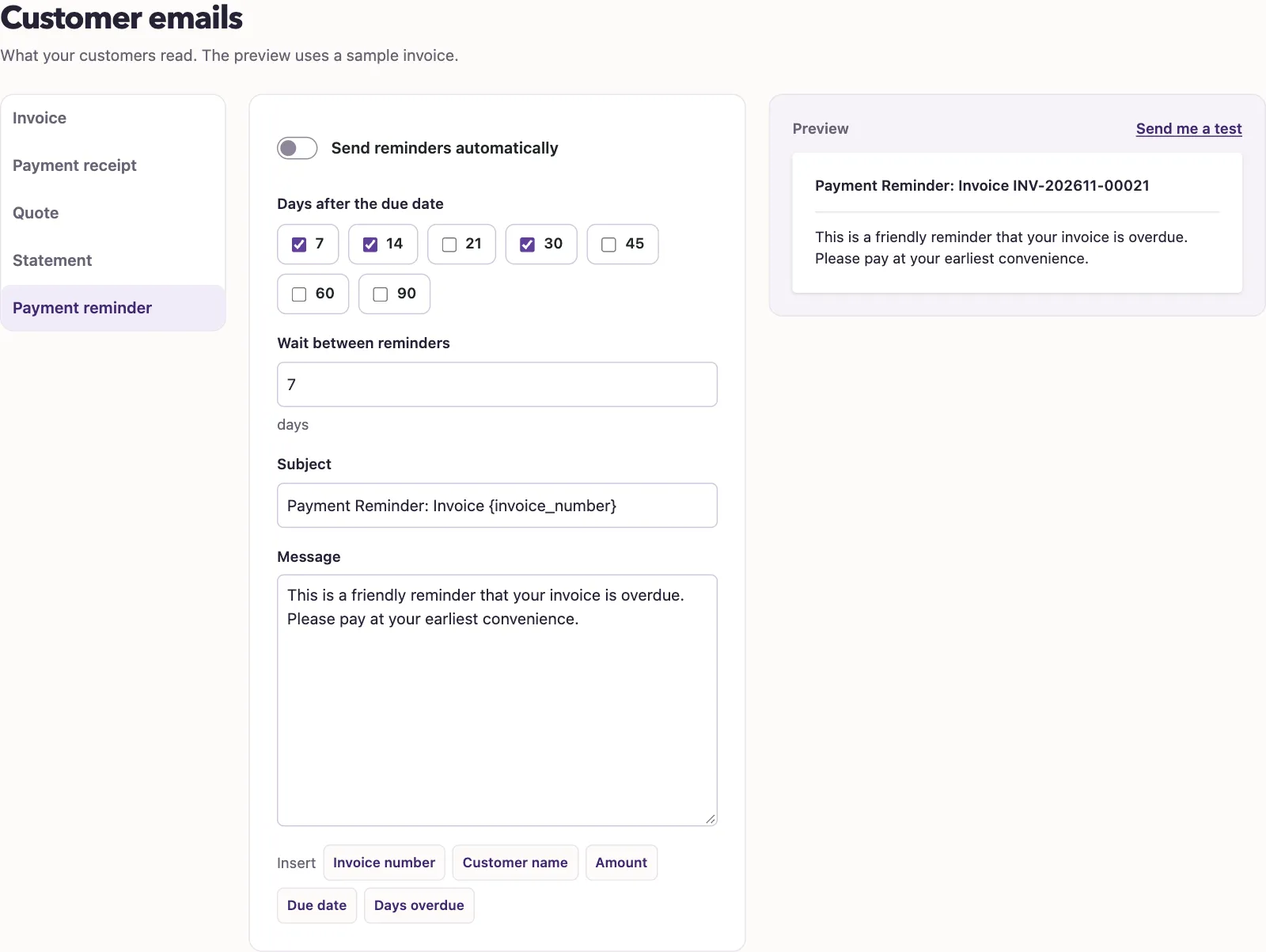
The default saved schedule is 7, 14 and 30 days after the due date, with a 7-day waiting period. Saving these choices does not send immediately or confirm delivery. Eligible invoices need a past due date, a balance, a customer email address, and sent, viewed, partial or overdue status. See Set automatic payment reminders for the schedule rules.
What happens next
The reminder includes the invoice number, dates, balance and View Invoice. It can include Pay Now when online payment is available. Sending a reminder does not change the invoice balance or record a payment. The confirmation means the email is waiting for delivery. Reminder history and the automatic waiting period update after a successful send; a failed delivery does not mark the reminder sent or start that waiting period.
Troubleshooting
If no reminder action is available, check that the invoice is overdue with an outstanding balance. Add the customer's email address before sending. If a customer reports missing mail despite a success message, contact support to check delivery.
When the customer pays, record the payment.
See the payment reminder from your customer's side.
Good to know
Send a reminder when an invoice is past its due date and still has a balance. The customer must have an email address.