
Add or edit a customer
Save customer contact details, addresses and default payment terms.
- Who can do this
- Owners; staff need View customers plus Create customers, Edit customers or Delete customers for the action
- Where
- Sales, then Customers
On this page
Add a customer before billing them. Owners can do this; staff need Create customers to add records, Edit customers to change them, and Delete customers to delete them. Opening the list or profile also needs View customers.
Add a customer
- Open Customers.
- Select New Customer.
- Enter Display Name, the name shown in lists and on invoices. It is required and can contain up to 255 characters.
- Enter Email Address if you will email invoices.
- Enter the contact details and billing address you need.
- Select Copy billing if the shipping address matches.
- Choose Payment Terms if this customer has default terms.
- Select Create Customer.
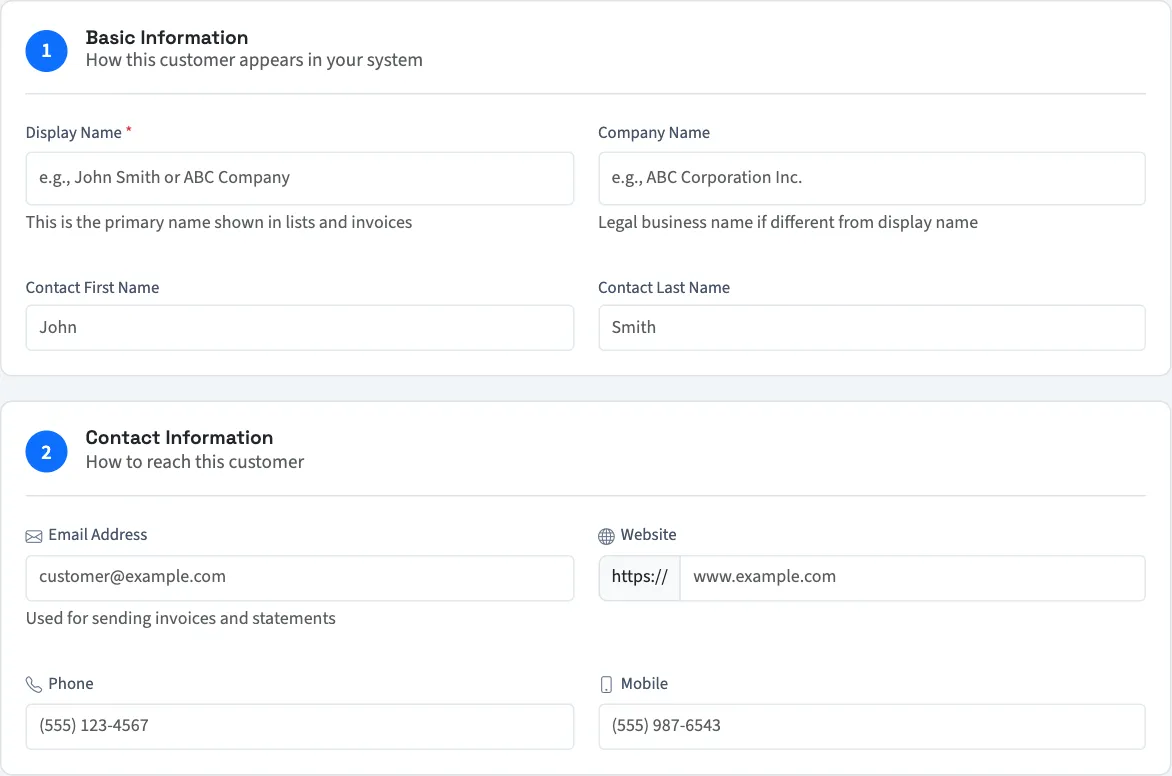
You return to the customer list. To save and start a blank customer form instead, select Save & Create Another. The success message links to the new profile. Custom payment terms accept up to 365 days for a net term or 90 days after month end. Check the due date when creating each invoice.
Edit a customer
- Open Customers and select the customer's name.
- Select Edit.
- Change the details.
- Select Save Changes.
The form includes This customer is tax exempt, Exemption Type, Expiry Date and certificate information. These record the information you provide; they do not establish whether an exemption is legally valid. Turning the exemption switch off clears the saved exemption details.
This guide explains how QixCount works. It isn't tax, legal or accounting advice.
Delete a customer
Select Delete Customer only for a record with no invoices or payments, then confirm. Any existing invoice or payment blocks deletion, including a paid invoice. To stop using a customer while keeping their history, clear Active Customer on the edit form and select Save Changes. Select the switch again and save to reactivate the customer.
Next, create an invoice.
To add a customer list from CSV, import customers.