
Create and review batch invoices
Create several invoice drafts, follow progress, and download selected PDFs.
- Who can do this
- Owners, or people with Create invoices and View invoices; posting the batch needs Send invoices
- Where
- Sales, then Invoices
- You'll need
- Customers and invoice lines; each invoice needs a due date on or after its invoice date
On this page
Create several invoices in one form when each customer needs their own invoice. Owners have access.
Create the batch
- Open Invoices.
- Select Batch Create.
- Select a Customer for each row.
- Enter Invoice Date for each row.
- Enter Due Date, on or after that row's invoice date.
- Choose Project if it appears and is required.
- In the row's items, enter each Description, Qty and Unit Price.
- Select Add 5 Rows if you need more customer rows.
- Select Save Drafts to create drafts for review.
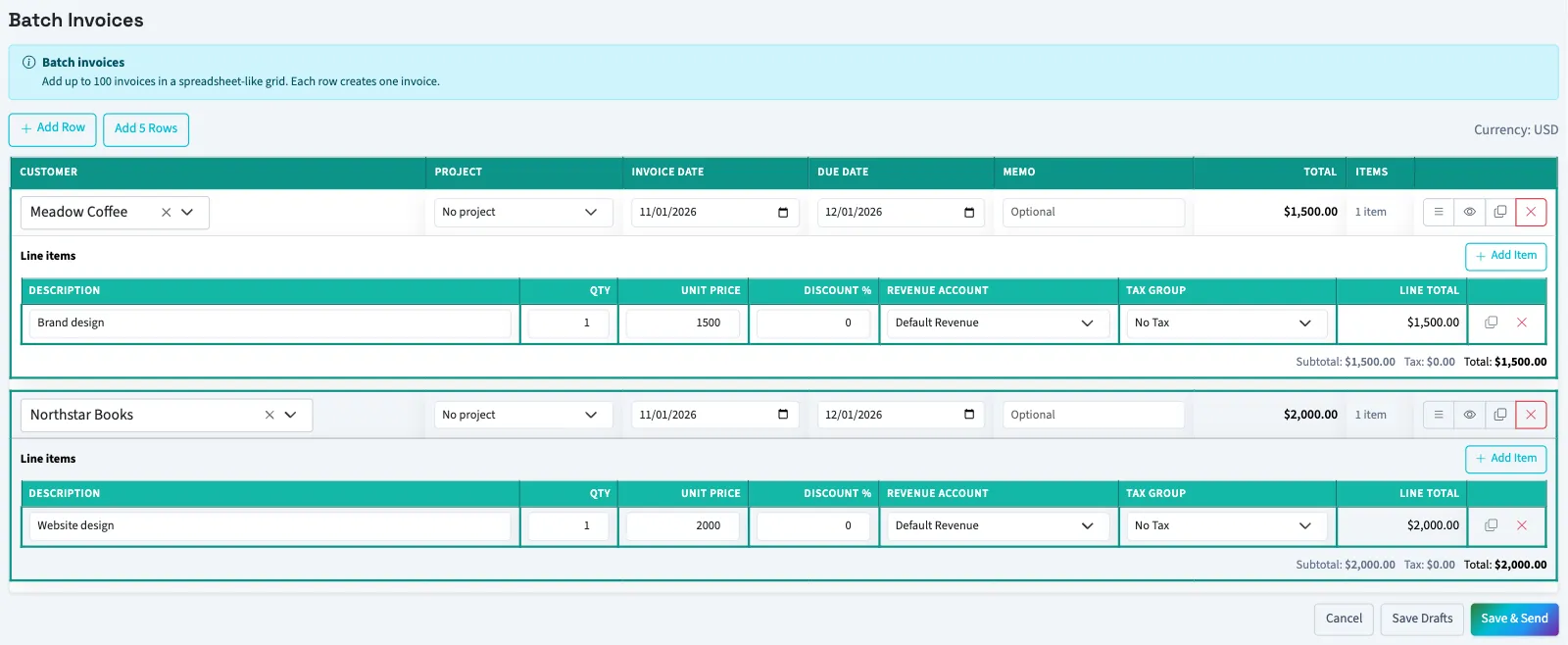
Every row needs at least one item. Quantities must be at least 0.01; prices cannot be negative. Line discount percentages must be between 0 and 100. A row's Memo becomes its invoice notes.
Save & Send creates the invoices and requests posting for eligible drafts. It does not email customers. Check each resulting invoice before sending its email.
Check the results
On Invoices, select Batch History, filter by Status, From or To, then select View for a run. Batch states are queued, running, completed, completed with errors, and failed. The progress page lists each row's status and message.
A completed creation run is not proof every invoice posted. A later posting failure can appear on a row after the run totals were calculated. Inspect each invoice's status, especially when a period is closed or locked. Correct only failed work to avoid duplicate invoices.
Use selected invoices
On Invoices, select the rows and choose Send Selected to request posting of sendable drafts; other records are skipped. Select Download PDFs to download a ZIP file containing the selected invoice PDFs.
Next, review invoice statuses or send an invoice email.
Good to know
Staff need Create invoices to create batches and View invoices to preview, track history and download PDFs. Customer search needs View customers. Send Selected requires Send invoices.