
Review a customer’s outstanding balance
Use View Statement to open the customer’s accounts receivable aging report.
- Who can do this
- Owners, or people with View customers and View financial reports
- Where
- Sales, then Customers
The customer profile's View Statement action opens AR Aging Report for that customer. Use it to review unpaid invoice balances grouped by how long they are past due.
Owners have access.
Review the balances
- Open Customers.
- Select the customer's name.
- Select View Statement.
- Check Customer to confirm whose balances are displayed.
- Enter As of Date to choose the date used to group due dates.
- Select Update.
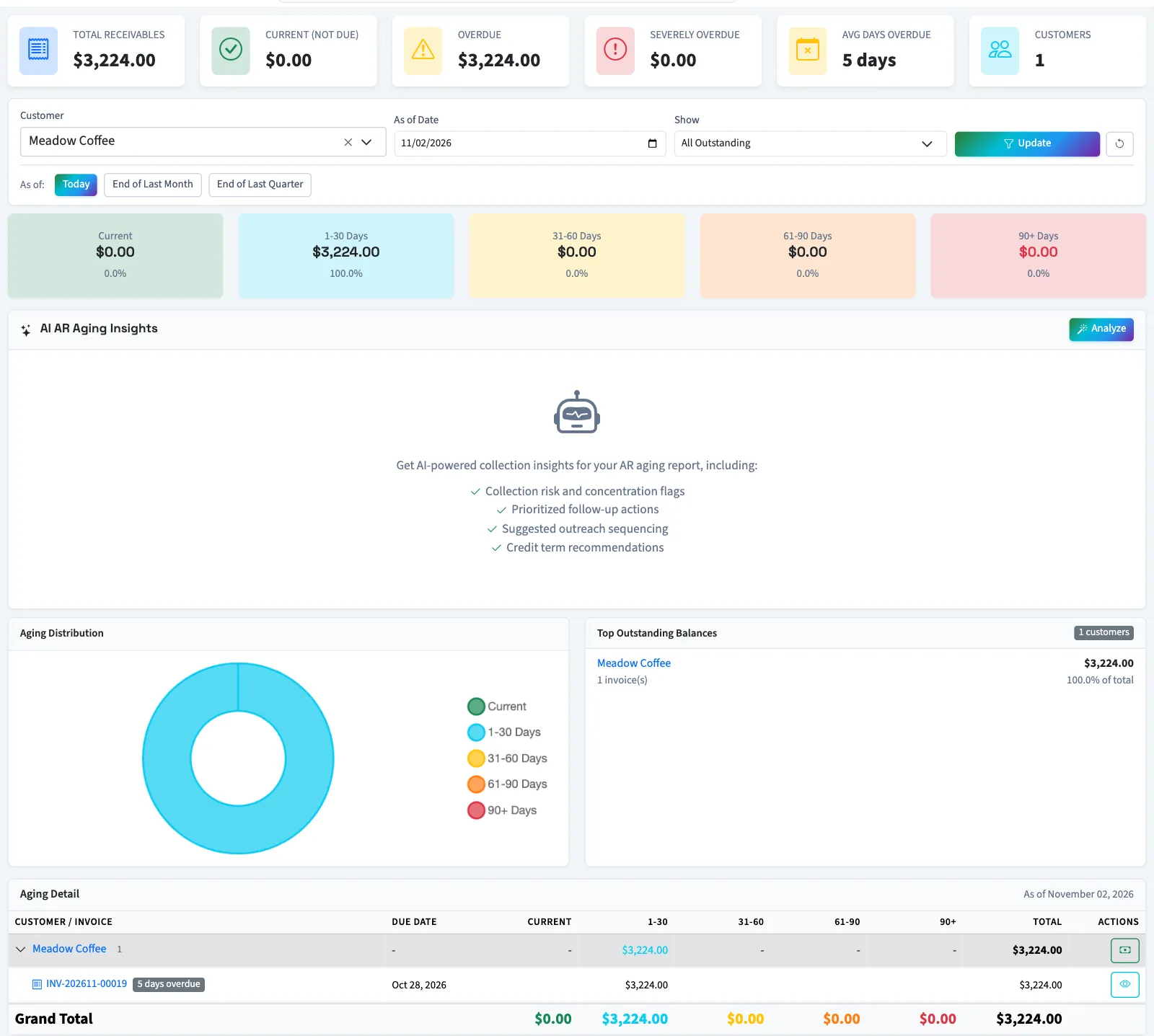
The report includes invoices currently marked sent, viewed, partial or overdue with a positive balance. It groups them as current, 1–30, 31–60, 61–90 or more than 90 days past due. Open an invoice to inspect the source amount before following up with the customer.
Understand the date limit
The selected date changes the aging calculation. The report uses today's stored unpaid balances; it does not reconstruct payments and balances as they stood on a past date or exclude invoices created after that date. A later payment can therefore change a report viewed for an earlier date.
The days-overdue label appears only after the due date. Future-due invoices contribute zero days to the weighted overdue-day average.
If the customer has no outstanding invoices, the report has no unpaid rows for that customer. For recent invoices and payment records, return to the customer profile. When money arrives, record the payment.
Good to know
Other users need View customers to open the profile and View financial reports to open the report. This action does not generate or email a separate customer statement.