
Edit, void or delete an invoice
Choose the allowed correction for a draft, posted or paid invoice.
- Who can do this
- Owners; staff need View invoices plus Edit invoices, Void invoices or Delete invoices for the action
- Where
- Sales, then Invoices
- You'll need
- A draft for amount changes or deletion; voiding needs an unvoided invoice with no active payments or recorded sale refunds
On this page
The correction you can make depends on the invoice's status and payments.
Edit a draft
- Open the draft from Invoices.
- Select Edit.
- Change the customer, dates or lines.
- Select Save Changes.
Opening the full edit form for an invoice that is no longer editable, including a paid invoice, returns you to its details with “This invoice cannot be edited.” Use the available correction actions there.
The same required fields and amount limits apply as when creating the invoice. Changing line items recalculates its totals.
Change details after posting
- Open Invoices and select the invoice number.
- Select Edit Details.
- Change the reference, addresses, Notes, Terms or Footer.
- Select Save Details.
This form cannot change the customer, dates, lines or amounts. Voided invoices cannot be edited. Paid invoices can still have these nonfinancial details updated.
Void an invoice
WarningVoiding affects the accounting records. A posted invoice's journal is reversed; the invoice remains in its history. There is no restore action here.
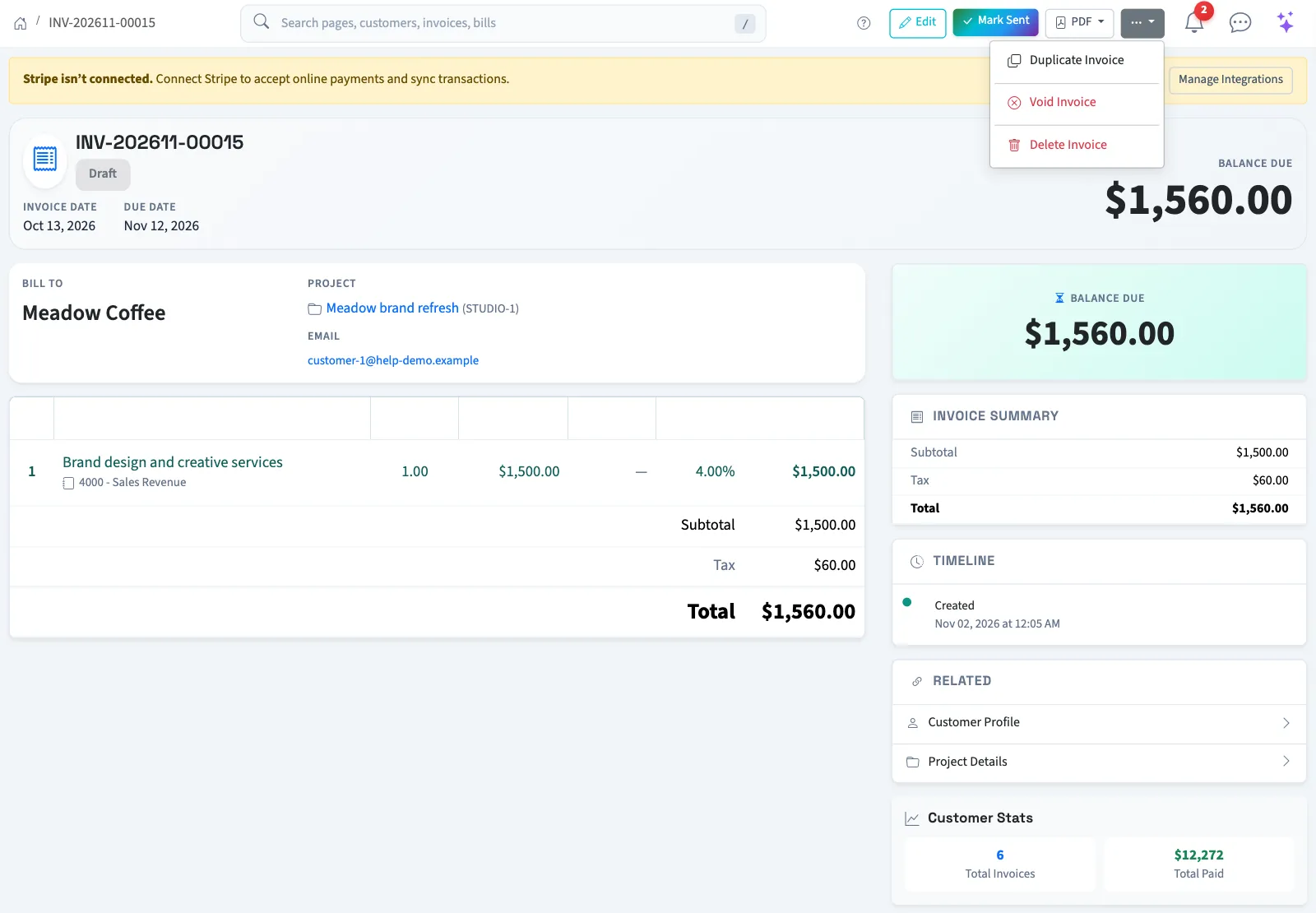
- Open the invoice from Invoices, then open its additional-actions menu.
- Select Void Invoice.
- Confirm the action.
In General, an invoice with an amount paid or a recorded sale refund cannot be voided. In Nonprofit, active payment reservations and return credits must first be resolved, and invoices linked to grant recognition direct you to the grant's reviewed undo form. A closed or locked period can block the reversal dated today.
Delete a draft
- Open a draft from Invoices, then open its additional-actions menu.
- Select Delete Invoice.
- Confirm deletion.
Only drafts can be deleted. Check the number before confirming; the screen offers no undo.
Next, create a corrected invoice or review the payment before attempting a void blocked by payments.
Voiding or deleting the document releases any bank match on it. Check the bank record afterward. An automatically matched record returns for review; reconciled records stay reconciled.
Good to know
Owners have access; staff need Edit invoices, Void invoices or Delete invoices for the corresponding action, plus View invoices to open the invoice.