
Print and manage payment receipts
Print or download a receipt, email it to a customer and configure automatic payment confirmation emails.
- Who can do this
- Owners, or people with View all payments
- Where
- Sales, then Payments received
On this page
Print or download a receipt
- Open Sales, then Payments received.
- Select the payment number.
- Select Print to open the receipt for printing.
- Choose your browser's print or save-to-PDF option.
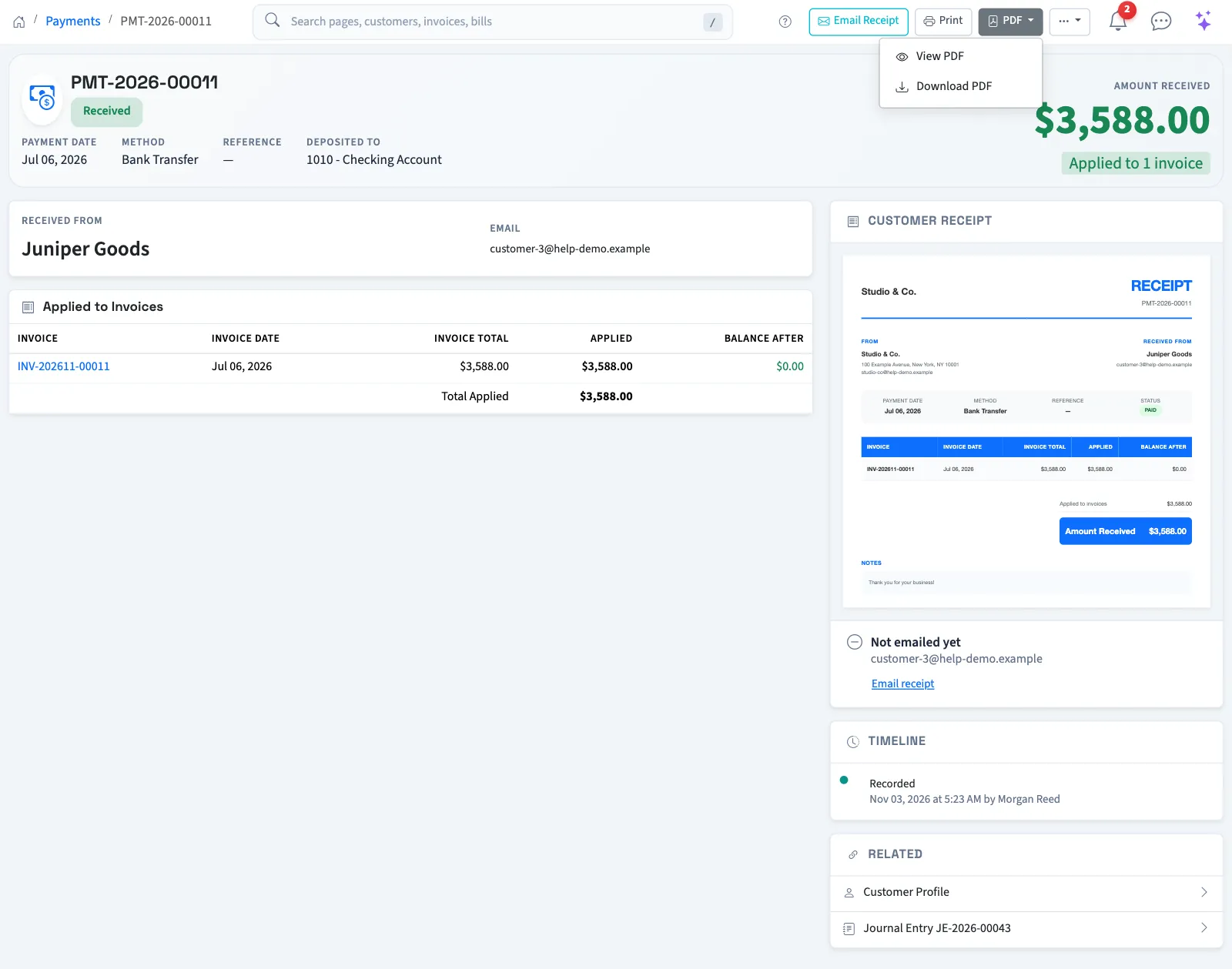
For a PDF directly, select PDF, then View PDF or Download PDF. These controls use a receipt document with the customer, received amount, date, method and invoice allocations. A voided payment prints with a VOID mark and retains its original amounts as history.
Email a receipt
- Select Email Receipt on the payment.
- Review the customer email address.
- Enter Personal Message if needed, up to 2,000 characters.
- Review Attach PDF copy of receipt.
- Select Send Email.
The personal message replaces the standard message for this email. Sending needs Record payments received, enabled receipt emails, an active payment and a customer email address. Opening, printing and downloading need View all payments, or owner access.
Delivery status appears on the payment. Resend sends another copy; Try again retries a failed attempt. After a refund, Changed since it was emailed warns that the earlier email differs, and Email Updated Receipt sends the current receipt. Deleting or voiding a payment does not recall an email already delivered. Voided payments cannot be emailed.
A Stripe refund changes the receipt once it is successfully imported, including when an earlier failed import is retried after the receipt was emailed.
Configure automatic receipt emails
- Open Settings.
- Select Customer emails.
- Select Payment receipt.
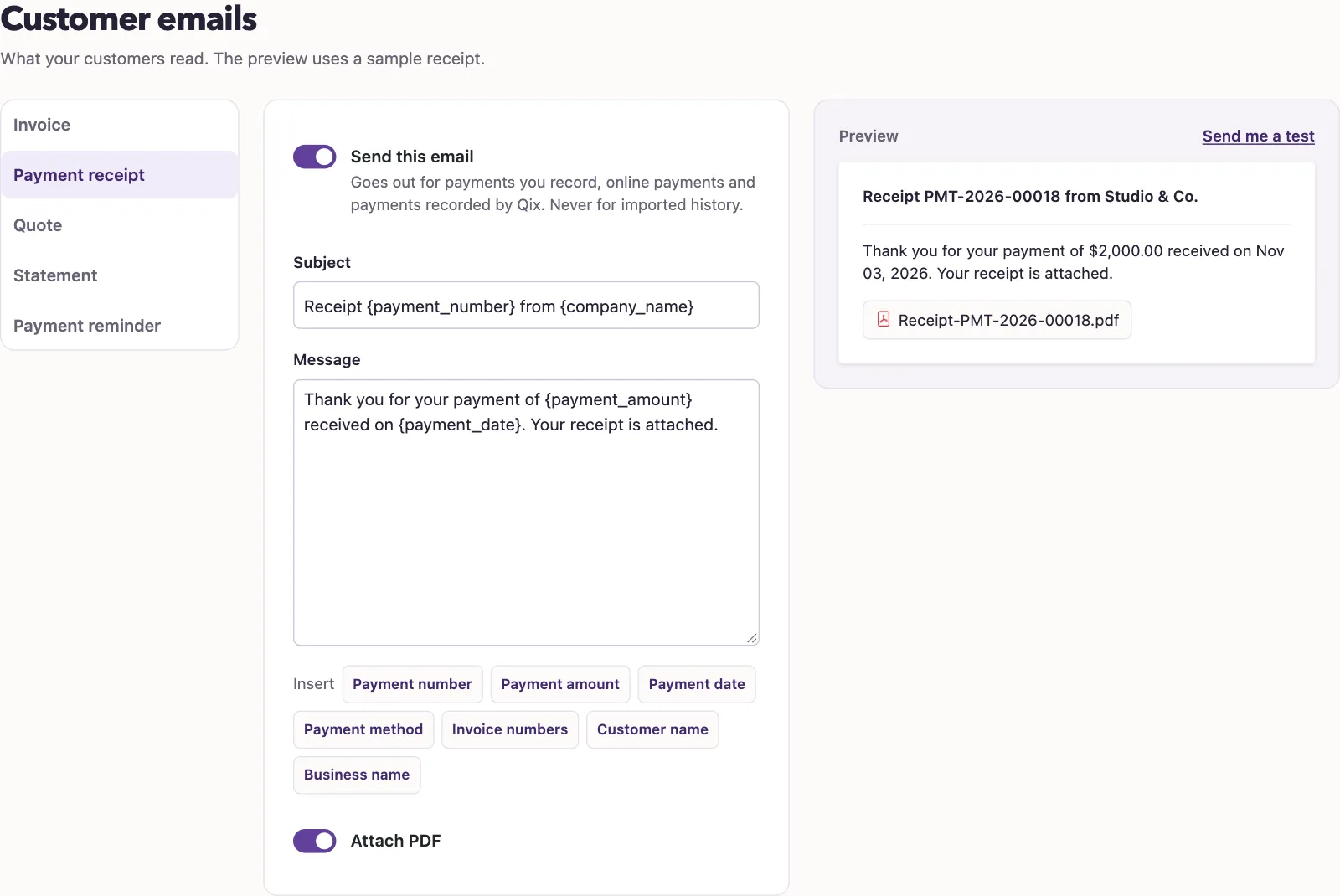
- Turn on Send this email.
- Edit Subject if needed, up to 255 characters.
- Edit Message if needed, up to 2,000 characters.
- Use the Insert buttons for payment values.
- Review Attach PDF.
- Select Save changes.
Owners or people with Manage business settings, roles & permissions can change these settings. The preview uses sample values. The test-email control sends the current wording to your own address; it does not send a customer's receipt.
What happens next
QixCount attempts one automatic receipt per newly recorded payment, including payments recorded through Qix and live online payments, when receipts are enabled and the customer has an email address. Multiple allocated invoices appear together. Entirely unapplied payments can receive receipts too. Importing historical Stripe activity does not trigger an automatic receipt.
The email includes View Receipt, a receipt PDF link valid for 30 days. A PDF is attached when that option is on. Receipt email failure does not undo the payment. See the customer's receipt.