
Find customers and outstanding balances
Find customer records, filter balances, and open the next sales task.
- Who can do this
- Owners, or people with View customers
- Where
- Sales, then Customers
On this page
Use Customers to find contact details and see which customers have unpaid invoices. Owners have access; other users need View customers. Creating, editing, deleting, invoicing and receiving payments require their separate permissions.
Find a customer
- Open Customers under Sales.
- Enter a name, company, email address or phone number in Search.
- Choose Status to include active or inactive records.
- Choose Balance to narrow the list to Has Outstanding or Has Overdue.
- Select Filter.
- Select the customer's name to open their profile.
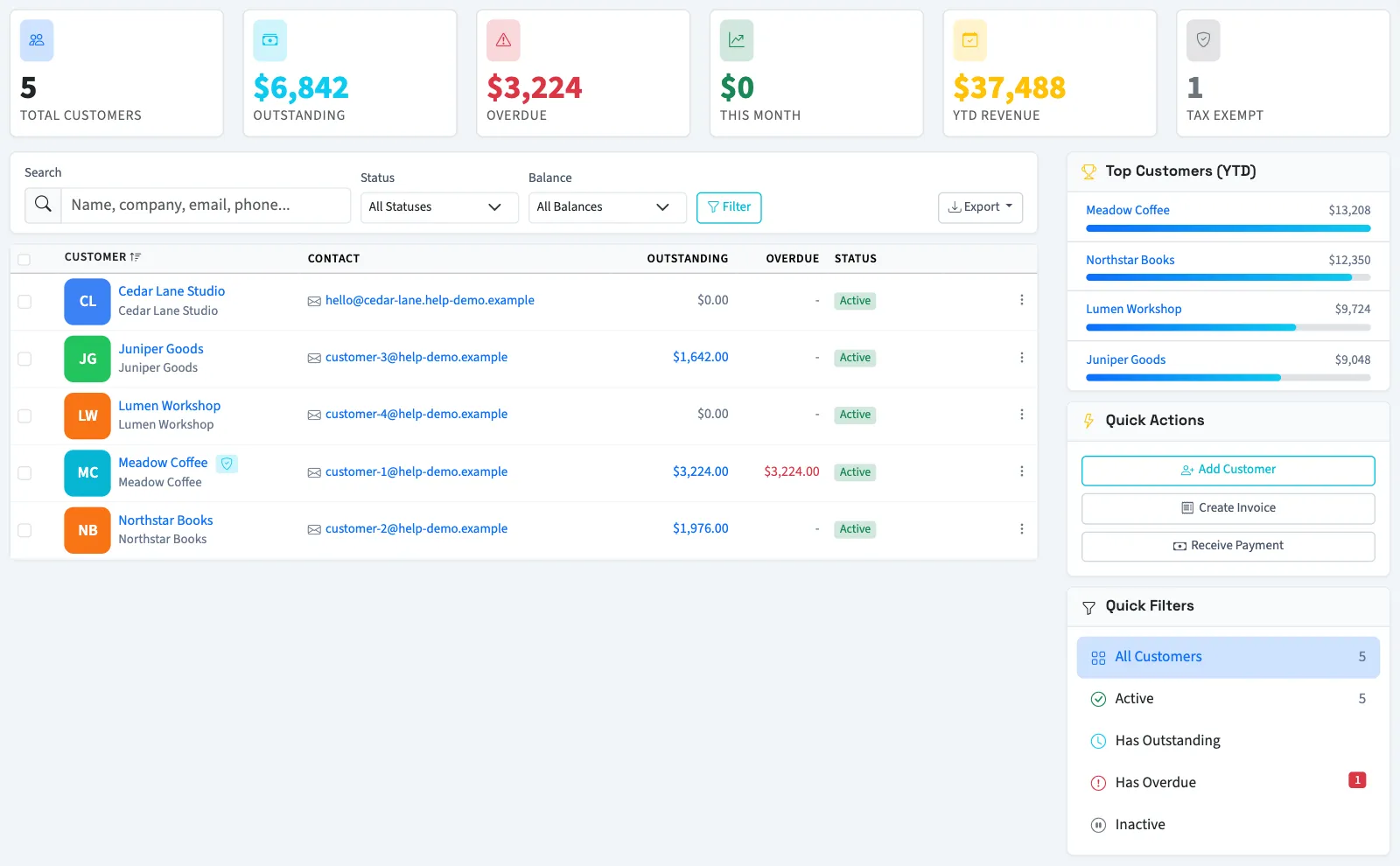
The list shows 20 customers per page. The header totals cover the business, rather than only the filtered rows. Outstanding amounts come from invoices marked sent, viewed, partial or overdue. The overdue balance filter uses invoices already marked overdue.
Understand customer status
| Status | Meaning |
|---|---|
| Active | The customer is included in customer searches for new invoices. |
| Inactive | The record remains in the list but is excluded from those searches. |
If no records match, select Clear to remove filters. If there are no customers yet, add a customer. Next, review the customer's history or create an invoice.