
Find invoices and understand their status
Filter invoices and understand drafts, posted invoices, payments and voids.
- Who can do this
- Owners, or people with View invoices
- Where
- Sales, then Invoices
On this page
Use Invoices under Sales to follow what you have billed and what remains unpaid. Owners have access; other users need View invoices. Creating, changing, sending and voiding invoices require separate permissions.
Find an invoice
- Open Invoices.
- Enter an invoice number or customer name in Search.
- Choose Status or Customer if needed.
- Set From and To to filter invoice dates.
- Select Filter.
- Select an invoice number to open its details.
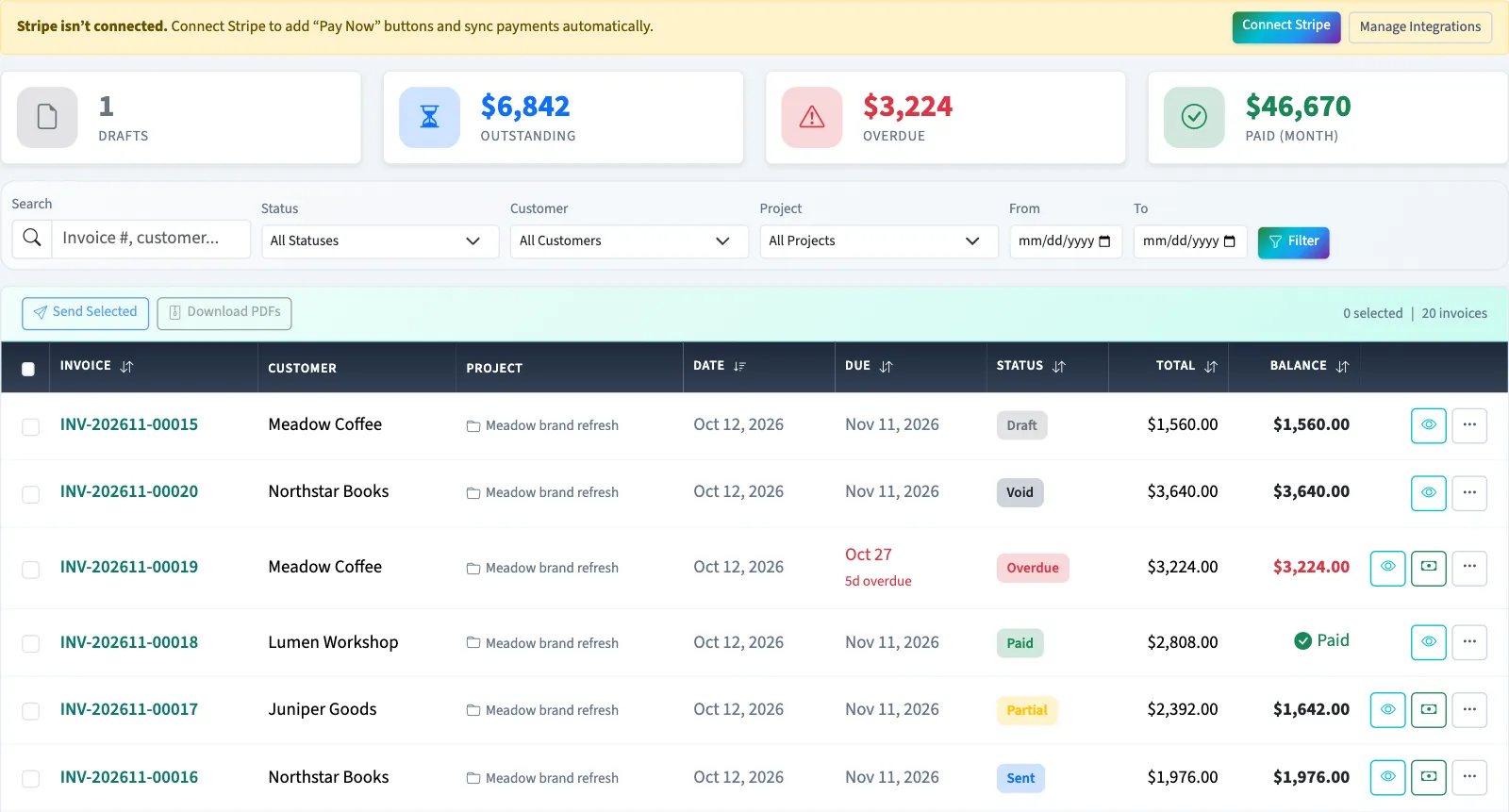
The list shows 20 invoices per page. Project appears when projects are enabled. Header totals cover the business rather than only the filtered results. If nothing matches, select Clear Filters.
Understand the statuses
| Status | Meaning |
|---|---|
| Draft | Saved for review; financial lines can be edited and the invoice can be deleted. |
| Sent | Marked sent and posted to the ledger. This label alone does not confirm an email was sent. |
| Viewed | A stored status supported by the list. Opening the public invoice does not currently set it. |
| Partial | A payment has been applied and a positive balance remains. |
| Paid | The invoice balance has been covered. |
| Overdue | An unpaid invoice marked overdue. Past-due warnings can also appear on other unpaid statuses. |
| Void | Canceled through the void action; a posted invoice has a reversing ledger entry. |
On the detail page, Payment History links to applied payments. Timeline shows recorded creation, sending, payment and void dates when available. A status filter matches the saved status, so the Overdue filter need not match every due-date warning.
Next, create an invoice, send an invoice, or record a payment.