
Set bank matching options
Choose automatic matching criteria and review the learned merchant pattern list.
- Who can do this
- Owners, or people with Perform reconciliation
- Where
- Settings, then Bank matching
Bank matching settings govern automatic links between imported bank transactions and accounting records. You need Perform reconciliation permission. These controls are different from closing a bank reconciliation.
Save the matching criteria
- Open Settings.
- Select Bank matching.
- Review Match transactions automatically.
- Set How sure must a match be? from 50% through 100%.
- Enter Largest amount to match if you want an amount ceiling.
- Review Dates can differ by up to.
- Select at least one type under Match against.
- Review Require the exact amount.
- Select Save changes.
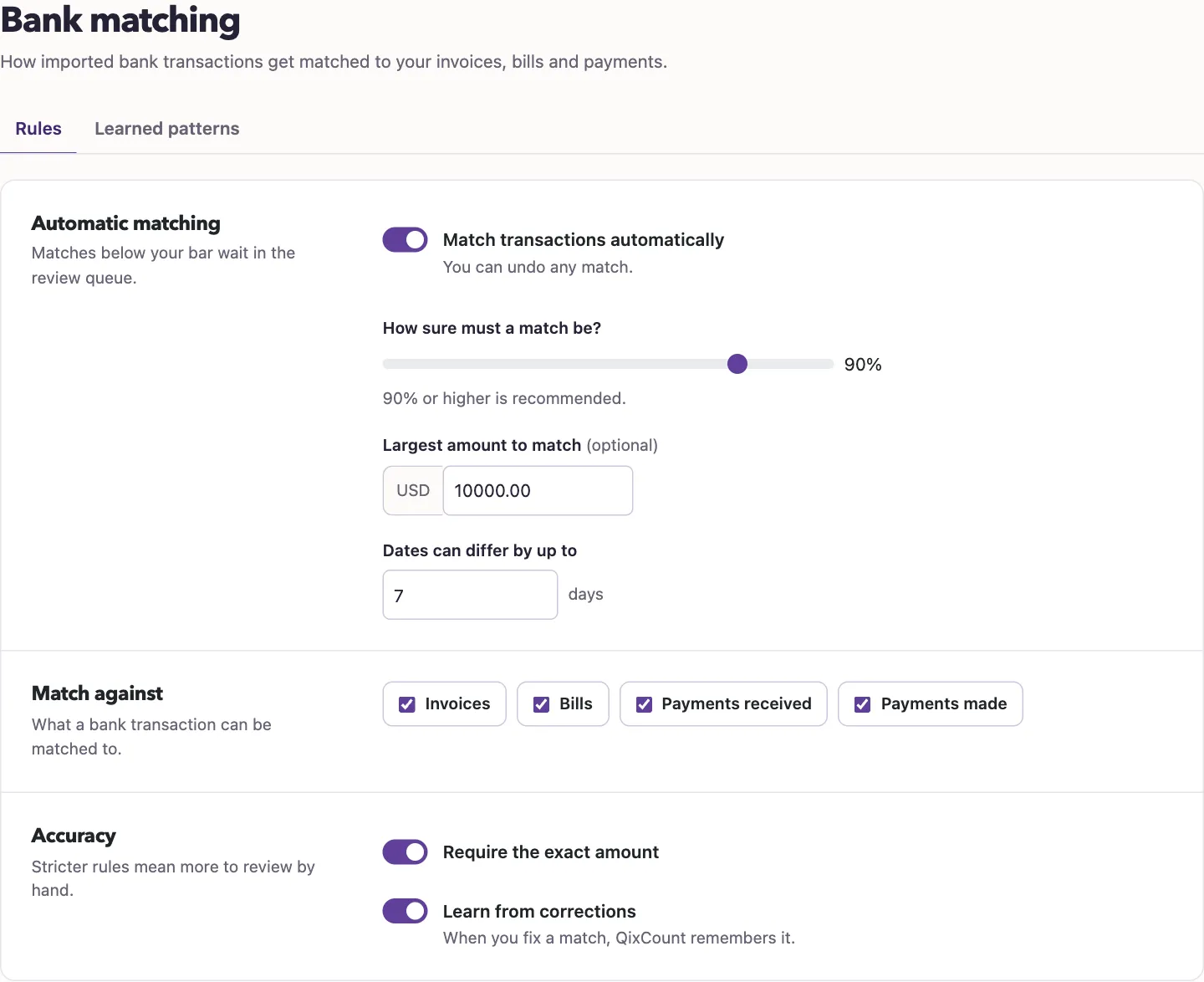
The amount ceiling accepts zero or a positive amount; blank saves no ceiling. The date field accepts 1 through 30 days. Matching types are invoices, bills, payments received and payments made.
NoteReview the dates on matched records yourself. Dates can differ by up to does not enforce the number of days you enter, so do not rely on it to exclude an older record.
What happens next
Automatic matching also checks for ambiguity, permitted record types, confidence and exact amount when required. Records that fail the automatic criteria wait for review. A successful automatic match links the records and marks the bank transaction cleared. Saving this form does not post an invoice payment or complete a bank reconciliation.
Review learned patterns
Select Learned patterns to see merchant names, categories, occurrence counts, confidence and status. An empty list means no patterns have been learned yet. The details action shows merchant-name variations. Deleting a pattern removes that learned pattern; future corrections can teach it again.
Continue with Find and save a setting when you need another setup page.