
Customize customer emails
Edit message templates, preview placeholders and send a test to your own address.
- Who can do this
- Owners, or people with Manage business settings, roles & permissions
- Where
- Settings, then Customer emails
Customer email settings control the saved wording and email switches. You need the Manage business settings, roles & permissions permission. Mail delivery uses the sending method in Email sending.
Edit a message
- Open Settings.
- Select Customer emails.
- Select Invoice, Payment receipt or Statement.
- Review Send this email.
- Enter Subject.
- Enter Message.
- Select Save changes.
The subject allows up to 255 characters and the message up to 2,000. Invoice, receipt and statement forms offer Attach PDF. Each type saves separately, so save before changing the selected type.
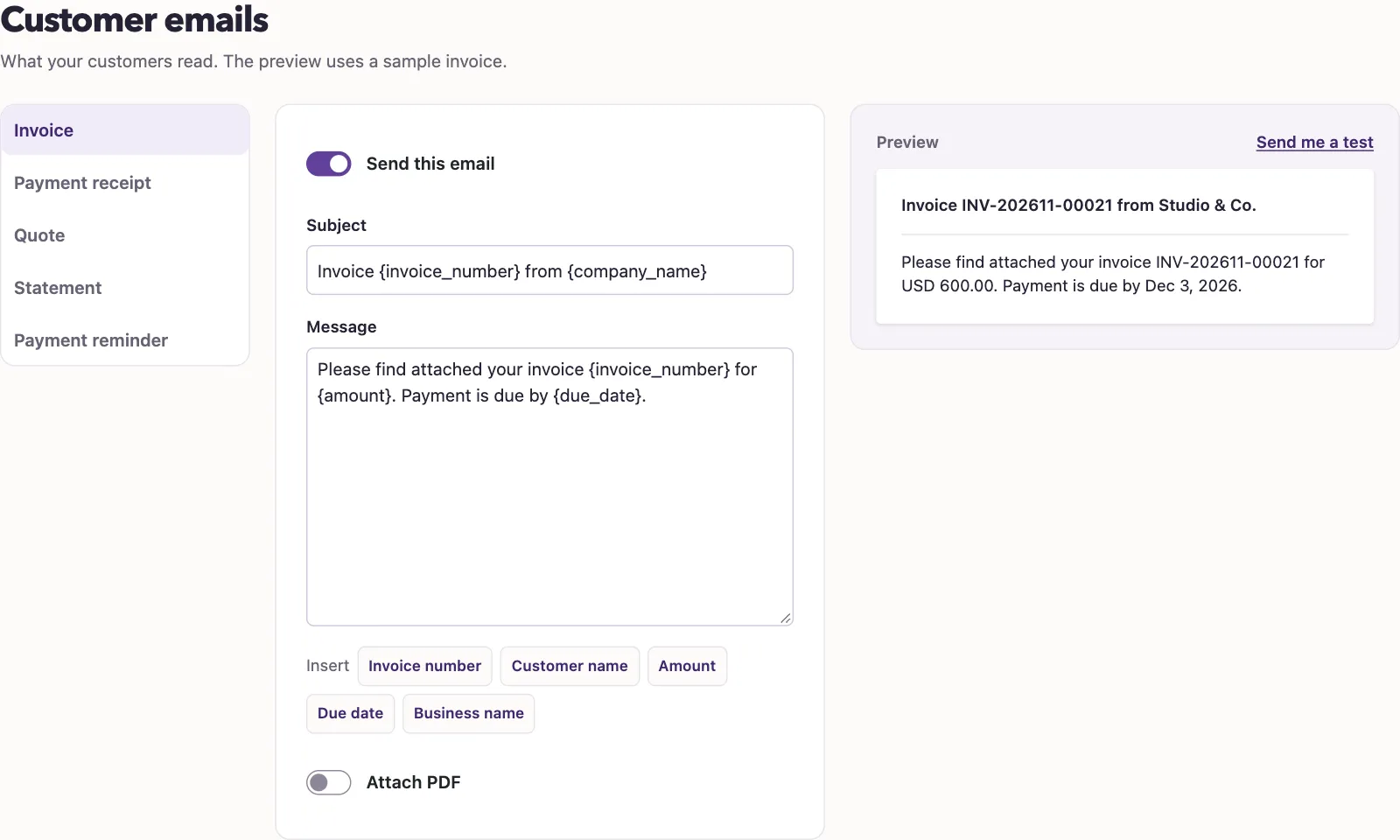
Insert a changing value
Select a button under Insert to place a placeholder at the cursor in the message. Available buttons depend on the email type. For example, the receipt offers payment number, payment amount and invoice numbers; the invoice offers amount and due date. Use the buttons shown for the selected type rather than reusing placeholders from another type.
The preview substitutes sample values. It is not a customer record or a new invoice.
Send yourself a test
Select Send me a test to email the subject and message currently in the editor to your sign-in address. This does not save the template or send it to a customer. The test contains sample substitutions and does not prove that an invoice PDF is attached. The test requires a nonempty, single-line subject and a nonempty message. Tests are limited to five per minute.
For overdue invoice messages, read Set automatic payment reminders, including what works today.