
Create and edit tax groups
Combine active tax rates into a named group for invoice lines.
- Who can do this
- Owners, or people with Manage business settings, roles & permissions
- Where
- Tax, then Sales tax
- You'll need
- Tax turned on in Features; at least one active tax rate
On this page
A tax group puts one or more rates under a single name. You select that name on an invoice line. You need Manage business settings, roles & permissions; owners have it.
Create a group
- Open Tax.
- Select Sales tax.
- Select Add Tax Group.
- Enter Group Name.
- Enter Description if useful.
- Under Tax Rates, select at least one rate.
- Review Set as Default Tax Group.
- Leave Active selected.
- Select Create Tax Group. You return to the Sales Tax page.
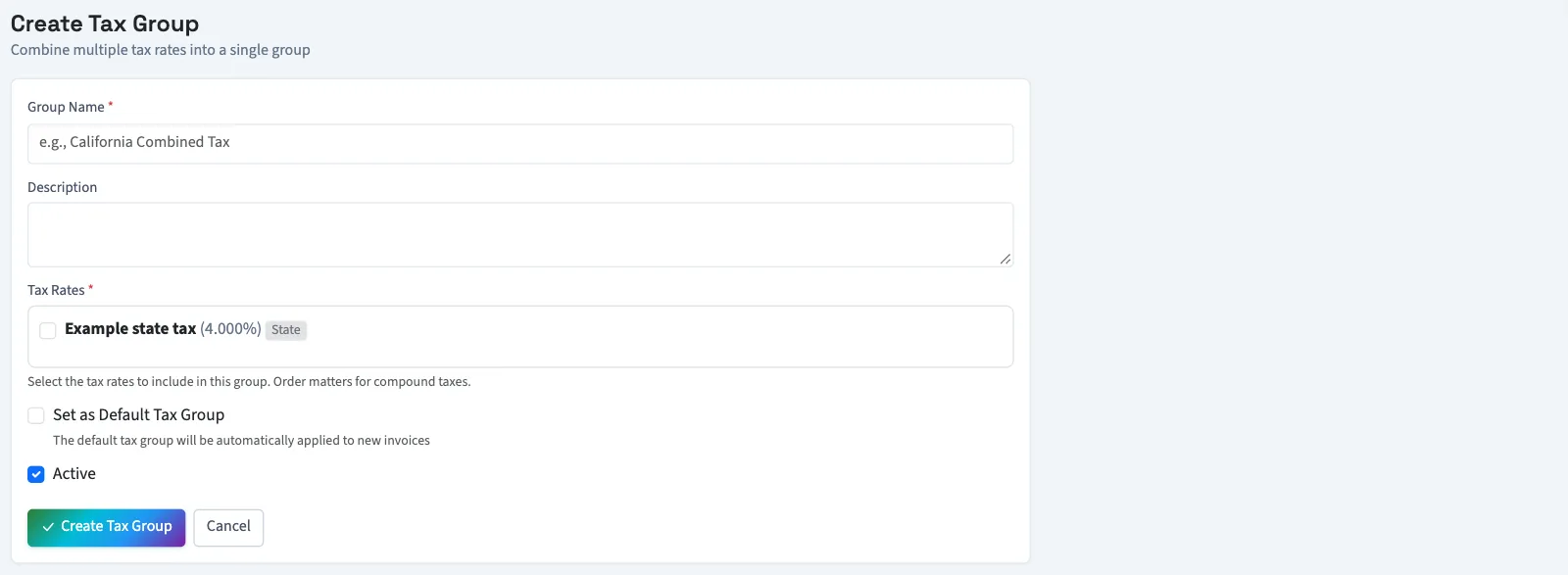
If no rates are available, create an active rate first. Rates outside their effective dates are excluded from the choices.
Edit a group
Select the group's pencil icon on the Sales Tax page. Change its name, selected rates or switches, then select Update Tax Group. Saving requires at least one selected rate. Clearing Active removes the group from the choices on new invoice forms.
To save an inactive group, create it first, then clear Active on its edit form and select Update Tax Group.
Editing only offers active rates within their effective dates. Saving replaces the group's rate selections, so previously attached inactive or expired rates are removed. Check the selections before saving.
What happens next
The Sales Tax page displays the group's component rates and combined percentage. Setting a group as default clears the default setting on other groups. Check each invoice line's selection when applying tax; new invoice lines start with No Tax.
The form lists rates in its displayed order and has no control for rearranging them. If you use compound rates, review the saved calculation before using the group on a document.
Good to know
If Sales tax isn't in the sidebar, someone with settings access can turn on Tax in Features.