
Import a budget from the template
Download the fiscal-year CSV template and import monthly amounts using account codes and names.
- Who can do this
- Owners, or people with View budgets and Create budgets and Edit budgets
- Where
- Books, then Budgets
- You'll need
- Budgets turned on in Features; monthly fiscal periods, active revenue or expense accounts, and a CSV file for the selected year
On this page
Import creates a new draft budget.
Prepare and upload the file
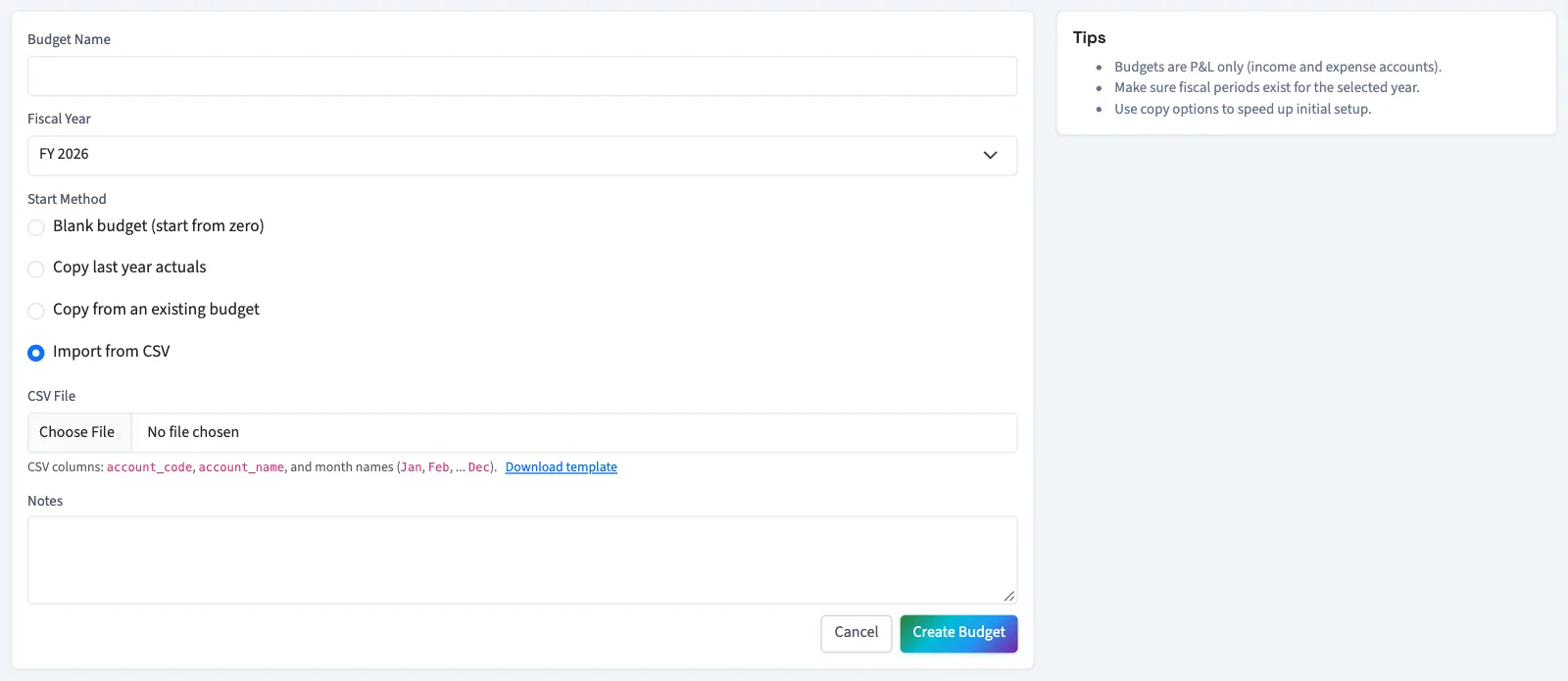
- Open Books, then Budgets, and select New Budget.
- Select Fiscal Year.
- Select Import from CSV.
- Select Download template.
- Fill in the downloaded file using the columns below.
- Enter Budget Name on the form.
- Choose your completed file in CSV File.
- Select Create Budget.
| Column | What to enter |
|---|---|
account_code |
The existing revenue or expense account code. A matching code takes priority over the name. |
account_name |
The existing account name. QixCount uses it if no code matches, ignoring letter case. |
| Month abbreviations | Monthly amounts. A January-start year has Jan, Feb, Mar, Apr, May, Jun, Jul, Aug, Sep, Oct, Nov, Dec. Other fiscal years put their starting month first. Keep the downloaded headings and order. |
The file contains the monthly periods available for the year. Amounts can include dollar signs or thousands separators when the CSV encloses the value correctly. QixCount rounds recognized numbers to two decimal places.
What happens next
The draft opens for review. Unmatched accounts are skipped. Blank or unrecognized amounts remain zero unless another row supplies a recognized amount for the same account and month. Repeated recognized values for the same account and month use the last value.
Review the entire grid before approval: importing does not provide a skipped-row report or create missing accounts. Use nonnegative amounts so the draft can be saved through the editor.
Continue with Edit, approve or lock a budget.
See the budget template for its layout.
Good to know
Download the template for the fiscal year you intend to use so its month columns follow that year's fiscal periods.
Who can do this and what you need
You need View budgets to open the list, Create budgets to import, and Edit budgets to review and save the imported grid. The Budgets switch in Features must be on, and it starts off in every preset. Monthly fiscal periods must exist for the selected year, and active revenue or expense accounts must be available. Use a comma-separated values (CSV) file.