
Understand budgets
Compare monthly revenue and expense plans with posted activity and understand budget statuses.
- Who can do this
- Owners, or people with View budgets
- Where
- Books, then Budgets
- You'll need
- Budgets turned on in Features
On this page
Budgets plan monthly amounts for active revenue and expense accounts. You can compare those plans with posted activity for the same fiscal periods. Saving or approving a budget does not post a journal entry.
If Budgets isn't in the sidebar, someone with settings access can turn on Budgets in Features.
Find your budgets
Open Books, then select Budgets. You need View budgets permission. Owners have all permissions; other team members need the permissions for each action they perform. Budgeting must also be enabled in the business's feature settings.
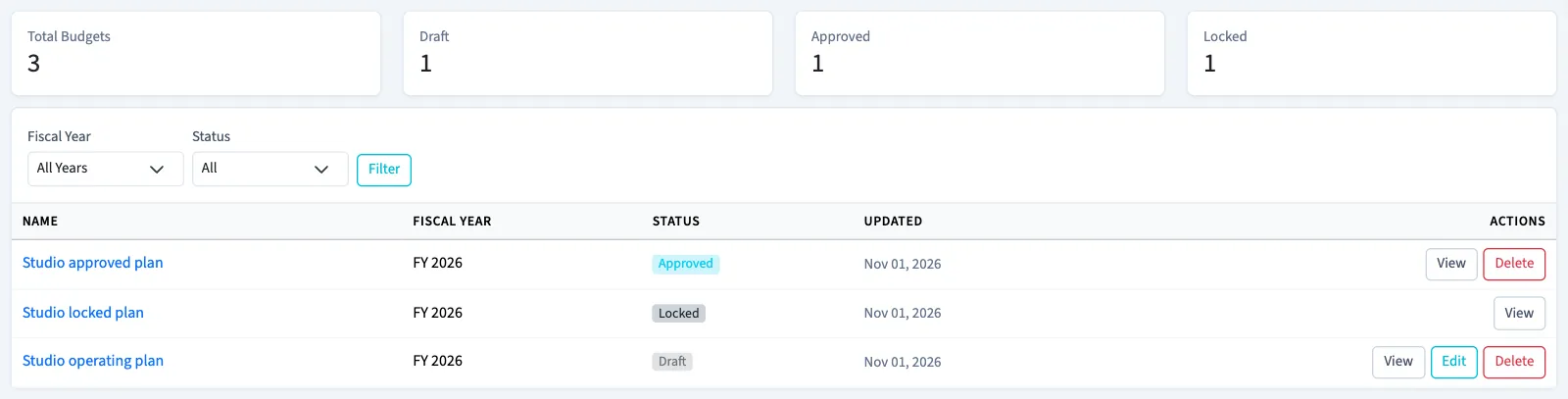
Use Fiscal Year and Status, then select Filter to narrow the list. The counts above the list reflect the filtered results. Select a budget name or View to open its comparison report. If the list is empty, check the filters before creating another budget.
Understand the statuses
| Status | What QixCount allows |
|---|---|
| Draft | Amounts and notes can be edited with permission. The budget can be approved or deleted. |
| Approved | Amounts and notes are read-only. An approver can lock it or reopen it as a draft. It can still be deleted with permission. |
| Locked | The budget is read-only and cannot be deleted. An approver can unlock it, returning it to approved status. |
Creating, editing, approving and deleting have separate permissions. A budget's status controls its editability; approval does not freeze the actual activity shown in its report.
Start with Create a budget, then Compare a budget with actuals. For changes after approval, see Edit, approve or lock a budget.