
Edit, approve or lock a budget
Save draft amounts and understand how approval, locking, reopening and deletion change a budget.
- Who can do this
- Owners, or people with View budgets; edits need Edit budgets; approve, lock and reopen need that plus Approve and lock budgets
- Where
- Books, then Budgets
- You'll need
- Budgets turned on in Features; a draft for edits or approval, an approved budget to lock, and a locked budget to unlock
On this page
Only draft budgets accept changes to monthly amounts and notes.
Save draft amounts
- Open Books, then Budgets, and select the draft budget.
- Select Edit Budget.
- Enter amounts in the monthly account cells.
- Enter replacement text in Notes if needed.
- Select Save Changes.
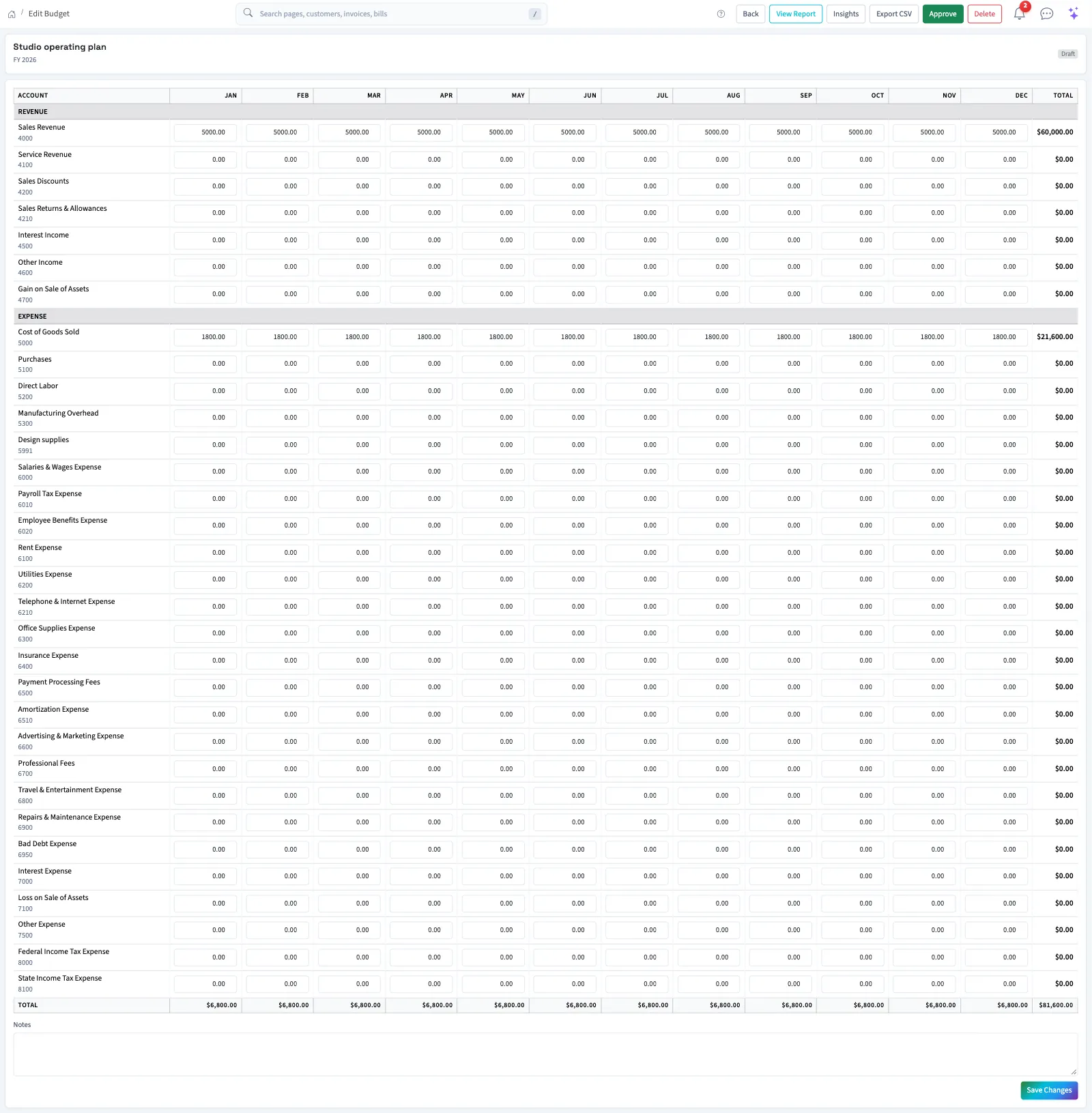
Amounts must be zero or greater. Notes allow up to 2,000 characters. The editor updates totals while you enter amounts, but you must save to keep the changes. The edit form changes amounts and notes; it does not change the budget name or fiscal year.
Change the budget's status
Save your changes before selecting an action: status buttons do not save unsaved grid entries.
| Action | Where it appears | Result |
|---|---|---|
| Approve | Draft edit page | Changes to approved and records who approved it and when. Confirm the prompt. |
| Lock | Approved edit page | Changes to locked and records who locked it and when. Confirm the prompt. |
| Unlock | Locked edit, report or insights page | Returns to approved and clears the lock details. It remains read-only. |
| Reopen | Approved edit page | Returns to draft and clears the approval details. Confirm the prompt. |
Status actions appear only when your permissions and the budget's current status allow them. If you need to lock or reopen an approved budget and cannot find its controls, contact support.
Delete a budget
On the budget list, select Delete for an unlocked budget and confirm the prompt. Approved budgets can also be deleted; locked budgets cannot. Deletion removes the budget from the list. The documented screens have no restore action.
What happens next
Status changes do not post journal entries. Actual amounts continue to reflect posted activity. Continue with Compare a budget with actuals.
Good to know
Approval makes those fields read-only; locking also prevents deletion. A closed fiscal period does not make a draft budget read-only.
Who can do this and what you need
You need View budgets to open the list and report, and Edit budgets to open the edit page. Approving, locking, unlocking and reopening require Approve and lock budgets permission. Deleting requires separate Delete budgets permission.
If Budgets isn't in the sidebar, someone with settings access can turn on Budgets in Features.