
Create a project
Add a project with an optional customer, schedule, revenue target and cost budget.
- Who can do this
- Owners, or people with Create projects and View projects
- Where
- Projects, then All projects
- You'll need
- Project tracking turned on in Features
On this page
Create a project to collect invoices and bills for a job. You can add a customer, dates and budget targets now or update them later.
Add the project
- Open Projects.
- Select All projects.
- Select New Project.
- Enter Project Name.
- Enter an optional Code.
- Select Status.
- Select Customer, or leave No customer selected.
- Enter an optional Start Date.
- Enter an optional End Date.
- Enter optional Budgeted Revenue.
- Enter optional Budgeted Cost.
- Enter an optional Description.
- Select Create Project.
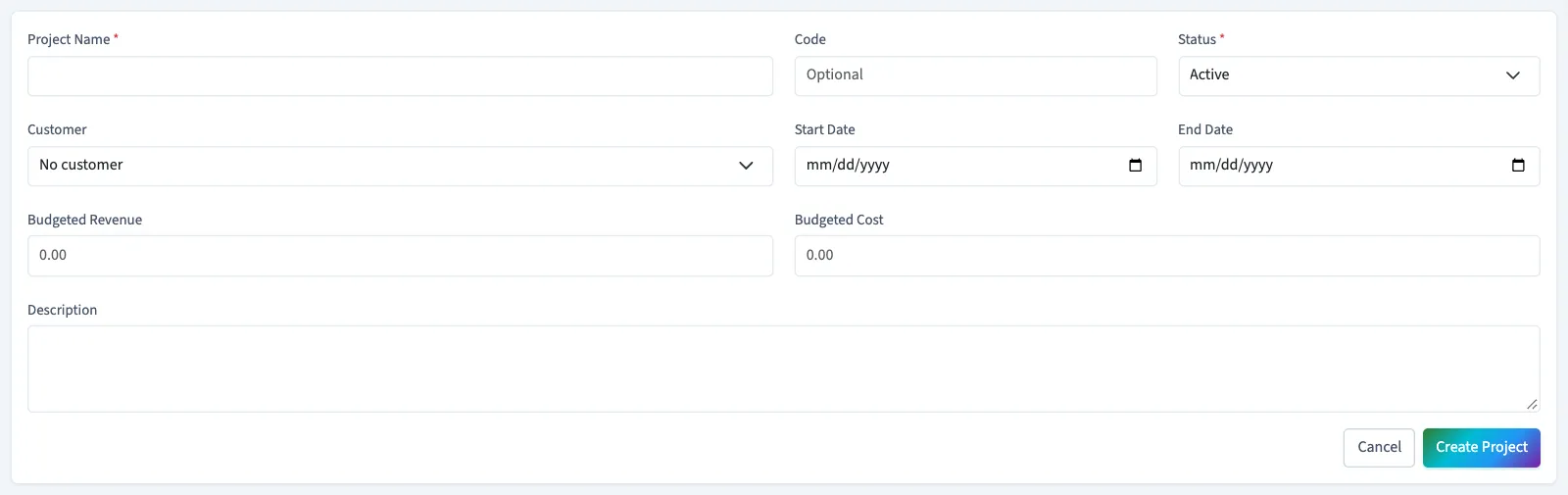
Check the field limits
| Field | Limit or behavior |
|---|---|
| Project Name | Required, up to 255 characters. |
| Code | Optional, up to 50 characters; must be unique. |
| Status | Active by default; also offers On Hold, Completed and Archived. |
| Customer | Optional; the list contains active customers. |
| End Date | Must be on or after the start date when both are entered. |
| Budgeted Revenue and Budgeted Cost | Optional amounts of zero or greater. |
| Description | Optional, up to 2,000 characters. |
What happens next
The saved project opens on its details page. Creating it does not create invoices, bills or journal entries. Its targets are used in project comparisons after you link documents. Selecting a customer here does not automatically select the customer on a new invoice opened from the project.
Continue with Assign invoices and bills to a project.
Who can do this and what you need
Turn on project tracking. You need Create projects permission and View projects permission to open the saved project's details. Financial summaries require View project profitability permission.
If All projects isn't in the sidebar, someone with settings access can turn on Project tracking in Features.