
Reopen a reconciliation
Unlock a completed statement when allowed, reopen it for changes and understand what QixCount records.
- Who can do this
- Business owners
- Where
- Banking, then Reconciliation
- You'll need
- A completed reconciliation; if locked, unlocking must be allowed in reconciliation settings; a reason of 10–1,000 characters
On this page
WarningReopening changes all selected bank transactions from reconciled to cleared. It resets completion, review, approval and variance acknowledgement so you can work on the statement again.
Reopen a completed reconciliation when its cleared selections or statement balance need changes. Only a business owner can reopen it.
Unlock a locked reconciliation
- Open Banking.
- Select Reconciliation.
- Find the completed statement's row.
- Open its three-dot menu.
- Select View.
- Find Approval Actions.
- Enter an unlock reason using 10 to 1,000 characters in the box above Unlock Reconciliation.
- Select Unlock Reconciliation.
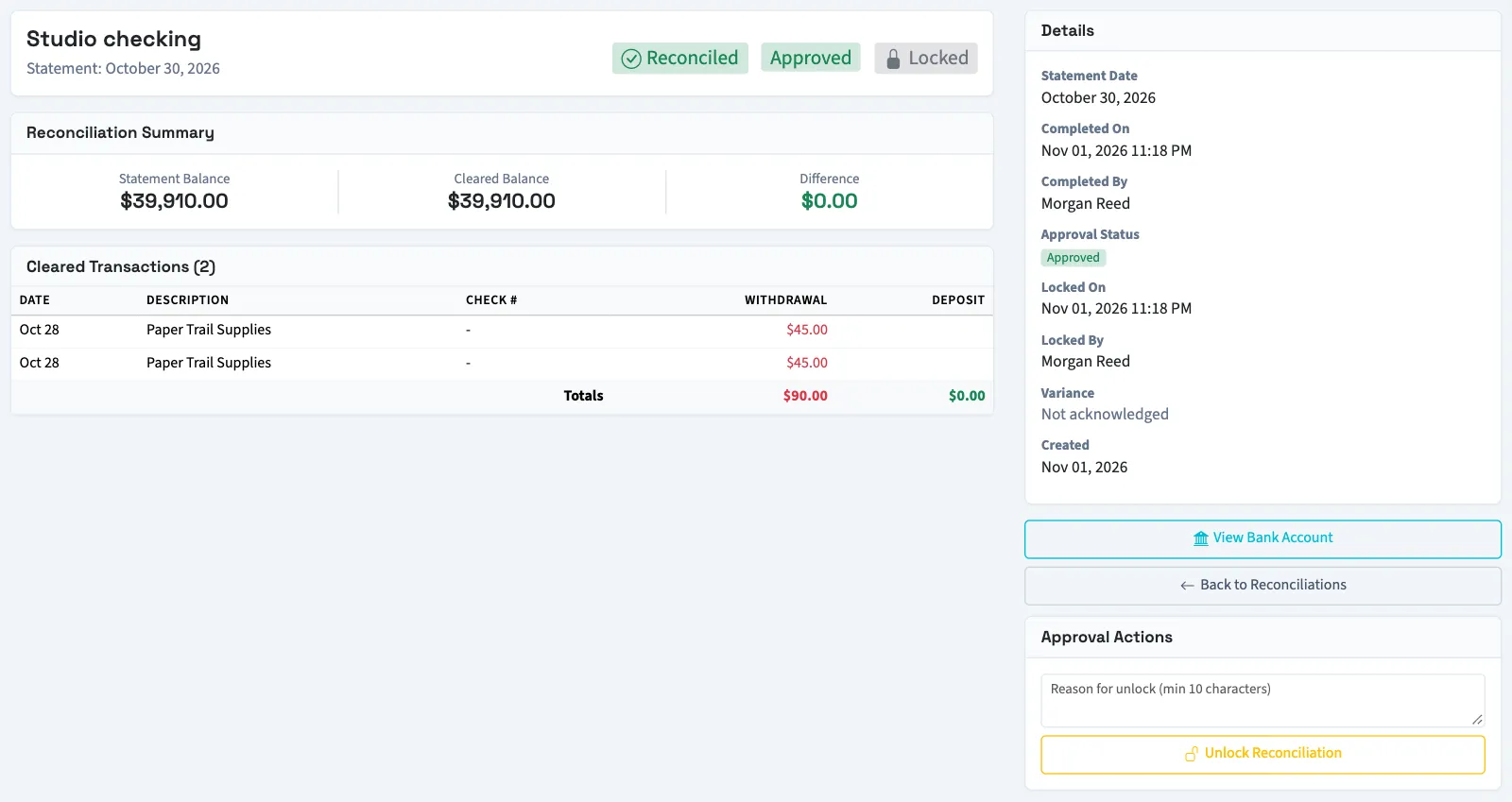
Unlocking removes the lock and its displayed person and time. It leaves the reconciliation completed and its selected transactions reconciled. To change the statement, reopen it next.
Reopen the statement
- Enter a reopening reason using 10 to 1,000 characters in the box above Reopen Reconciliation.
- Select Reopen Reconciliation.
You land on the clearing screen. The selected transactions remain linked to this reconciliation and remain selected, but their bank transaction status becomes cleared.
What happens next
Reopening resets the completion and review people and times, sets the reconciliation to In Progress, and resets approval to None Required. It also removes the previous variance acknowledgement, reason, person and time. Existing notes stay, and QixCount appends the reopening reason.
Unlocking and reopening each add a history entry with the person, time and reason. You can read those entries in the details' Audit Trail or the reconciliation history report. Earlier history entries remain available even though the current completion and review fields reset.
Continue with Reconcile an account. A reopened reconciliation must be completed again and follow any review steps that apply.
Troubleshooting
If Unlock Reconciliation is absent, check that you are an owner and that the record is locked. If unlocking is disabled, contact support. Reopen Reconciliation appears only for an owner viewing a completed, unlocked record. An unfinished reconciliation can be resumed with Continue from the list.
If you reopen an older statement after later statements have been completed and expected transactions are missing, contact support.
Good to know
Approval permission alone does not allow reopening or unlocking.
Who can do this and what you need
The reconciliation must be completed and unlocked. If it is locked, you can unlock it only when unlocking is allowed in the business's reconciliation settings.