
Manage Banking settings and rules
Control AI suggestions, inspect flags and manage who made each bank categorization rule.
- Who can do this
- Owners; settings need Perform reconciliation; rules need View reconciliations to view and Edit bank transactions to edit
- Where
- Settings, then Banking
- You'll need
- Accounting enabled in General or Nonprofit; available for manual accounts and Plaid feeds
On this page
Save Banking settings
- Open Settings, then Banking, or select Banking settings from Bank transactions.
- Review AI suggestions and today's allowance.
- Review Flags and New merchant over.
- Check Bank matching settings on this same page.
- Select Save settings.
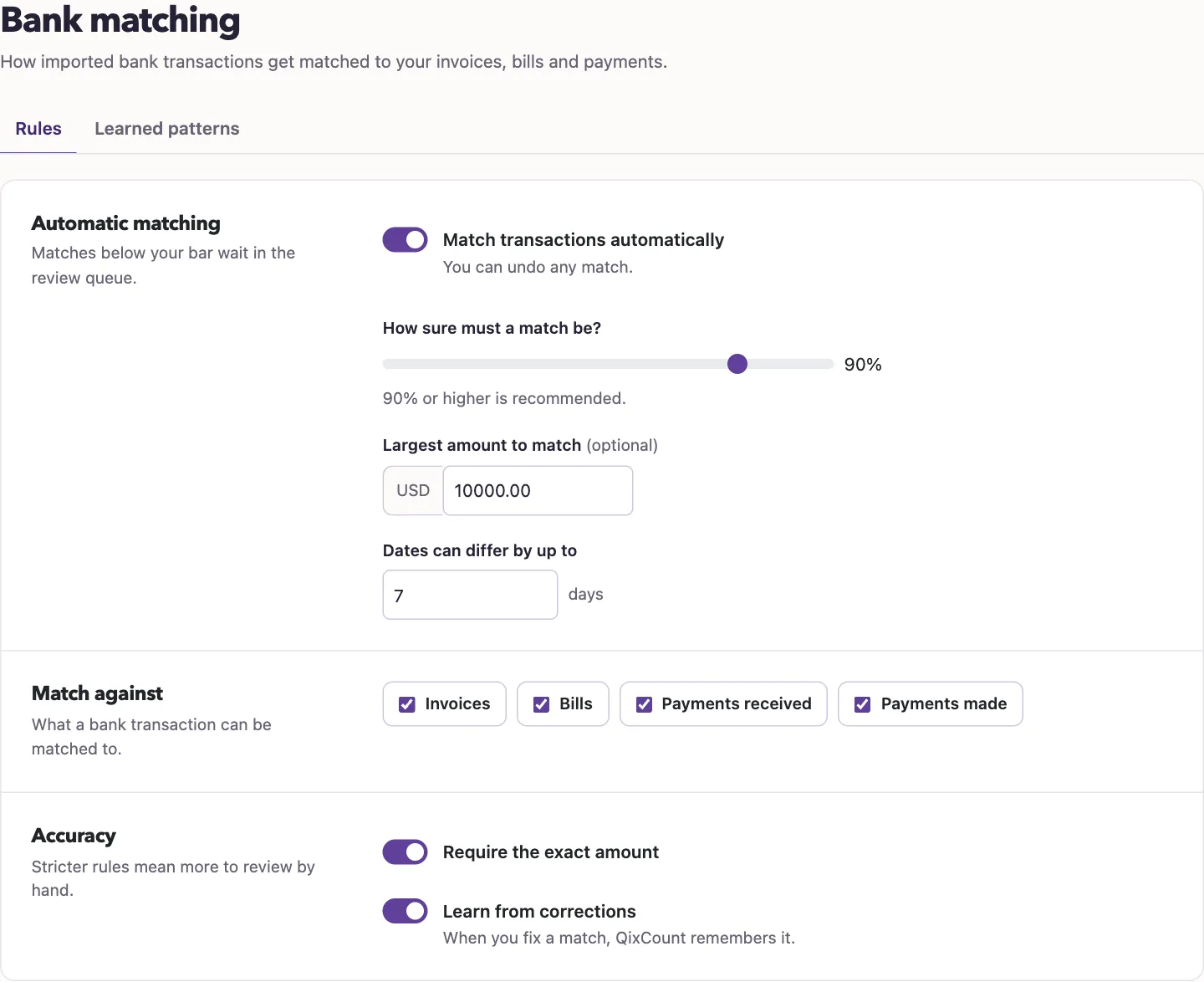
Viewing and saving this page need Perform reconciliation. The former Bank matching settings addresses open this page. The posting switches and email recipient are also here.
Control AI suggestions and allowance
The AI suggestions switch starts on. The business's AI setting must also permit bank categorization. Turning it off stops new AI suggestions; it does not remove saved proposals or stop rules and history.
The default daily allowance is 500 lines; read the limit and usage shown for your business. It resets at the end of the business's local day. The first import can use up to 2,000 extra lines once per business, beyond the daily allowance. Imported unknown lines are sent in groups of up to 25. Failed provider requests still count lines sent. When the allowance is used up, the page shows when it resumes; you can still choose categories yourself.
Qix receives the bank text, merchant, cleaned merchant name, date, amount, direction, bank account type, bank category details and confidence, counterparty type and merchant website. The request also includes your business type, industry, currency, active chart account details and up to three similar posted examples from this business. A one-line AI request uses bank details and the chart too. AI suggestions never post on their own. Review a suggestion before using it.
Understand flags
| Flag | Trigger |
|---|---|
| Possible duplicate | Same merchant, bank account and amount within two days; CSV imports also check nearby equal amounts. |
| Unusual amount | More than three times the merchant's median amount, with at least four past lines. |
| Price rise | The immediately previous same-direction charge was 25–35 days earlier and the new amount is larger. |
| Large new merchant | Money out above New merchant over, with no earlier merchant history. The default is $1,000.00. Transfer hints and known nonmerchant counterparties are excluded. |
Only the new-merchant threshold is editable here. Other flag checks remain active.
Review and edit rules
- Open Bank transactions and select Rules list.
- Review the matching merchant or text, category, posting switch, Made by and Times applied.
- Select Edit to change the name, category, Active or Post without review.
- Select Save rule.
Viewing needs View reconciliations, editing needs Edit bank transactions, and deleting needs Delete bank transactions. The list shows the maker and date, marks rules made from an offer, and shows Unknown when no maker is recorded. Deleting requires confirmation and does not reverse posted journals. Changed rules refresh affected pending suggestions while preserving personal choices.