
Set up products and services
Save reusable sales and purchase defaults while keeping manual invoice and bill lines available.
- Who can do this
- Owners, or people with the relevant catalog permissions
- Where
- Sales, then Products & services
- You'll need
- Accounting and Products & services enabled for your business
On this page
Reusable items save typing. They work with Accounting alone and do not track stock. Every invoice and bill can still use manual descriptions and prices.
Create an item
- Open Sales, then Products & services.
- Select New product or service.
- Enter Name and choose Service or Non-stock product under Type.
- Enter an optional SKU and Unit.
- Enable sales, purchases, or both.
- Enter the description and choose an active default account for each enabled side.
- Enter optional prices in the currency shown beside them.
- Select Save product or service.
On the purchase side, Preferred vendor is a reference for your team. People with Create vendors can select New vendor beside it to add a vendor in a panel without leaving the item. The panel works as it does when you add a vendor while you enter a bill.
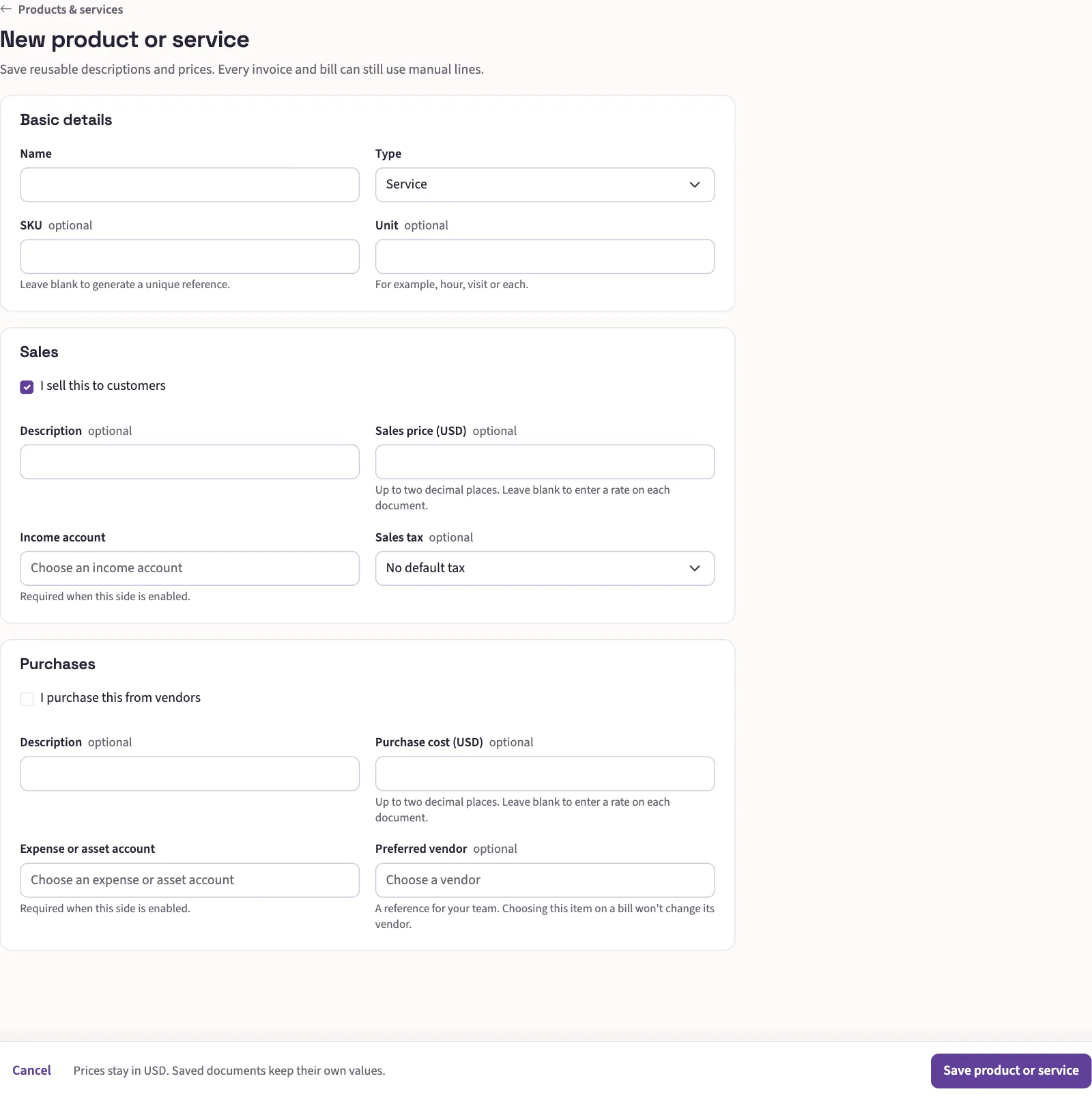
The sales and purchase descriptions, prices and accounts are separate. On the sales side, Sales tax sets the item's default tax. Not taxable means the item never gets sales tax filled in, whoever buys it, and No default tax leaves the choice to the invoice. A blank SKU gets a unique reference. A blank price means you enter a rate on each document. Prices accept up to two decimal places.
Turn on products and services
A person with permission to manage settings opens Settings, then Features. Under Everyday, enable Products & services. Choose Show on invoices and Show on bills, then select Save changes. The master switch starts off. Changing a starting preset leaves these choices alone.
Use an item on a line
On an invoice or bill, Item or description is one field: search for an item or enter your own description. Press Enter to pick the highlighted result. Press Tab to keep your words without linking an item. With no result highlighted, Enter keeps your words and moves to the next field. Shift+Enter starts a new line in the description. The results show the item name, price, unit and SKU.
Selecting an item fills the description, account and rate (price on bills), plus invoice tax. Once you have added a state under Sales tax, the invoice line takes the tax chosen for the customer and ship-to state instead of the item's default, and a Not taxable item gets no tax. See how the tax on an invoice is chosen. It keeps quantity, discount and financial coding. Bills also keep the vendor and vendor tax amount. Review the filled values before saving.
The item name becomes the line heading. Select it to change the item. Replacing an item replaces the filled values even if you edited them; select Undo to restore the previous line. Removing the item with × keeps its description, account, rate and tax. When the description equals the name, select Add details to enter more.
SKU starts hidden in Columns unless a manual line has a SKU. A column you switch in Columns is remembered and takes priority. Item selection still fills a hidden SKU, and removing the item with × shows the column again so you can see the SKU the line keeps.
If you can create items, select the new product or service row in the results. Save and use creates the item and fills the line you started from. Cancel returns to your words. More details opens the full form in a new tab and carries the panel's entered values when browser storage is available.
If products and services are turned off, saved item headings remain. Select Keep as manual line to remove the link and keep the values.
Prices and saved documents
Prices stay in the currency in which they were set up. A document in another currency needs an explicit rate; QixCount does not convert the catalog price. An older price with extra decimal places also needs a reviewed document rate. Rate notes appear beside Rate or Price. Enter a rate when none is saved or the document currency differs. If you change a price picked during this visit, select Use beside the item price to restore it. Changing the document currency clears an automatically filled rate and asks you to check a rate you typed.
Saved lines keep their descriptions, prices and item name and unit. Renaming, repricing or archiving an item does not rewrite them. Turning the feature off keeps existing documents and catalog data. An unchanged saved draft can still be saved and posted under its usual rules.
Saved item names and units also appear on customer invoices and PDFs. If an older mobile client asks you to edit a catalog invoice on the web, open it in your browser to keep those saved details. Manual invoices remain editable as usual.
Access and archiving
Catalog viewing permission includes both sales defaults and purchase costs and preferred vendors. Full creation and editing also need catalog viewing permission. Someone with invoice or bill creation or editing access can select eligible items without catalog management access; the picker returns only that document's defaults.
Select Archive to hide a service or non-stock item from new selections. It keeps saved documents. Reactivate restores Accounting availability. A globally archived item must be restored by an owner through its original workflow. Tracked stock is managed separately and cannot be edited or selected through this catalog.
Continue with Create an invoice or Enter a bill.