
Create invoices in bulk
Bill many customers in one run, check every invoice on a review, then save drafts, post, or post and email them.
- Who can do this
- Owners, or people with Create invoices; posting and emailing need Send invoices
- Where
- Create, then Bulk invoices
- You'll need
- Active customers who use your business currency; up to 200 invoices in one run
On this page
Bill many customers at once
- Select Create, then Bulk invoices. From Customers, you can also select customers and choose Invoice these customers.
- Choose One invoice for many customers.
- Enter the Invoice date, choose Terms, and enter the lines once.
- Add customers: search by name or email, select Add all active customers, Use a past run's customers, or Paste names or emails.
- Change a customer's Rate or P.O. number where it differs. With two or more lines, select Change lines instead.
- Select Review invoices.
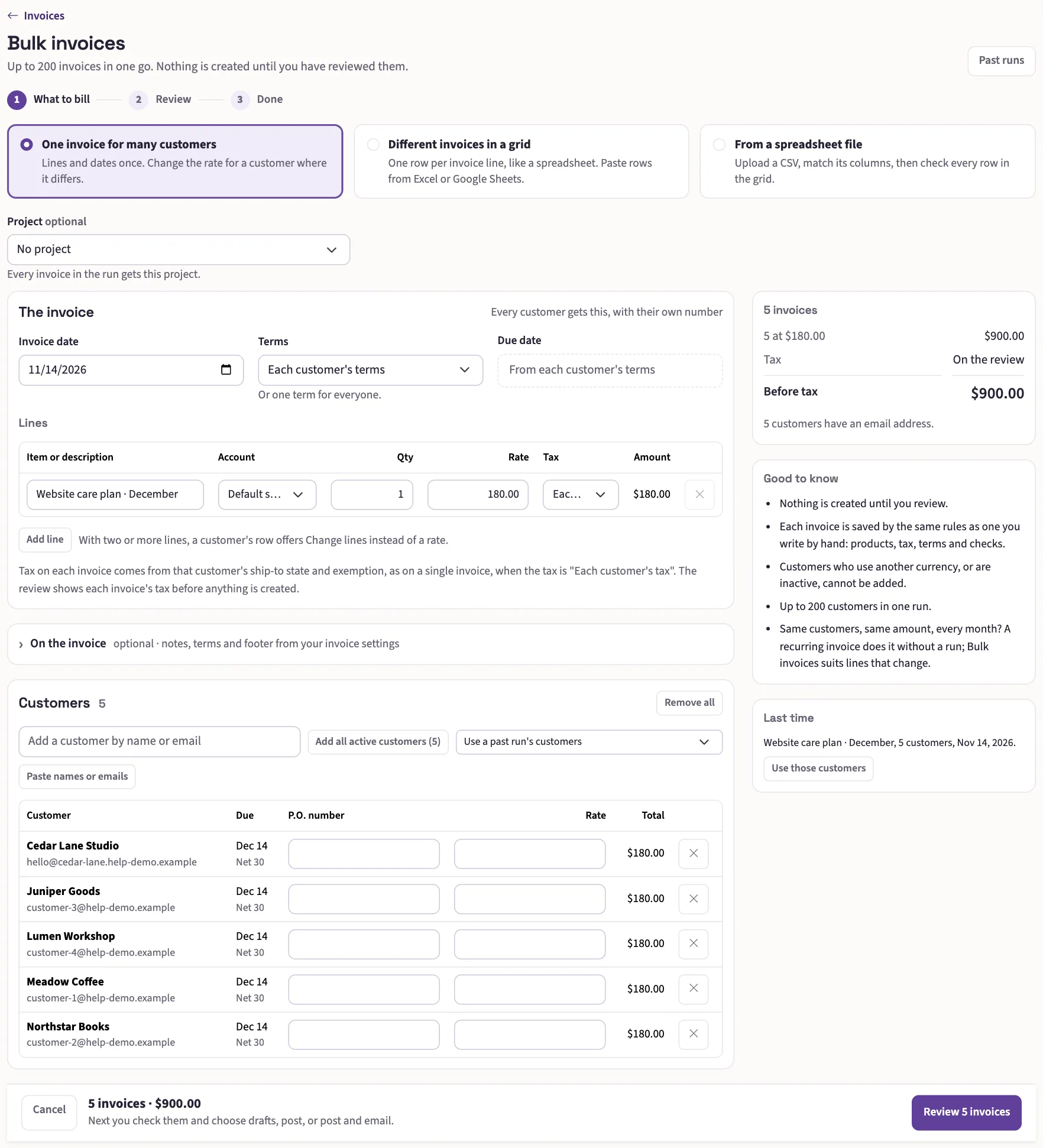
Each invoice is saved by the same rules as one you write by hand: products, terms, and the tax for that customer's ship-to state and exemption. Customers who use another currency, and inactive customers, can't be added; the page says how many were left out. A run holds up to 200 invoices. Your work stays in this browser until the run is made.
With Create customers, select New customer beside the search to add and select a customer without leaving your work. Enter their name and any contact details, then select Save and use on this invoice. The customer joins the selected list immediately. If You may already have this customer appears, use the matching customer to avoid saving a second one. Without Create customers, ask someone who can add customers.
Different invoices, or a file
Choose Different invoices in a grid to enter one row per invoice line. Rows pasted from a spreadsheet with Paste from a spreadsheet take the columns Customer, Description, Qty and Rate; a row with no customer becomes a line of the invoice above it. A name that isn't one of your customers is flagged with the closest match.
Each invoice's Customer cell offers New customer to people with Create customers. Saving a customer or choosing an existing match fills that invoice only. Inactive customers and customers in another currency cannot be used. A blank due date still takes the chosen customer's terms.
Choose From a spreadsheet file to upload a CSV of up to 5 MB and 1,000 rows. Match each column, then select Put the rows in the grid. Nothing is created from the file, and the file isn't kept. Download a sample CSV shows the layout.
In Nonprofit, each line takes fund and program coding, and Coding for all lines codes them together. Grant coding stays on the grant page.
Check the review
The review lists every invoice before anything is created:
| Group | What happens |
|---|---|
| Check these | A possible duplicate (same customer, lines and total within 14 days) is left out unless you check This is not a duplicate. Customers with an overdue balance are still invoiced. |
| Will be created, not emailed | The customer has no email address. |
| Ready | Each customer has an Email box, checked. |
| Cannot be created | A closed period, an inactive customer, another currency or a zero total, with the reason. |
Choose Save as drafts, Post or Post and email. Posting adds the invoices to Accounts receivable. People without Send invoices can save drafts only. Select Change for this run to change the email's subject and message. For weekly billing, check Don't check for duplicates on this run.
If a customer, rate or duplicate changes after you open the review, nothing is created and you are asked to review again. Selecting the button twice opens the run already started.
Follow the run
Runs are numbered and listed under Past runs. The run page shows each invoice, whether it posted, and its email: waiting to send, sent, failed or outcome unknown. One invoice that fails doesn't stop the others.
- Email again resends a failed email. An email whose outcome is unknown isn't resent; check with the customer first.
- Stop the run keeps what was made. Create the remaining checks the rest again before making them.
- Void this run voids its posted invoices, leaving any with a payment or credit. No customer is emailed.
- A drafts run offers Post and email these invoices, or Delete these drafts while all are still drafts.
Next, send an invoice or check invoice statuses.