
Import a statement file
Upload comma-separated bank data, map columns, and review the import results.
- Who can do this
- Owners, or people with Create bank accounts/transactions and View reconciliations
- Where
- Banking, then Bank feed
- You'll need
- An active bank account and a CSV or TXT file up to 10 MB
On this page
Import bank transactions from a comma-separated CSV or TXT file up to 10 MB (10,240 KB). The importer needs one date column and one signed amount column. It does not combine separate debit and credit columns.
Import the transactions
- Open Banking, then Bank feed, and select Import CSV.
- Choose Select Bank Account.
- Select Browse Files and choose the file.
- Select Continue.
- Check Preview Data.
- Map Date and Amount to the correct columns.
- Map optional Description, Payee / Merchant, and Reference / Check #.
- Choose Date Format.
- Review Amount Handling and First row is header (skip during import).
- Select Import Transactions.
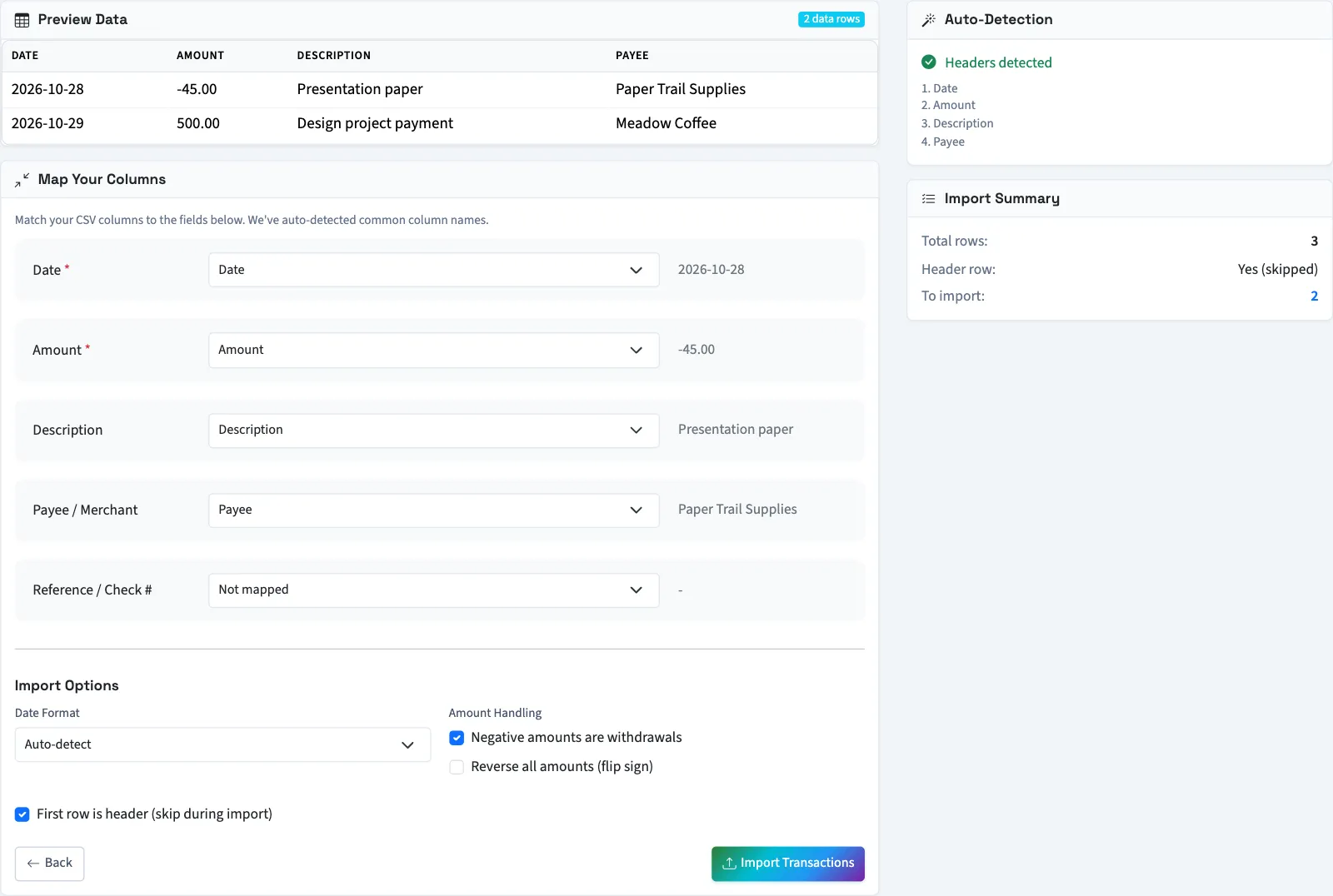
Choose the explicit Date Format that matches the file, especially for ambiguous day-first dates. Auto-detect uses one order for the file: day first if a row can only be day first and none can only be month first, otherwise month first. Impossible dates are refused and skipped under every format. A two-digit year under a four-digit format is refused; Auto-detect accepts two-digit years.
Write a negative amount with a minus sign before or after the number, or in parentheses: -45.00, 45.00- or (45.00). A note in parentheses beside an amount, such as 45.00 (CR), doesn't make it negative. By default, negative amounts become withdrawals and positive amounts become deposits. Reverse all amounts (flip sign) reverses that interpretation. Clearing Negative amounts are withdrawals makes all imported amounts deposits.
See the bank statement file layout for the columns it needs.
What happens next
Review Imported, Duplicates, Skipped, Errors, and any Import Issues:. The importer skips missing dates or amounts, zero or invalid amounts, dates it cannot parse, and exact duplicate import data for the same account. Duplicate detection depends on the mapped data; changing the mapping can change what is considered a duplicate. Rows imported before the date correction keep their dates. Re-importing a misdated file adds new rows beside the old ones because the date is part of the duplicate check. Delete the wrong bank rows using the bank record controls, which can refuse deletion of linked or reconciled records.
Select Review Imported Transactions, then categorize and add the records. Uploading updates the banking balance and creates pending-review bank records; it does not itself post their journals.
Good to know
You need Create bank accounts/transactions and an active bank account to select. Opening the bank feed also needs View reconciliations. Owners have both.
Prepare the file
Use one transaction per row and check that every date is a real calendar date. The upload preview requires at least two nonblank rows. Headers are optional during import, but help you map columns. A minimal example is:
Date,Amount,Description
11/01/2026,-45.00,Office supplies
11/02/2026,500.00,Customer payment