
Reconcile an account
Start a statement reconciliation, select cleared transactions and finish when the difference is zero.
- Who can do this
- Owners, or people with View reconciliations and Create bank accounts/transactions and Perform reconciliation
- Where
- Banking, then Reconciliation
- You'll need
- An active account and the statement’s ending date and balance
On this page
Use your bank or credit card statement to confirm which transactions cleared by its ending date.
Start the statement
- Open Banking.
- Select Reconciliation.
- Select Start Reconciliation.
- Choose the Bank Account.
- Enter the Statement Ending Date shown on the statement.
- Enter the Statement Ending Balance shown on the statement.
- Select Start Reconciliation.
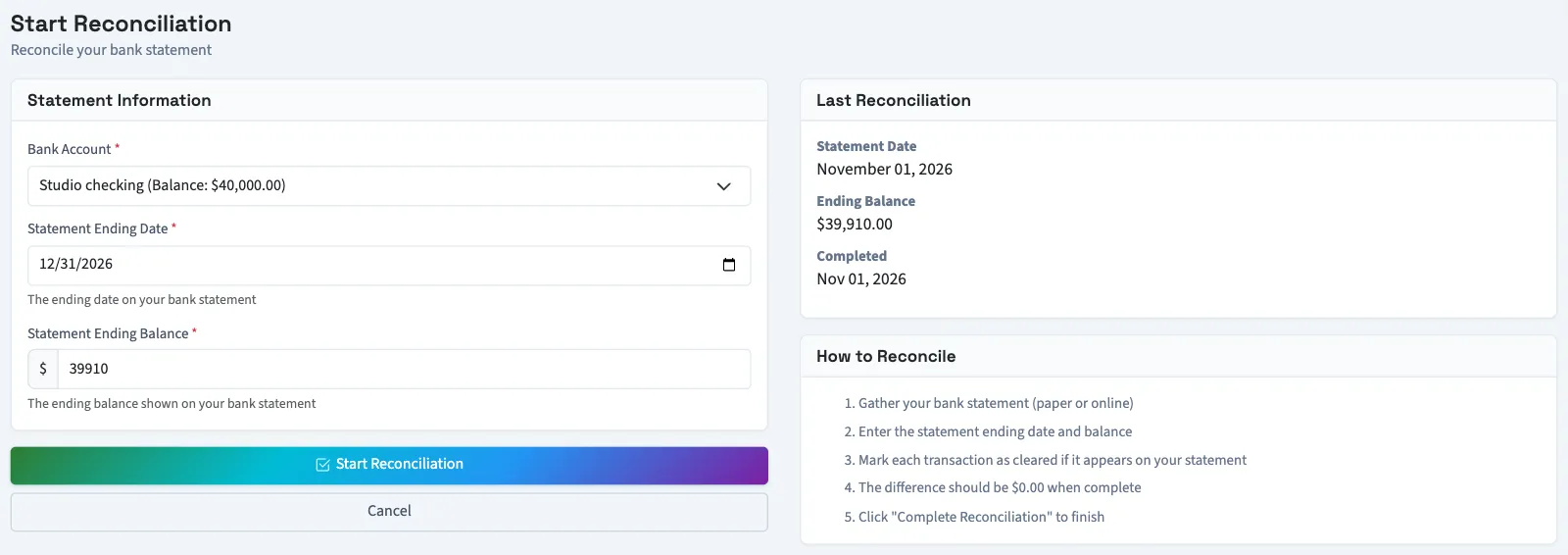
You land on the clearing screen. If the account already has a reconciliation in progress, QixCount opens that reconciliation instead of creating another.
Select cleared transactions
- Find a transaction that appears on your statement.
- Select its checkbox.
- Repeat for each transaction on the statement.
- Check the Difference in Reconciliation Summary.
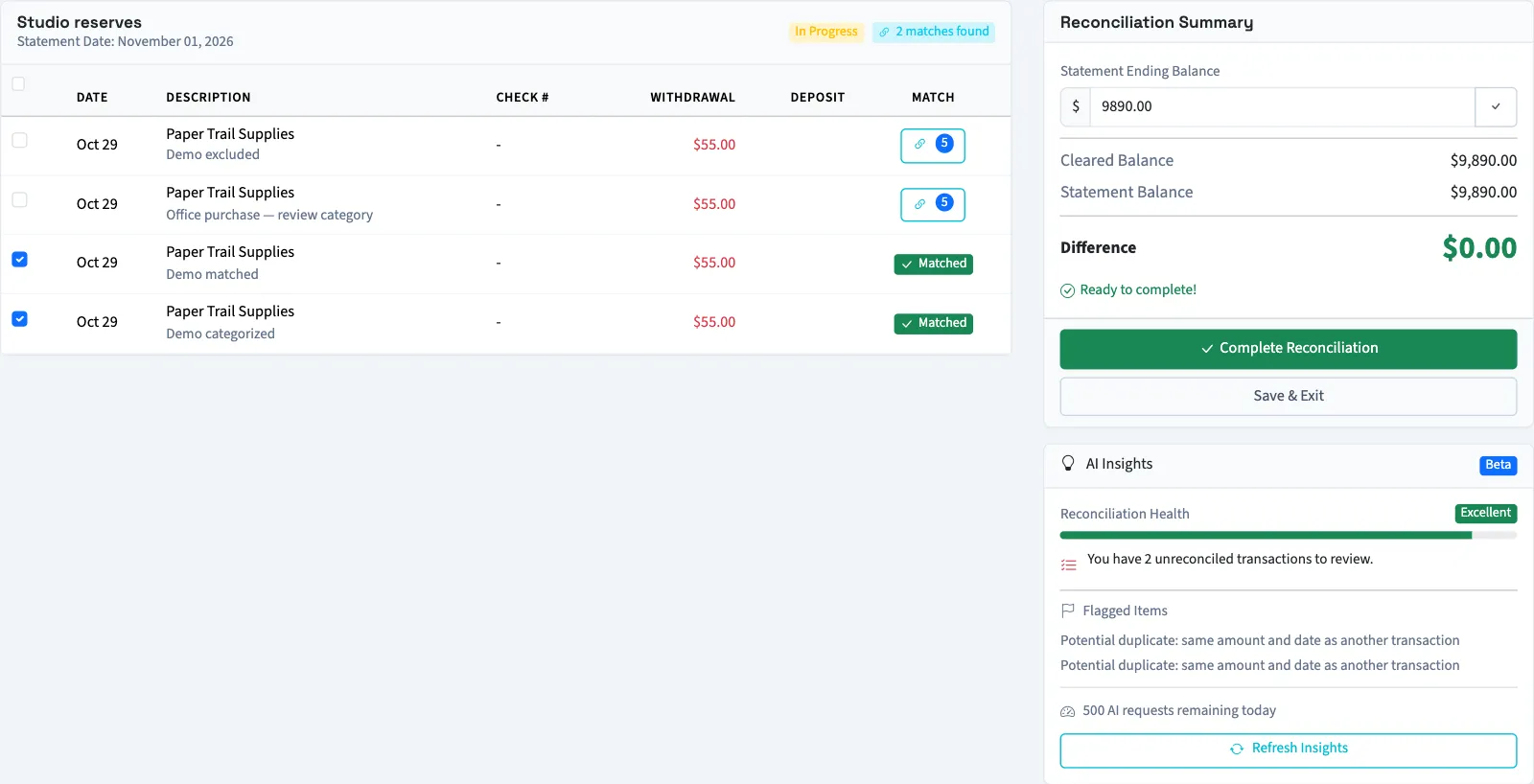
After each selection, wait for Cleared Balance and Difference to update. Selected transactions stay in the list when you reopen it, so you can clear their checkboxes to remove them from the calculation.
The list contains pending or cleared transactions for this account, through the statement ending date and after the latest completed statement date, if one exists. Transactions attached to another reconciliation are excluded. Already reconciled and void transactions do not appear.
Matching a transaction to an invoice, bill or payment is a separate action from selecting its cleared checkbox. See Match a transaction.
If a transfer or adjustment row has no displayed amount, contact support before completing. Adjustments do not contribute to the cleared balance calculation.
Read Qix's suggestions
AI Insights loads tips, Reconciliation Health and Flagged Items. Select Refresh Insights to request them again. In Suggested Matches, select Why this match? to see matching factors, cautions, confidence and a recommendation. The outstanding-transaction count and advice use items you have not cleared in this reconciliation. These suggestions do not select cleared checkboxes or accept matches for you.
Results may be reused. Default limits shared by the business are 10 requests per minute, 100 per hour and 500 per day. The displayed daily requests remaining do not account for shorter limits. If new suggestions are unavailable, Qix may show standard tips or a score-based match explanation.
Finish or return later
- Check that Difference is $0.00. A difference of $0.01 in either direction keeps Complete Reconciliation disabled on this screen.
- Select Complete Reconciliation.
To pause, select Save & Exit. Return through the list's three-dot menu and Continue.
What happens next
Completion marks the selected bank transactions reconciled and opens the reconciliation details. It records who completed it and when. It does not create an adjusting journal entry.
The reconciliation becomes approved unless a separate review is required. It may also lock automatically. Continue with Approve a reconciliation.
Troubleshooting
If the difference is not zero, find a difference. If Complete Reconciliation is blocked by a passed deadline, contact support. Opening the clearing screen for a completed reconciliation returns you to its details with “This reconciliation has already been completed.” A locked reconciliation also returns to its details with a message; an owner must unlock or reopen it when available.
Who can do this and what you need
Have the statement's ending date and balance available. The account must be active to appear in the account selector.
Owners can perform these steps. Other users need View reconciliations to open the list, Create bank accounts/transactions to start, and Perform reconciliation to select transactions and complete the statement.