
Find a reconciliation difference
Check the statement balance and cleared transactions, understand deadlines and record an allowed variance.
- Who can do this
- Owners, or people with View reconciliations and Perform reconciliation
- Where
- Banking, then Reconciliation
- You'll need
- An unfinished, unlocked reconciliation
On this page
Check the balance and selections
- Open Banking.
- Select Reconciliation.
- Open the unfinished statement's three-dot menu.
- Select Continue.
- Compare Statement Ending Balance with the statement.
- Enter the correct amount if needed.
- Select the checkmark button beside the balance to save it.
- Compare each displayed transaction's date, amount and check number with the statement.
- Select checkboxes for items on the statement, or clear checkboxes for items that are not on it.
The starting point for Cleared Balance is the latest completed reconciliation's statement balance, or the account's opening balance when there is no completed reconciliation. Selected deposits and interest add to it; withdrawals and fees subtract from it; transfers contribute their signed amount.
Adjustment rows do not contribute to this calculation. Transfer and adjustment amounts may be blank in the table. Contact support before completing if your statement includes one of these rows and you cannot verify its effect.
Missing rows may be outside the displayed period, already reconciled, void, or linked to another reconciliation. Items dated on or before the latest completed statement do not carry into this screen. Use reconciliation reports to inspect outstanding items beyond the current period, and contact support if you cannot include an item you need.
Check a deadline block
Deadline is calculated from the end of the statement's month. The default is 10 days after month end. When enforcement is enabled, an overdue reconciliation cannot be completed even with a zero difference or an acknowledged variance. The summary displays the block. Contact support if a deadline needs attention.
Complete with a variance when available
A variance is a remaining difference. If the business allows an override, the summary displays an acknowledgement form.
WarningCompleting with a variance preserves the difference and marks your selected transactions reconciled. It does not correct the difference or post an adjusting entry.
- Enter the reason in the variance explanation box using 10 to 1,000 characters.
- Select Acknowledge Variance.
- Check the recorded reason and difference.
- Select Complete with Variance.
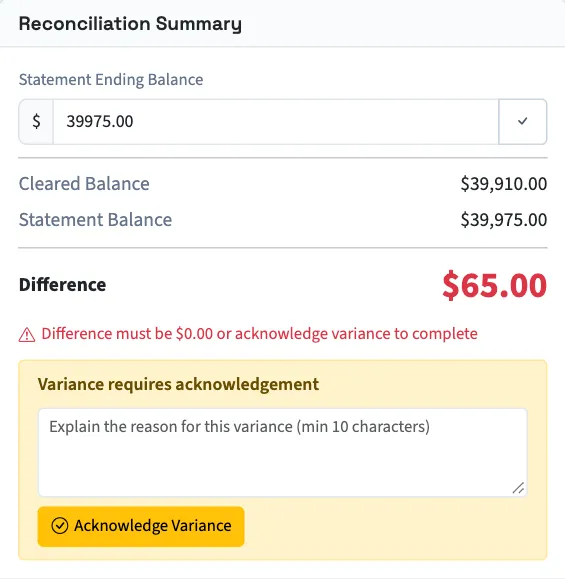
If the form is absent, the override is unavailable or there is no remaining difference. Acknowledgement does not override an enforced deadline.
Changing selections or the statement balance does not clear an existing acknowledgement. Check that its explanation still describes the remaining difference before completing. If the explanation needs changing, contact support; the form is replaced by the recorded acknowledgement.
Ask Qix about the difference
In Variance Analysis, select Get AI Analysis for possible causes and suggested actions. This does not change your selections or post a correction. When a new analysis is unavailable, Qix may return standard checks. No analysis is available at a zero difference.
What happens next
Completion opens the details with the difference, acknowledgement and explanation. Continue with Approve a reconciliation.
Good to know
Difference is the statement ending balance minus Cleared Balance. A positive amount means the statement balance is higher; a negative amount means it is lower.
To make changes, you must be an owner or have Perform reconciliation, and the reconciliation must be unfinished and unlocked.