
Understand roles and permissions
See how access types, roles, and individual permission overrides work together.
- Who can do this
- Business owners
- Where
- Settings, then People & access, then Roles
On this page
Access belongs to each business. Owners can open Settings, People & access, Roles to inspect roles and individual permissions.
Grant additional permissions
- Find the person under User Permissions.
- Select Edit.
- Select the additional permissions in Permission Overrides.
- Select Save Overrides.
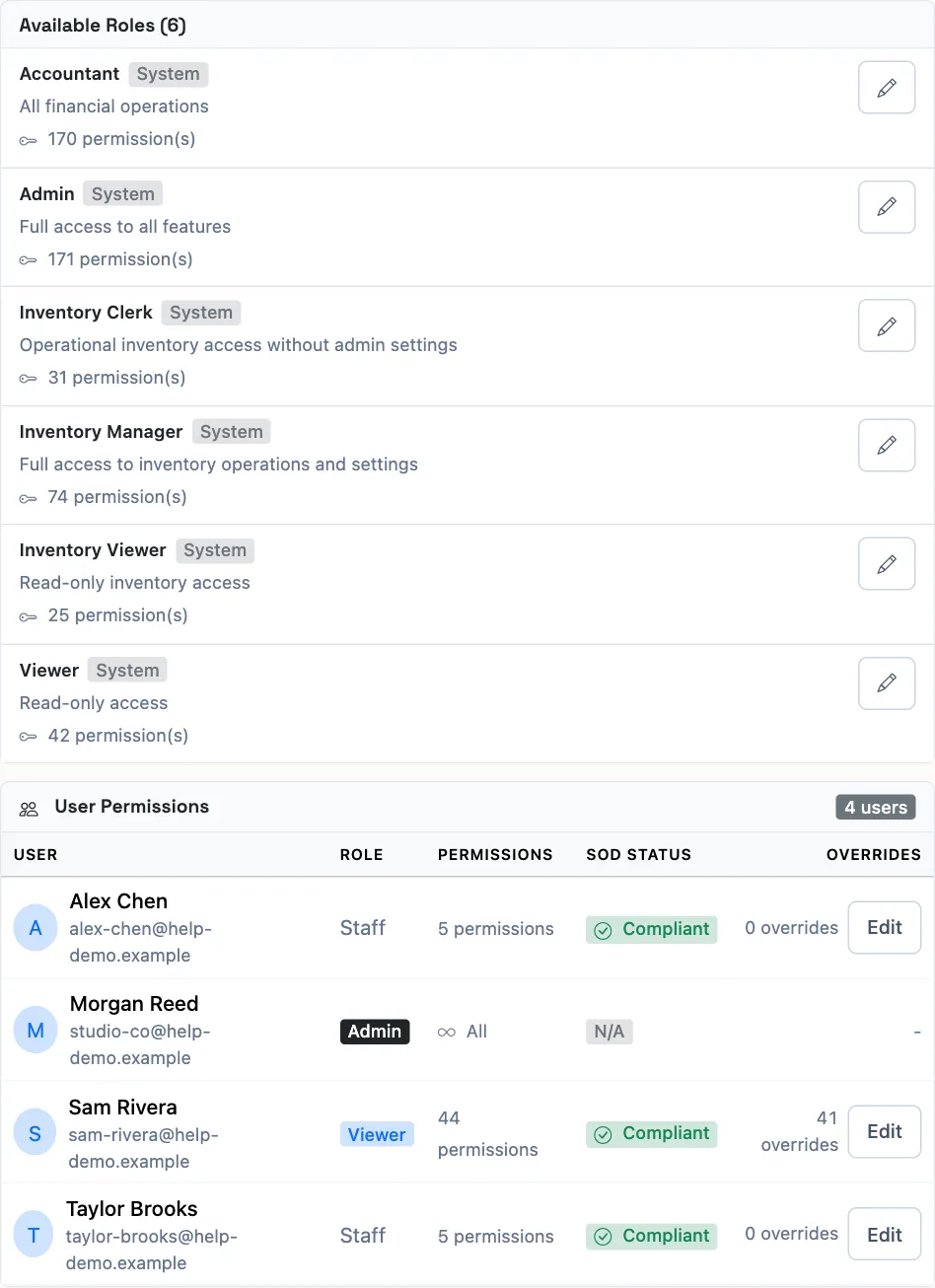
Inherited role permissions are selected and locked. An override adds access; it cannot remove a permission inherited from the role. To reduce inherited access, assign a different role or change a custom role, then review the person's overrides. Previously granted permissions can remain selected as unlocked overrides; clear the ones you intend to remove and save again. Owner permissions cannot be changed here.
QixCount checks the combined permission set against active separation of duties rules when saving individual overrides. An error blocks the save unless a valid exception applies. See Review separation of duties.
Good to know
Giving a staff member Manage business settings, roles & permissions permission does not make them an owner or open owner-only settings pages.
How access works
| Access | What determines it |
|---|---|
| Owner | Full business permissions; owner-only routes still require ownership. |
| Internal teammate | Their assigned role plus additional individual permission overrides. |
| Free viewer | A fixed viewing preset, independent of role choices and overrides. |
| Firm accountant | The accountant preset while an approved connection and active named assignment remain valid. |
A role marked System cannot be edited or deleted. A role marked Custom belongs to the business and can be changed. Assigning the Admin role to an internal person grants owner access. Review that choice before inviting someone.