
Change or reset your password
Replace your password while signed in or request a reset link when you cannot sign in.
- Who can do this
- People managing their own QixCount account
- Where
- Security settings
- You'll need
- Your current password to change it; access to the account email to use a password-reset link
On this page
Use your account security page when you know your current password. Use an email reset link when you cannot sign in.
Change it while signed in
- Open the account menu at the bottom of the sidebar and select Security settings.
- Find Change Password.
- Enter Current Password.
- Enter New Password.
- Enter the same value in Confirm New Password.
- Select Update Password.
The new password must contain at least eight characters. QixCount checks it against your last five recorded passwords and rejects a match. A successful change is recorded in your login history.
Reset it from sign-in
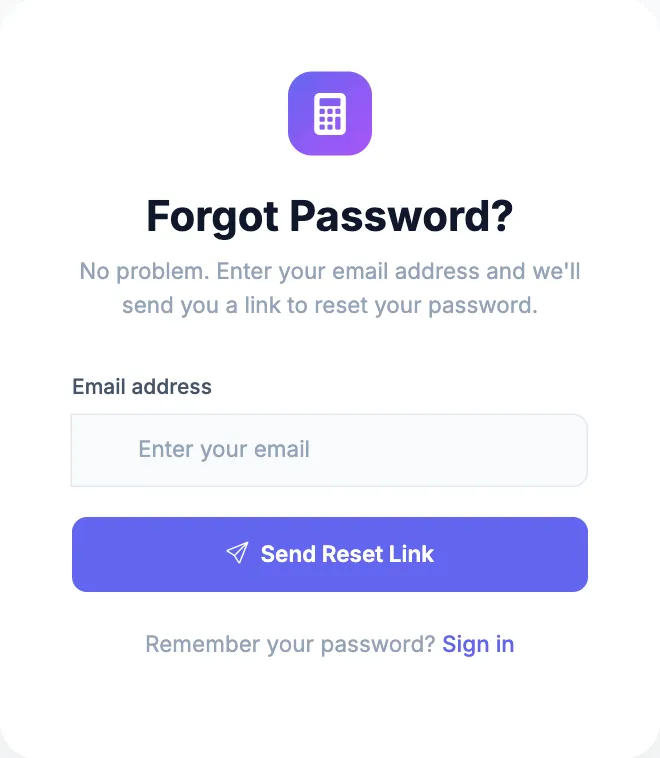
- On the sign-in page, select Forgot password?.
- Enter your Email address.
- Select Send Reset Link.
- Open the password reset link sent to that address.
- Enter New Password.
- Enter the same value in Confirm Password.
- Select Reset Password.
What happens next
After a successful reset, you return to sign-in. Use the new password. If two-step verification is enabled, you still need an authenticator code or an unused recovery code; a password reset does not disable it.
If QixCount rejects the link, request a fresh reset link. If it rejects a recently used password, choose another password. To review recorded sign-in activity, open login history.
Good to know
Your password belongs to your QixCount account, so changing it applies when you sign in to any of your businesses.