
Review sessions and login history
Find your account’s recorded sign-ins and understand the available session controls.
- Who can do this
- People managing their own QixCount account
- Where
- Security settings
- You'll need
- Your current password to sign out all other sessions
On this page
Your account security page covers your own account across businesses. A business owner uses the separate activity log to review recorded team events.
Read login history
- Open the account menu at the bottom of the sidebar and select Security settings.
- Find Recent Activity.
- Select View All.
You can also open /profile/security/login-history directly on your QixCount site after signing in.
Login History lists events newest first, with 20 entries per page. It shows the event, device type, IP address, and date and time. Events can include sign-in, sign-out, failed attempts, failed two-factor verification, account locking, and password changes.
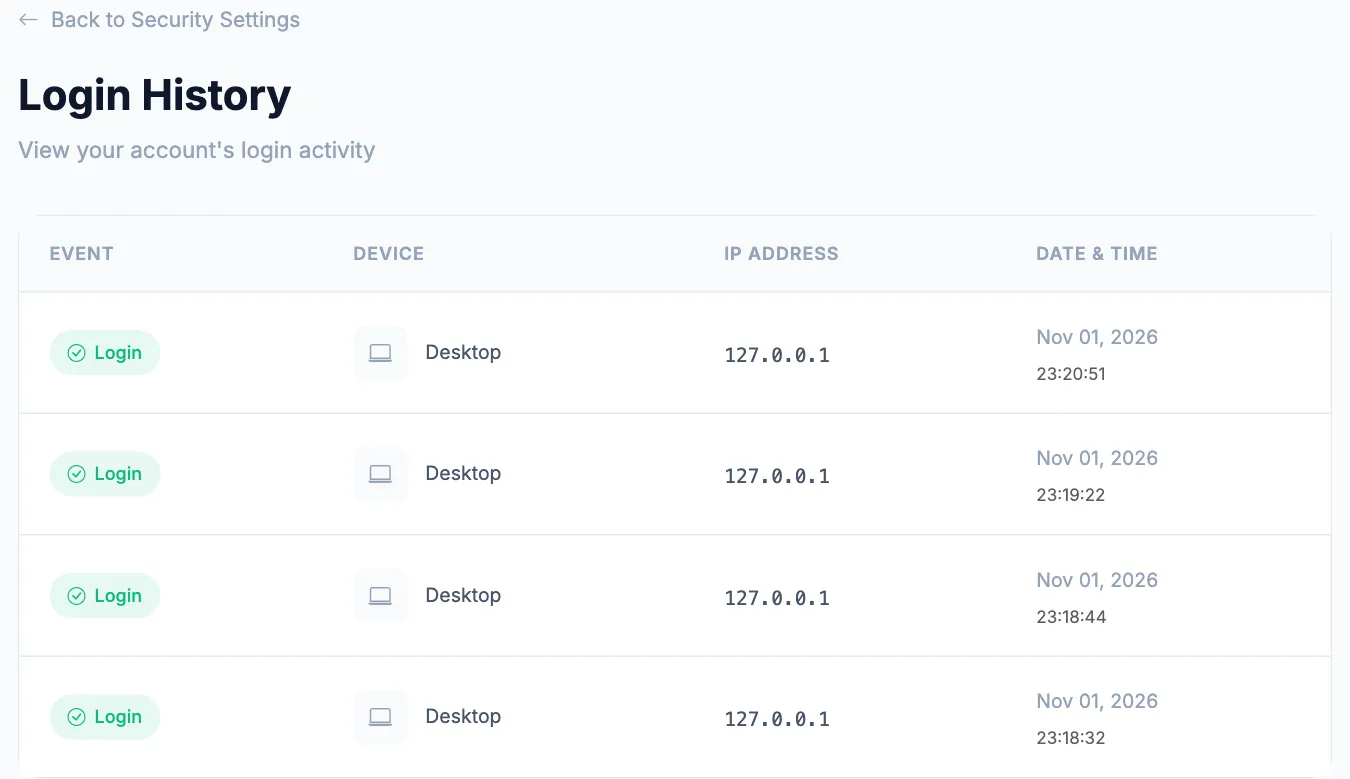
A Suspicious badge is a signal to review the event. The check can flag a new IP address compared with successful sign-ins in the last 30 days, or at least three failed attempts in 15 minutes. It is not proof that someone else accessed your account.
Review session entries
In Active Sessions, select View All when it is available. The page identifies This device and lists other recorded sessions. Some installations show Session Management Unavailable and offer View Login History Instead.
To end one other device’s sign-in, select Terminate beside that session. It ends straight away, with no confirmation step. You cannot terminate This device from this list; use Log out in the sidebar account menu instead.
To end all other recorded sessions, select Log out other sessions, enter Password in the dialog and select Log Out Other Sessions. Your current device stays signed in. The ended devices must sign in again, including devices that used the remember-me option.
Next, change your password if you need to replace it.